A complaint belongs to an address. It records a date, what went wrong, who complained, photos, and which business was responsible for the address at the time. Everyone involved (you, the customer, that subcontractor) can comment on it; only you, the owner of the address, can change it.
Where complaints are
Locations → Complaints lists every complaint on your addresses, and the ones you were held responsible for as somebody else's subcontractor. The toolbar has a search box that matches the address, the location name, the business on the other side and the name of the person who complained, and these dropdowns:
- the status: All, Open, Resolved or Archived, with a count on each;
- the assessment: All assessments, Justified, Not justified or Not assessed;
- the outcome: All outcomes, one entry per outcome, Not specified, and Charged back for the complaints that put a charge on a supplier;
- the contractor that did the work (All contractors clears it), when you work with subcontractors: your own business first, then each subcontractor;
- the customer (All customers): type to search your customers;
- the address (All addresses): type to search your addresses;
- the business (All businesses clears it), when the list holds more than one and the contractor filter is not shown.
Contractor, customer and address fetch the list again, so they find every matching complaint, not just the ones already on screen, and they combine with the other filters and the search. The customer is the address's customer as it stands now. Changing any of them goes back to the first page.
The columns are Status, the contractor, Location (the address, with the location's name under it when it has one), Raised by and Date. Beside the status a row can carry a chip with the code of the dispatch sent for it, the deadline countdown, the assessment once there is one, and Charged back. Click a row to open the complaint. Pages are at the bottom.
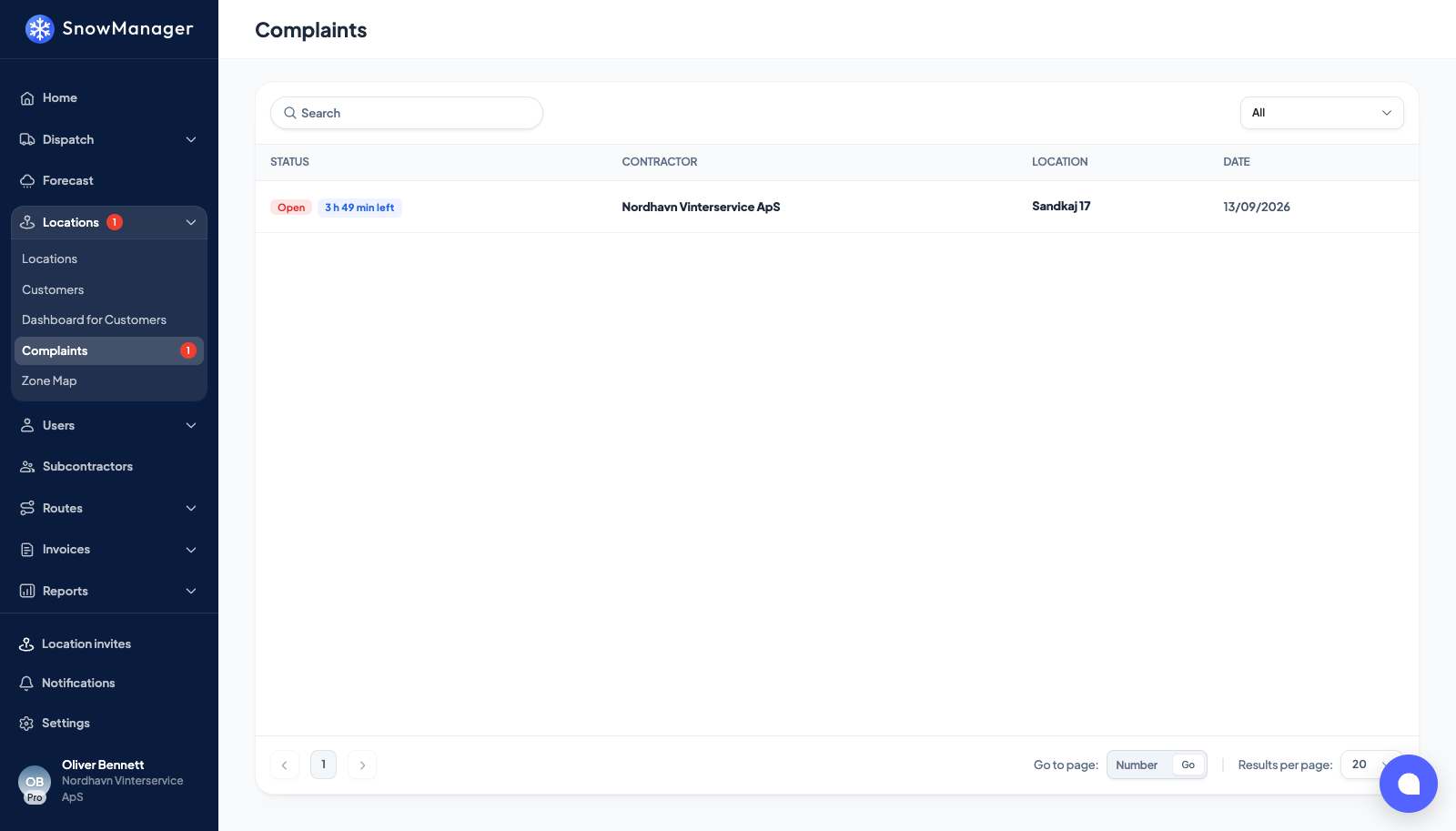
The number of complaints still open is shown in the sidebar too, as a badge on the Locations group and on its Complaints entry, in the same orange pill as the notification bell; it disappears at zero and counts what the Open filter lists.
The same list sits on the Complaints tab of each address, on a subcontractor's page (the complaints raised while they held your addresses) and, for the customer, in the portal.
Raise one
From the overview, press New complaint in the title bar. The first field, Address, asks which of your addresses it is about (Search for an address); the button is only there when your business owns at least one address, because a complaint can only be raised on an address you own. From an address, open its Complaints tab and press New complaint: the address is already chosen.
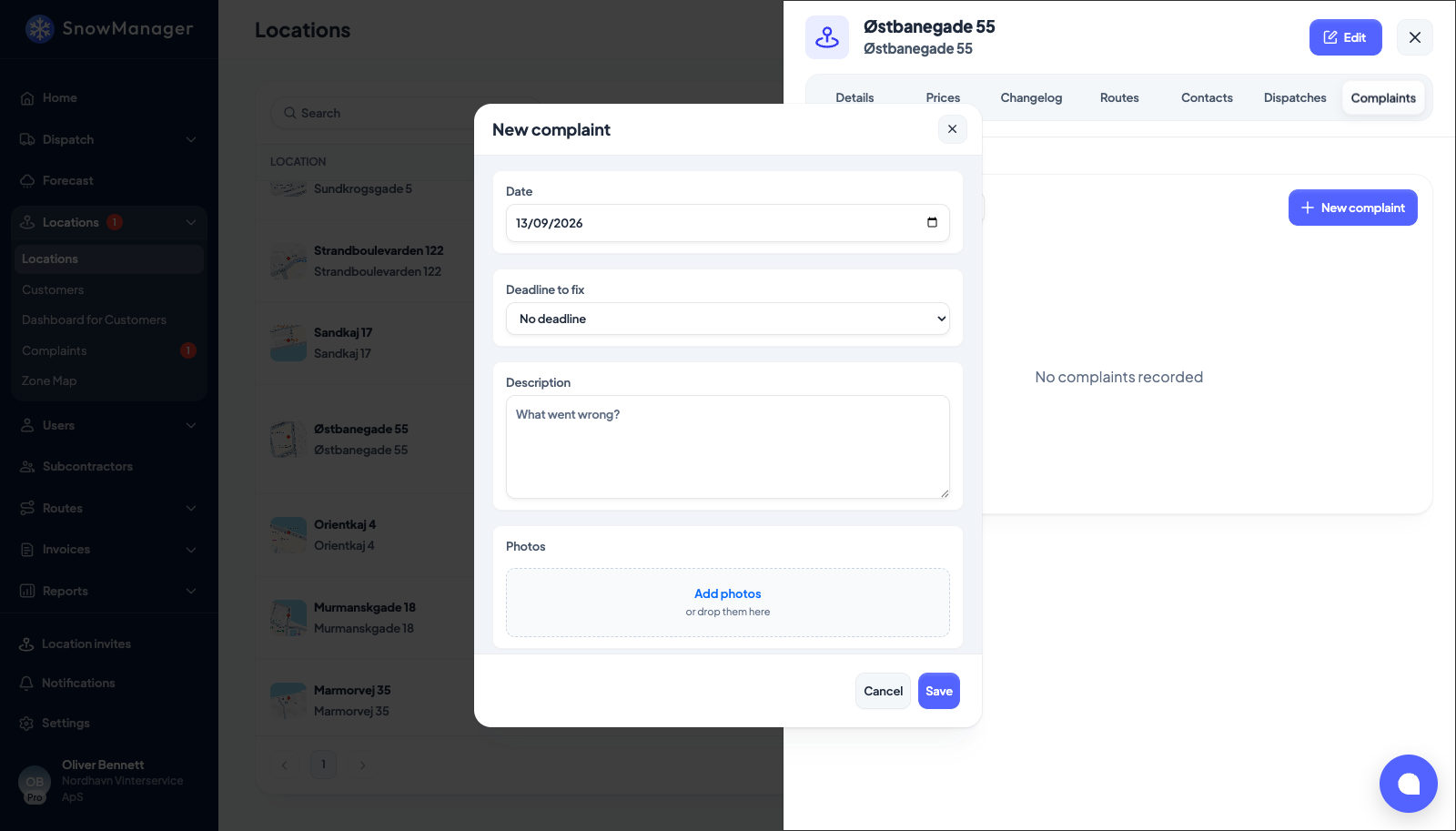
- Date: the day it happened, today by default.
- Deadline for the supplier and Deadline to the customer: both optional, each No deadline or Within 1 hour up to Within 48 hours. The first is what you give the business responsible for the address; the second is what you promise the customer. See How a complaint is assessed, timed and settled.
- Raised by: who complained, if it was not you. Pick from the address's contacts copies a contact's name, phone and e-mail into the fields; you can also type them in. They are a copy, so a later change to the contact does not rewrite the complaint.
- Description (What went wrong?), required.
- Assessment: Justified or Not justified, if you already know. Leave it unset and it stays Not assessed; clicking the chosen answer again takes it back.
- Photos: PNG or JPG, up to ten. They can be added once an address is chosen.
Press Save. The list shows the new complaint straight away.
Customers raise complaints from the portal, on the address's Complaints tab, with a date, a description, photos and who complained (left blank, it is filled from their own profile). They cannot set deadlines or an assessment. A subcontractor cannot raise a complaint.
The other side is told: a bell notification A complaint was raised on Østbanegade 55 goes to the responsible subcontractor when you raise it, and to you when the customer does. On top of the bell, the colleagues each business has picked under Settings → Notifications get an e-mail, New complaint about Østbanegade 55; see Get an e-mail when a complaint is created.
Read it
The complaint opens in a panel on the right. The header names the location and the date. Under it are the status, Registered by (the user who typed it in, with their role) and a pill per deadline: 2 h left, 1 h over, Fixed 30 min before the deadline, and so on. The facts below hold the Contractor, the Date, Raised by with the phone and e-mail as links, the Assessment, both deadlines as dates, Put right once the work landed, the Dispatches sent for it, and, once resolved, Resolved, Resolution note, Outcome, Redone by and Charged to the supplier.
What a subcontractor and a customer see of this is less; the rule article spells it out.
Comments
Under Comments, write in the box and press Comment. Each comment carries the writer's role (Owner, Customer or Subcontractor) and name, and raises a bell notification for the other businesses. The customer sees the thread but never learns that work was subcontracted: a subcontractor's comment is shown to them as yours.
Assess, edit, archive
- Assessment in the facts: as the owner, press Justified, Not justified or Not assessed; it is saved at once. The subcontractor reads the answer; the customer never sees it.
- Edit changes the date, both deadlines (Keep the current deadline is the default, so editing the text never restarts a clock), who complained, the description and, from the address tab, the Subcontractor the complaint is pinned to.
- Archive takes it out of the Open and Resolved lists; Restore brings it back. Nothing is ever deleted.
Send a dispatch to fix it
On an open complaint in the overview, press Create dispatch. The address dispatch form opens with the address selected and the complaint ticked under Link complaint.
Carried out by asks who redoes the work: your own business, or one of your subcontractors (invited ones are marked Invited). It starts on the business held responsible. The choice decides who the stop goes to, whether you pick drivers here (only for your own crew), and the invoicing: the responsible supplier redoing its own work is not invoiced, and anybody else is set to Subcontractor only, so the one who redid it is paid and the customer is not billed again. You can still change the invoicing before you confirm; see Who is invoiced for an address dispatch.
A dispatch linked to a complaint is always a dispatch of its own. It is never joined to, or collected into, a dispatch that is already running with the same work type, because that dispatch's invoicing would replace the choice you just made. Once it is created, the complaint's row shows its code and the new dispatch opens on the dispatch page.
The driver sees the complaint, with its photos, on the stop under Linked complaints. Completing the dispatch does not resolve the complaint: resolve it yourself once the customer is happy. The open complaint lists the dispatches sent for it under Dispatches as six-character codes with their planned dates; click one to open it. You see the dispatches you could open yourself, and the customer sees none of them.
Resolve, reopen
Press Mark resolved. A panel opens above the buttons:
- Resolution note (What was done about it? (optional)).
- Outcome: Redone by the responsible supplier, Redone by another supplier or own crew, No rework needed or Other, or Not specified. It starts on what the complaint's own dispatches say.
- Redone by, for the second and the last outcome: your own business or a subcontractor.
- Charge {0} for the rework, when the responsible business is a subcontractor: a switch with an Amount, which puts a deduction on that subcontractor's draft settlement for the month. Leave it off to resolve without charging anybody.
- Assessment, if you want to give or change it in the same step.
The button reads Resolve, or Resolve and charge with the amount. The date and your name are kept. Reopen undoes it; the assessment and any charge stay. How the charge works, and what can still be changed afterwards, is in How a complaint is assessed, timed and settled.
The charge is a line with a negative price on that subcontractor's draft settlement, badged Complaint. The subcontractor reads the same line, with the same badge, on its own Invoices → Invoice as Subcontractor page, and the complaint is named only to you and to the business you held responsible.
Resolving, reopening, archiving and restoring each raise a bell notification for the subcontractor responsible for the address, when there is one. When the complaint was raised by a customer in the portal, resolving it also e-mails that person Your complaint about Østbanegade 55 has been resolved, with your resolution note, unless they switched Email notifications off on My Account in the portal.