The customer portal lets your customer follow their own properties: what is planned, what was done, the photos, the times. Nobody sees it until you let them in, and you let them in per customer: a person gets all of that customer's addresses, never a single address.
Give access
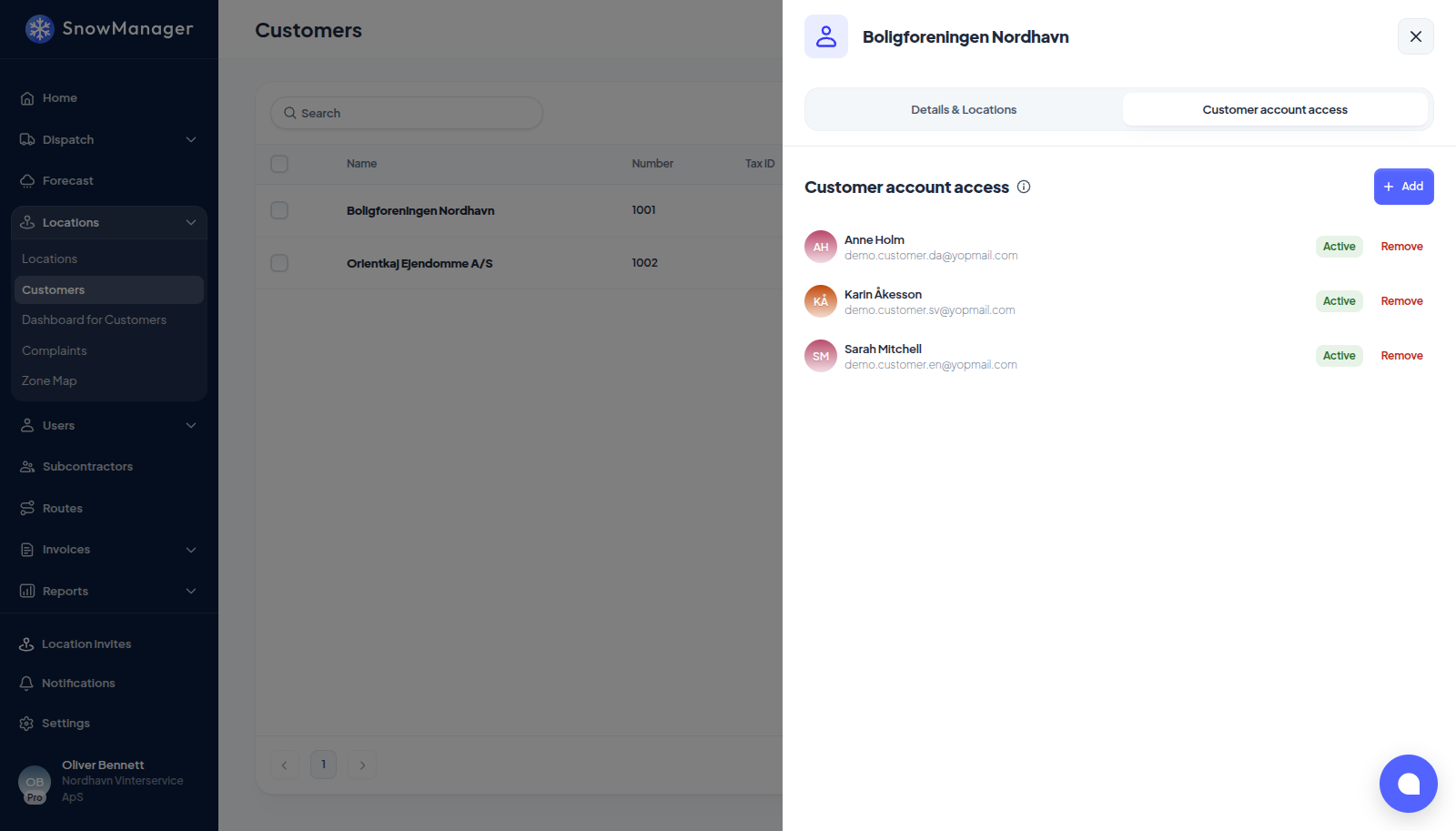
- Open Locations → Customers and click the customer.
- Go to the Customer account access tab and press Add.
- Enter the person's Email.
- If the address already belongs to a customer account, it is found and you press Continue to share this customer with it.
- If not (This email isn't registered yet. Send them an invitation.), add First name and Last name and press Invite.
- Before you press either button, look at Dashboard visibility at the bottom of the popup: Show dispatches, Show prices, Show upcoming work and Show end time, all on. Switch off what this person should not see; you can change it later from the same tab. See Choose what a customer sees on their dashboard.
The invited person receives an email, sets a password, and signs in on the ordinary sign-in form. Their account is a customer account: it lands in the portal, never in your workspace, and it cannot be given a staff role. Until they have set a password the access shows as Pending.
The same is available from Locations → Dashboard for Customers, which lists your customers with their accounts and has New customer access too.
Several people, several customers
- One customer may be shared with as many accounts as you like, the property manager and the caretaker both.
- One account may hold access to several customers, and sees them all together under one login: a housing administrator with three associations gets one dashboard with every association's addresses, visits and prices in it, with no switching. When the switches on those accesses differ, the strictest one applies to the whole dashboard.
- Granting access that already exists does nothing; removing and granting again restores it.
- An account that already belongs to a different contractor's customer cannot be adopted: the person needs an account created through your invitation.
Having an email on the customer record, or as a contact on an address, does not grant portal access. Only an explicit grant does.
Change what an account sees
Each row on the access list has a small settings button that opens Dashboard visibility for that person. The four switches are per access, so the caretaker can see the week's plan while the board member sees the record without prices. What each switch hides is in Choose what a customer sees on their dashboard.
Remove access
On the customer's access list, press Remove beside the account. This user will lose access to all locations of this customer. The customer, the addresses and the person's login all survive; only the link between that person and that customer is gone.
Seeing what they see
Dashboard for Customers → Open dashboard opens the portal as that customer, read-only, for up to thirty minutes, with Viewing as in the header and Return to admin to come back. It needs the permission to impersonate customers and is logged: who, which customer, when.