When a customer rings about something in their portal, the quickest answer is to look at it yourself. You can open the portal as that customer, read-only, without their password and without touching their account.
Open it
-
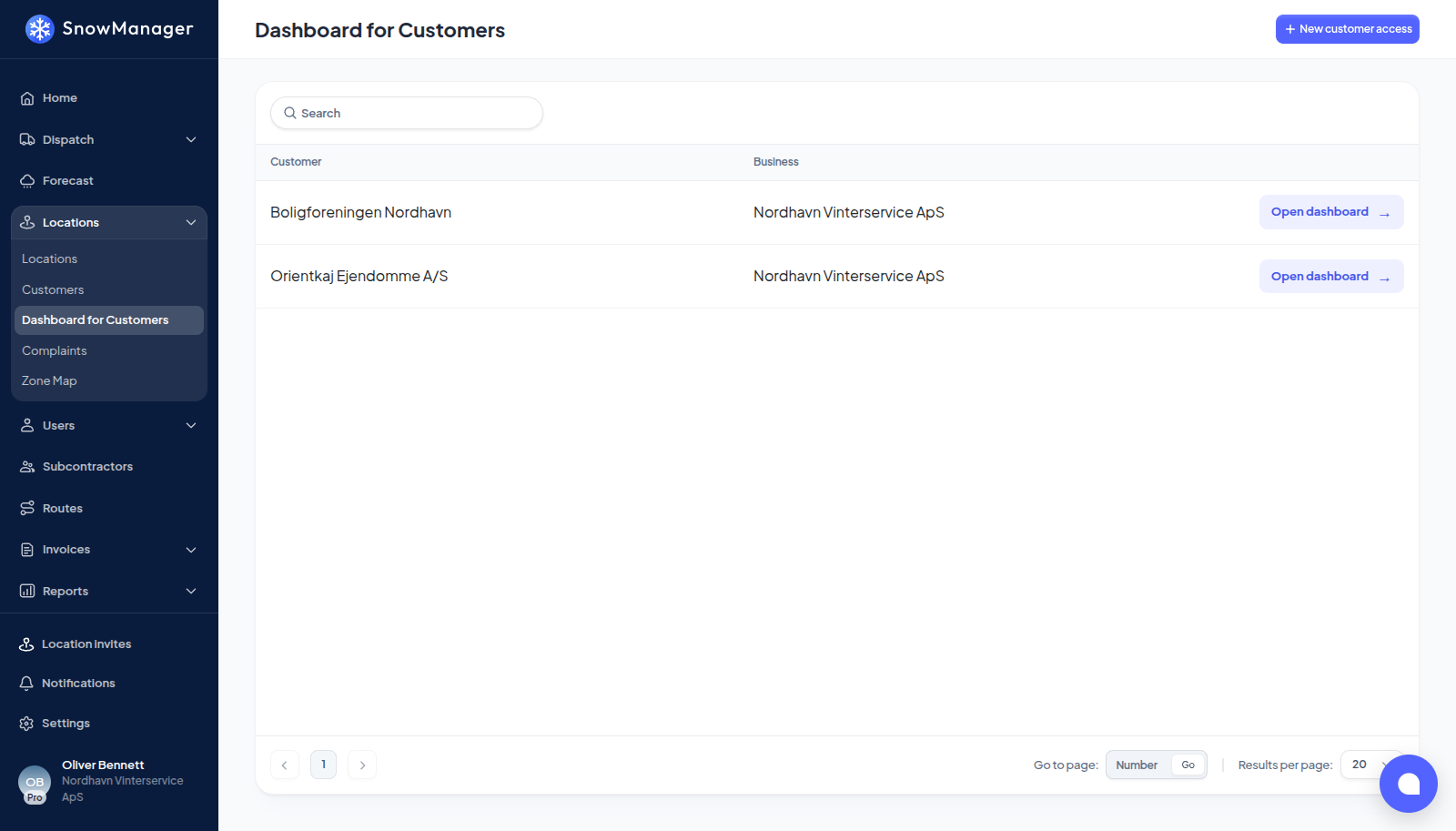
Go to Locations → Dashboard for Customers. Each row is one customer that somebody has been given portal access to (a customer nobody has access to has no dashboard to open), with Customer and Business and, under the name, the customer number and head-office address. The search filters as you type and matches the customer's name, number and address. Clicking the name opens the customer's details; New customer access is here too, see giving a customer access.
-
Press Open dashboard on the row. The app reloads into the Customer dashboard as that customer, with a banner at the top: Viewing as the customer's name, and Return to admin.
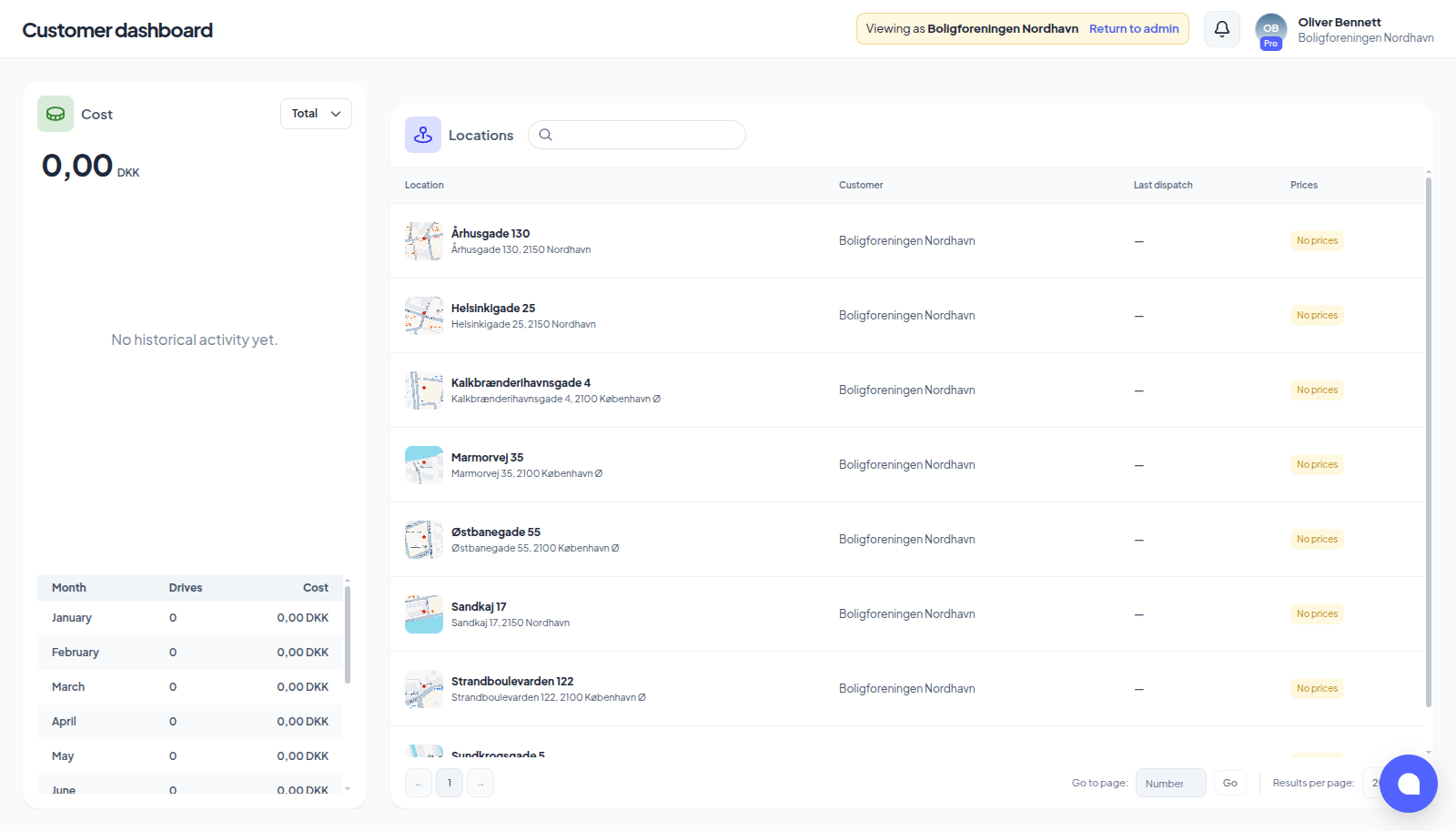
What you see is the customer's data and nothing more, see what a customer sees. One difference: you see all of it. The Dashboard visibility switches that hide dispatches, prices, upcoming work or end times belong to each customer account, and you are not one of them, so a section a particular person cannot see is still on your screen. To know what that person sees, read their switches on the customer's access tab, see Choose what a customer sees on their dashboard.
Come back
Press Return to admin and you are back on your own dashboard. The profile menu inside the portal offers the same under Admin with Switch, and lists your other customers, each with Switch: switching closes the current session and opens a new one. This one-at-a-time list is yours as an administrator; a customer contact sees all their customers collected in one dashboard instead. Log out from inside the portal closes the session before signing you out.
Thirty minutes
A session expires thirty minutes after it starts, whatever you do in it, and your sign-in token is cut to match. After that the portal answers This customer context is no longer available.; Return to admin still works, and a fresh Open dashboard starts a new session. The server closes expired sessions every five minutes on its own.
Who may
Only a staff user of the business, active and with a confirmed email, whose role holds the permission to impersonate the customer dashboard, and only while the business is on the Pro plan. A support user may in addition only open customers they have been given access to. Anyone else gets You do not have permission to impersonate this customer, or your business plan no longer allows it.
It is logged
Every session is recorded: who opened it, from which business, which customer, when it started, when it must expire, when it ended and why (returned to admin, switched customer, or expired), together with the IP address and browser it came from. There is no screen for the log in this version; it lives in the database.