Drivers close stops; you close the dispatch. Nothing is invoiced until you do, and nothing is invoiced automatically just because the last driver pressed "done".
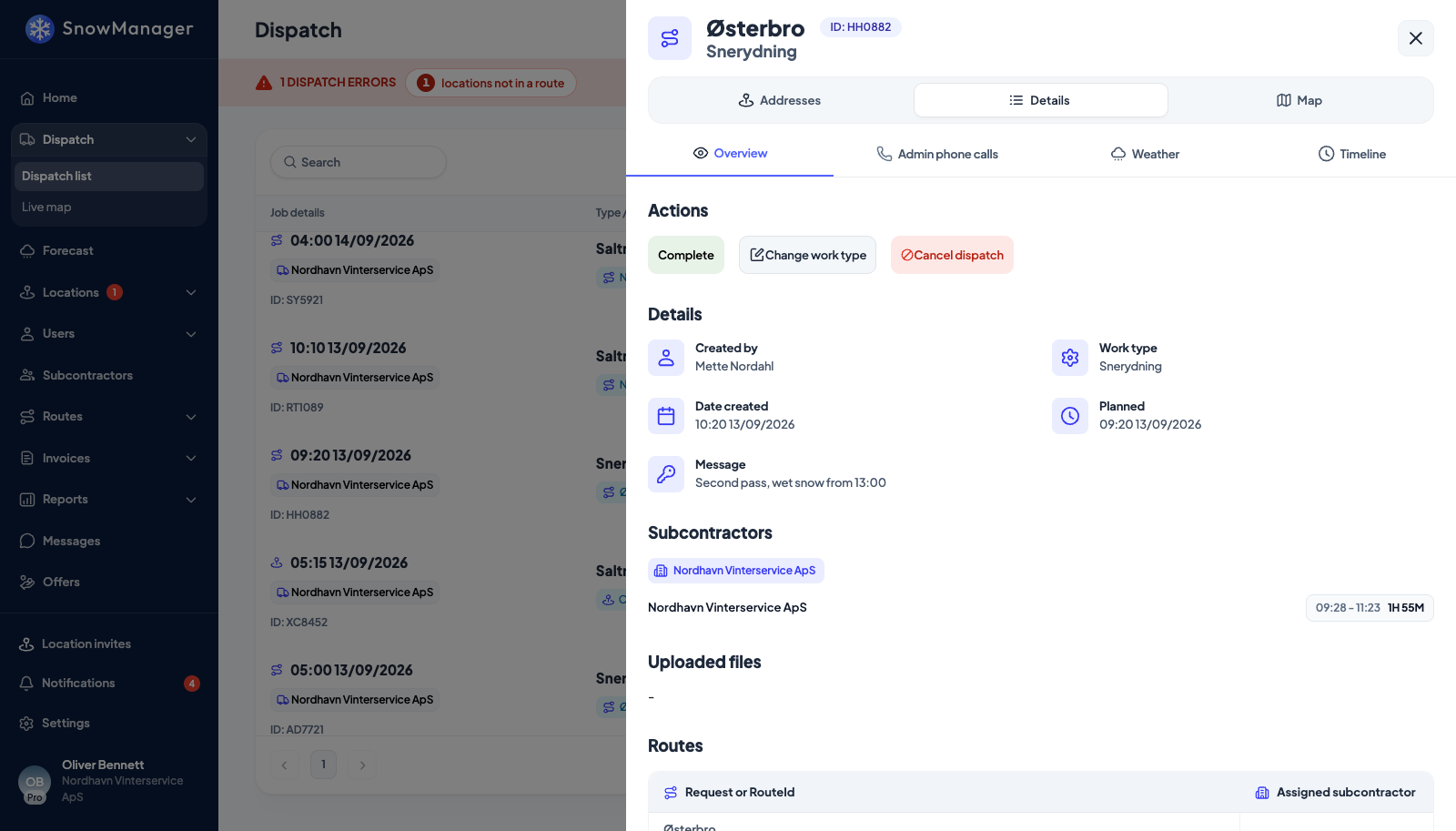
When it can be completed
Every stop in your part of the dispatch must be finished (Completed, Unable, Removed or Cancelled), and at least one must be Completed. A completed stop needs a check-out time; an hourly-priced one also a check-in. An address that requires a photo holds the driver to it, but an office user may complete the stop from the web without one, and the timeline says so. Stops that are still Not started or In progress hold the dispatch open; close them from the stop panel (see Complete, mark unable, remove or restore a stop) or remove them. An address two routes cover stays In progress until each of its passes has been closed, by its crew or from the web with Complete pass.
While something holds the dispatch open, the message beside the button names what is in the way, up to three addresses and a count for the rest: These addresses must be completed, marked unable or removed from the dispatch before it can be completed: or These completed addresses are missing a check-out time (or a check-in time when billed by the hour):. A stop nobody started, which every business it was assigned to declined, does not hold the dispatch open. A stop you cannot close yourself, because the subcontractor it was assigned to has not taken it, still has Remove from dispatch on its panel for you, which is the way past it.
Complete it
- Open the dispatch from Dispatch list.
- Check the Details tab: every route shows its count of finished stops.
- Press Mark as complete. The dispatch is now Completed; its stops are frozen. It stays on the Live map for the rest of the day it worked, marked done, and is on that day's record after.
If the dispatch carries a Snow depth, the confirmation shows it and, for the owner, lets it be corrected one last time: completing freezes the depth along with the stops, and a depth-priced address bills the tier the frozen depth falls in. A depth found to be wrong later is fixed on the draft invoice lines, never by reopening the dispatch. See Pricing by snow depth.
Create the invoices
Under Invoicing, the dispatch tells you where the money stands:
- The work on your addresses is done. Confirm to create the invoice drafts for your customers. Press Confirm & create invoices. One draft line per completed address appears on the customer's invoice for the month.
- Confirm each subcontractor's finished work to create the invoice drafts. You don't have to wait for the whole dispatch. Each subcontractor's slice can be confirmed on its own as soon as that subcontractor is done. A slow contractor never holds up the others' invoices.
- Your completed work is invoiced by each business below once they confirm it. You are the subcontractor here: the owner of the addresses confirms, and your settlement line appears when they do.
Confirming the same work twice does nothing; the system remembers which stops it has already drafted.
From the phone
Both steps are on the driver app too, for administrators of the business that owns the dispatch. Open the dispatch, and below the driving actions: Complete dispatch closes the run, and an Invoicing section lists the same per-business rows with Confirm and create invoices. The rules do not change with the screen: a subcontractor's administrator never sees Complete dispatch (the run is not theirs to close), and a dispatch not ready to complete says what is still missing rather than closing. See drive a dispatch, stop by stop for what drivers get instead.
What gets a line, and what does not
- Only Completed stops are invoiced. Unable, removed and cancelled stops bill nothing.
- A stop with no price on the address for this work type is skipped (not a zero line) and stays available to bill later, once a price exists.
- A test dispatch is kept apart from real ones in the list and bills nothing on either side.
- An address dispatch bills the sides its Who should be invoiced? choice named at creation, or was changed to later from its Details tab; route, zone and manual dispatches always bill both. See Who is invoiced for an address dispatch.
- Changing the Work type of a dispatch after invoicing rewrites the draft lines, and is refused once an invoice has been sent (the warning says so).
If something is wrong after completion
A completed dispatch's stops cannot be changed. Cancel is no longer possible either: cancelling is for open work. Fix the money on the invoice instead: lines can be edited, added or archived while the invoice is a draft.