You rarely create a customer invoice. Confirming a completed dispatch drafts the lines, and the same month's work for a customer collects into one draft. Your job is to read it, fix what needs fixing, and send it.
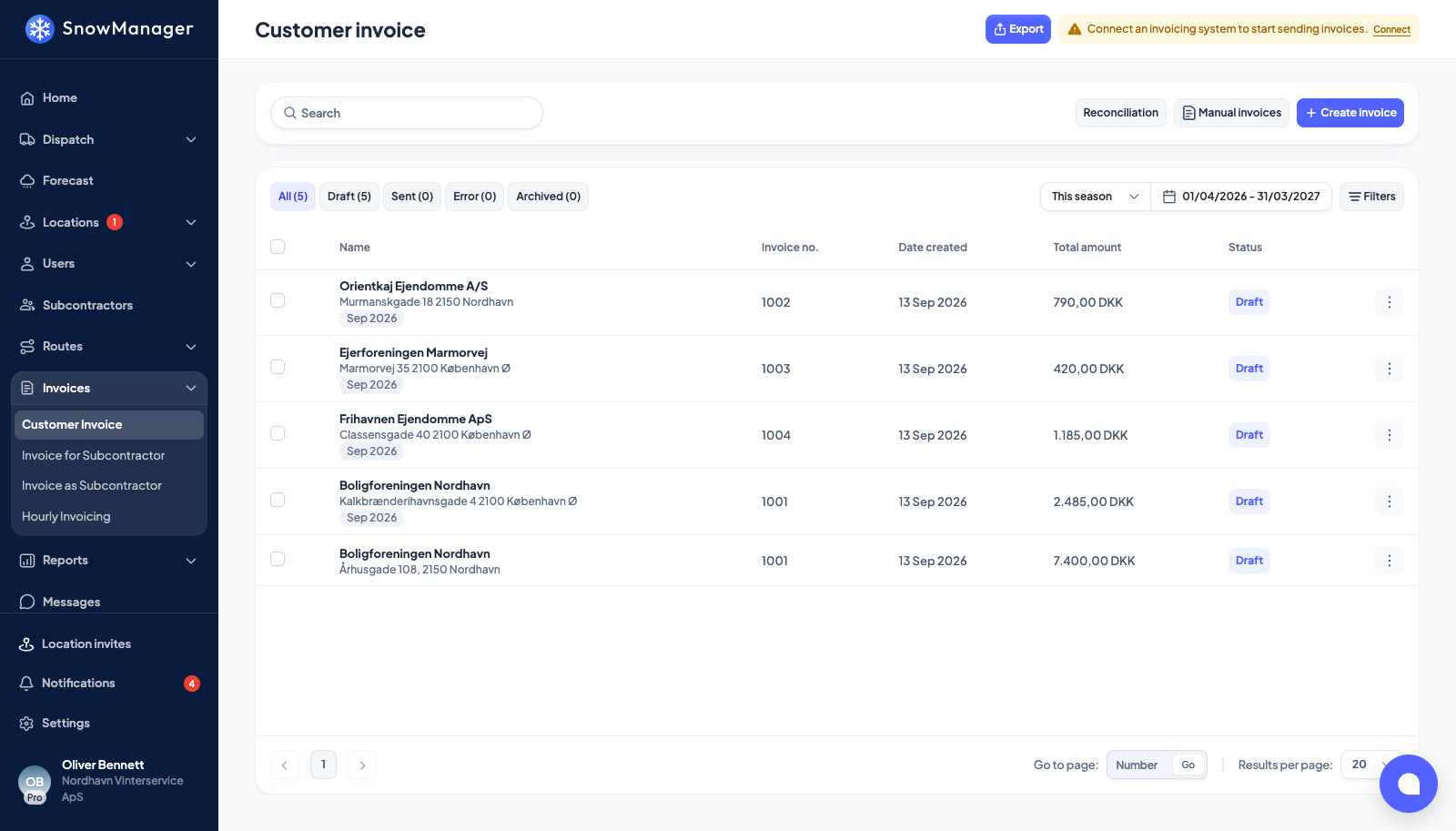
Find it
Invoices → Customer invoices. The tabs split the list by status: Draft, Sent, Error (the accounting system refused it), Archived, and All. The Season, Fee invoices, Manual invoices and Reconciliation entries are the other invoice kinds and the drift report. Filters narrows the list; the list's default period always reaches today, so an off-season draft is visible the moment it is created.
- Search finds the Customer number, customer, address name or address: the customer's name and number, and the customer and number of each address on the invoice. Your own company's name is not searched, since it is on every invoice.
- Subcontractor keeps the invoices for work one subcontractor did. Own business with your company's name, first in the list, keeps the work nobody else was set to do.
Export at the top of the page produces a file of invoice lines; tick invoices first and it exports just those. The file downloads as soon as it is ready if the dialog is still open, and you are e-mailed a link to it as well. See Export invoices and reports.
Each row shows the customer, the period, Invoice no. once sent, Total amount and any badges. Possible duplicate means another dispatch billed the same address for the same work within six hours. Every visit is its own line, so the badge is there for you to check the second run was meant, or archive the line if it was not.
Read and edit
Click the row. The preview lists the lines: one per completed address per dispatch, with Work type, Location, date, Quantity (hours for hourly addresses, Pcs. otherwise) and Price. Badges explain a line's origin: Price rule when a location rule set the price, Out of sync when the line no longer matches its subcontractor counterpart.
While the invoice is a draft you can:
- edit a line's description, quantity or price (any amount, a negative one included; the quantity counts work and stays above zero);
- New invoice line: a custom line, with a description, date, quantity and price. A line for an address and a work type then asks Also register the work elsewhere?, with what to tick: Register the work as done on the address (it shows in the address's task history, and the customer is not invoiced again) and, where the address has a subcontractor, Add a line to the subcontractor invoice for it, at your cost price for the work type (at 0.00 with a note when there is none). Yes, register the selected saves the line with what you ticked; No, only the customer invoice saves the line alone. Closing the dialog saves nothing;
- Archive a line (and Unarchive it); the total recalculates from the lines that remain;
- Add Note and Add photo: for the customer's benefit; Invoice history shows what changed and when.
A line on an address that also has a subcontractor is linked to the settlement line on the other side. Editing it asks whether to propagate; once the counterpart is Counterpart sent, changes no longer reach the other side. A line added by hand that has no matching line on a subcontractor invoice carries Customer invoice only, so nobody assumes a subcontractor is paid for it.
Send
Tick one or more invoices and press Send invoices (the button names your system: Send invoices to e-conomic, for example). The invoice becomes Sent and gets its number from the accounting system. If no system is connected the list says so: Connect an invoicing system before invoices are sent. Until then, invoices can be reviewed and saved as drafts.
A failed push lands in Error with Sending to the accounting system failed; fix the cause (usually a missing customer mapping) and send again.
After sending
A sent invoice is locked: no line edits, no deletion. If you must change it, Unsend (or Change to draft from the list) takes it back to draft: the invoice number and the reference to the accounting document are cleared, and the next send creates a fresh document there. When the invoices you tick for Change to draft include sent ones, you are asked first (Put sent invoices back to draft?); invoices that cannot be changed are counted in one message, 3 of 10 invoices could not be changed., while the rest go through.
Archive hides an invoice you will not send. Work on an archived invoice is not billed again unless you unarchive it.
Credit a customer
SnowManager has no separate credit-note document. A credit is a line with a negative price: give the line a description saying what is being credited, a quantity above zero and a unit price below zero, and the line total, the invoice total and the reports carry the minus sign. An invoice whose lines add up to below zero is simply an invoice with a total below zero.
Where the mistake is still on a draft, the tidier fix is usually to correct or archive the line itself. A negative line is for money you have to give back on work that is already invoiced: either add it to the next draft for that customer, or unsend the invoice (which takes it back to draft) and put the credit on it. Sent invoices go to the accounting system as ordinary invoices with the lines keeping their sign, so read Connect e-conomic, Dinero, QuickBooks or Dynamics NAV before you credit a whole invoice.