Reports → Export is for administrators only, and a municipality does not have it. The page has two tabs: Catalog and History.
Pick an export
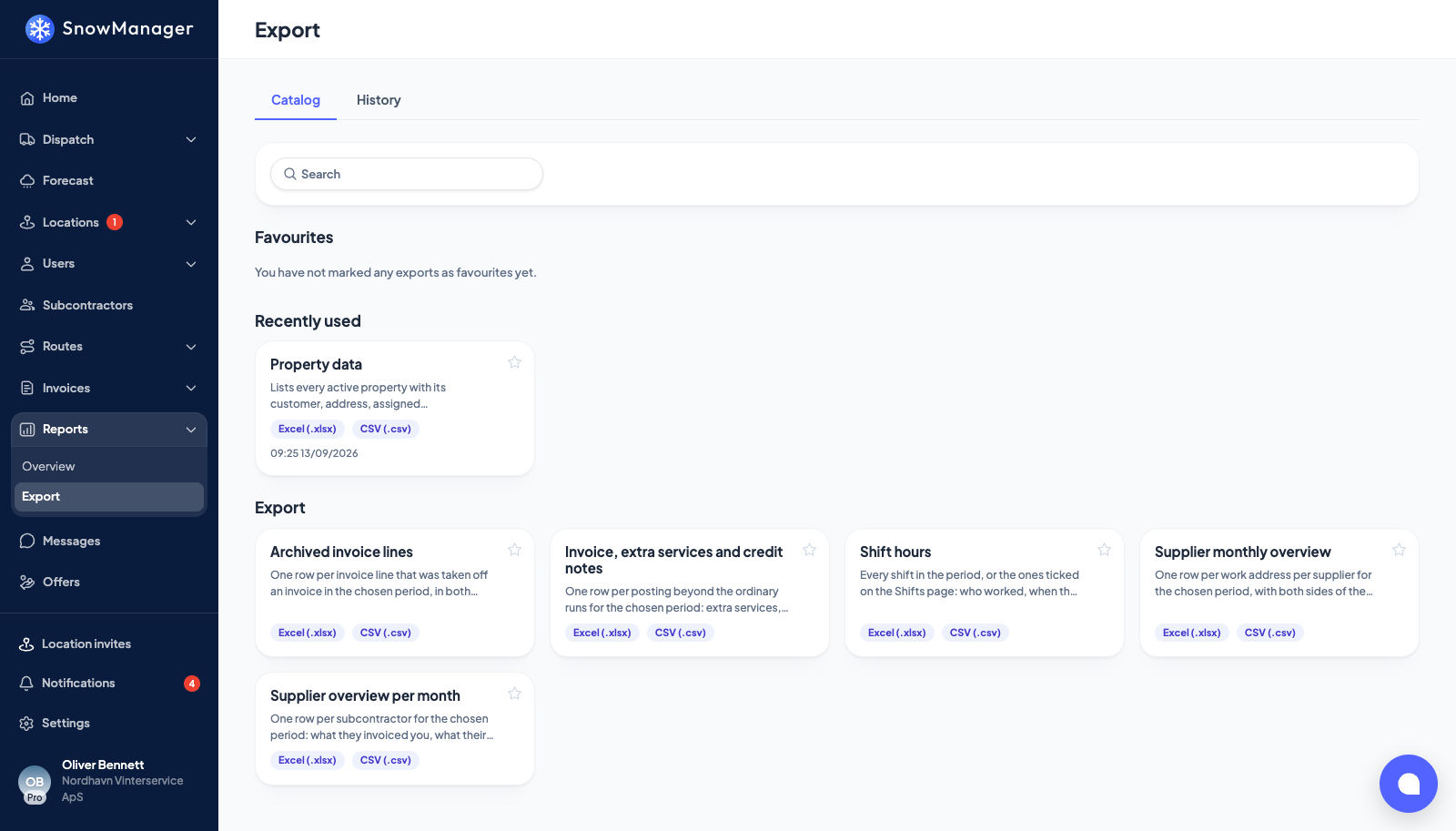
The catalogue is searchable and can be narrowed by category. Two sections sit at the top: Favourites (press the star on a card to keep it there) and Recently used, the four you ran last. Each card names the formats it produces and when it last ran. The exports today:
- Property data: every property with customer, address, subcontractor and access notes. Narrow it to Location groups; a column names each address's group, with the group's ID in brackets. Include prices adds the pricing type and, per work type, your price and your cost on each address.
- Customers: one row per customer with customer number, name, the customer's own address, e-mail, phone with country code, CVR, EAN, Invoice reference, External invoice reference, the payment terms and customer group your accounting system knows them by, the customer's status and how many Active locations they have. Only customers with at least one active address are in the file; tick Include customers without active addresses to get the whole register. The address, e-mail and phone are the customer's own, not those of their properties. Narrow it to Location groups to get the customers with an address in those groups. Customers on addresses you hold as someone else's subcontractor are never in it: they are your contractor's customers.
- Supplier monthly overview: one row per address per supplier with both sides of the trade. An extra work type counts as work driven under its own work type.
- Supplier overview per month: one row per subcontractor with invoiced, earned and margin. A subcontractor you no longer work with is included for any period you settled with them in.
- Invoice lines: one row per invoice line for the period, from the invoices you issue and the settlements with your subcontractors, with the kind of invoice, who raised it and who did the work. Archived invoices are left out unless you switch on Include archived invoices. A subcontractor exporting sees only its own side of a settlement, never its contractor's customer details.
- Archived invoice lines: lines taken off an invoice in the period, both directions.
- Extra services and credit notes: the lines somebody typed rather than the app drafted off a work type, whatever the invoice's state, archived invoices included. One row per posting, with what the customer is billed and what the supplier is paid for the same event side by side: a manual line and its mirror on the other invoice are one row, not two. SnowManager has no credit-note document, so a credit in this file is simply a line with a negative amount, whatever it is for: money given back to a customer, a deduction agreed with a supplier, or the charge a resolved complaint puts on a supplier's settlement (see How a complaint is assessed, timed and settled). Such a row reads Credit in the Type column, and the amount keeps its minus sign, so the money columns sum to what was actually charged. A line taken off an invoice is not a credit: an archived line is left out of this file altogether and belongs to Archived invoice lines.
- Shift hours: every shift in the period, with the hours and whether it is approved.
- Work report: every task carried out at your addresses in the period, one line each, in one sheet. Each line has the Date and the Time in separate columns, written in your company's date format, clock and time zone, then the customer, the address, the Type (the work type, with any extra work types done on the same visit), the Status (Completed, Unable or Extra pass), the reason for an Unable, and Performed by. A stop driven in several passes gives one line per pass. Extra fees used at a stop, such as salt, get a line of their own under the stop's last pass, with the Quantity: the amount the driver entered, or for a fee added to the invoice when the task is done, the address's amount. A driver from a company you do not work with directly is named by their company only. Narrow it to Customers, Locations or Location groups; the Date range is required. A task belongs to the day it was done, in your company's time zone, not the day the call-out was planned: a run finished at 00:30 on the 1st is in the new month.
Three more, ISS BTB invoice basis, ISS BYGST invoice basis and ISS UL supplier basis, are built for one customer and shown only to the business they were granted to. If your catalogue does not list them, they are not yours to run; there is nothing to switch on.
Set the parameters and run
-
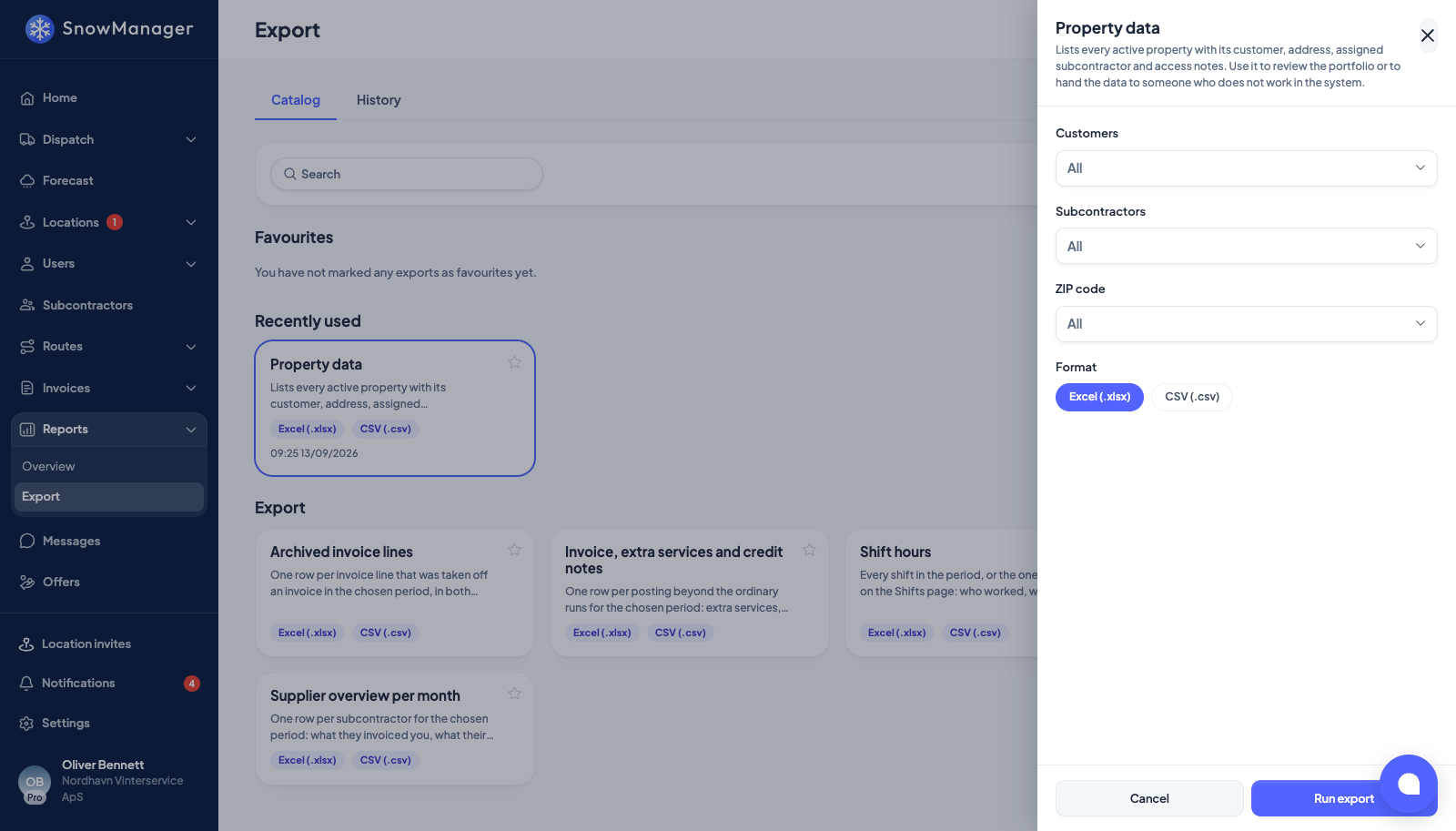
Click the card. The Export parameters panel opens.
-
Fill in what the export asks for. Fields marked
*are required: usually Date range, for the ISS exports (where granted) also Location groups or one Subcontractor. The others narrow the rows: Customers, Subcontractors, Location groups, ZIP code (only postcodes you have addresses in), Routes, Work types, Type and Invoice status, and in the work report Locations. Leaving a filter empty means all. In most exports Subcontractors offers Own business with your company's name first, for the work nobody else was set to do, that is, what your own crews did; the supplier overview, which has a row per subcontractor only, does not. -
Customers has the switch Include customers without active addresses, off until you tick it.
-
ISS UL supplier basis can also E-mail the file to the subcontractor when it is ready. It is off until you tick it.
-
Choose the Format, Excel (.xlsx) or CSV (.csv), and press Run export.
You land on History with the new row highlighted and Queued. You do not have to wait for it: you are e-mailed when the file is ready (see below).
In a CSV file, money is written as a plain number: two decimals and no thousands separator (1038.00, not 1,038.00), in the decimal mark of the file's language. A spreadsheet reads every amount as a number, so a column sums correctly.
Export from the invoice pages
The customer, hourly and subcontractor invoice pages have an Export button at the top, for administrators. It produces an Invoice lines file through the same queue, for the side of the ledger the page is about. Set it up under Generate new and press Generate: as long as the dialog is still open, the file downloads by itself the moment it is ready, usually within seconds. Close the dialog and the file is still made; you are e-mailed when it is ready, and Export history in the dialog lists every file already made, with Download on each finished row.
- Nothing ticked: choose the Date range and, if you like, Subcontractors, and whether to Create separate file for each contractor (a tab each in Excel; in a CSV the rows are gathered under the subcontractor column instead). From the hourly page the file holds only lines priced by the hour, and from Invoice as Subcontractor only the settlements raised toward you.
- Invoices ticked: the button reads Export (3) and the file holds exactly those invoices, whatever their dates and archived ones included: Only the 3 selected invoices are included. There is no period to choose. The selection bar at the bottom of the list has no export button of its own any more.
- Inside an open invoice: Export exports that invoice only, or only the lines you ticked in it (Only the 2 selected lines are included.). An invoice that has not been created yet cannot be exported.
On Invoice for Subcontractor, the button with nothing ticked opens that page's own export instead: pick a Template from the subcontractor exports, the Subcontractors and the Date range. It behaves the same way: the history updates by itself while the file is being made, and the file downloads as soon as it is ready if the dialog is still open.
History
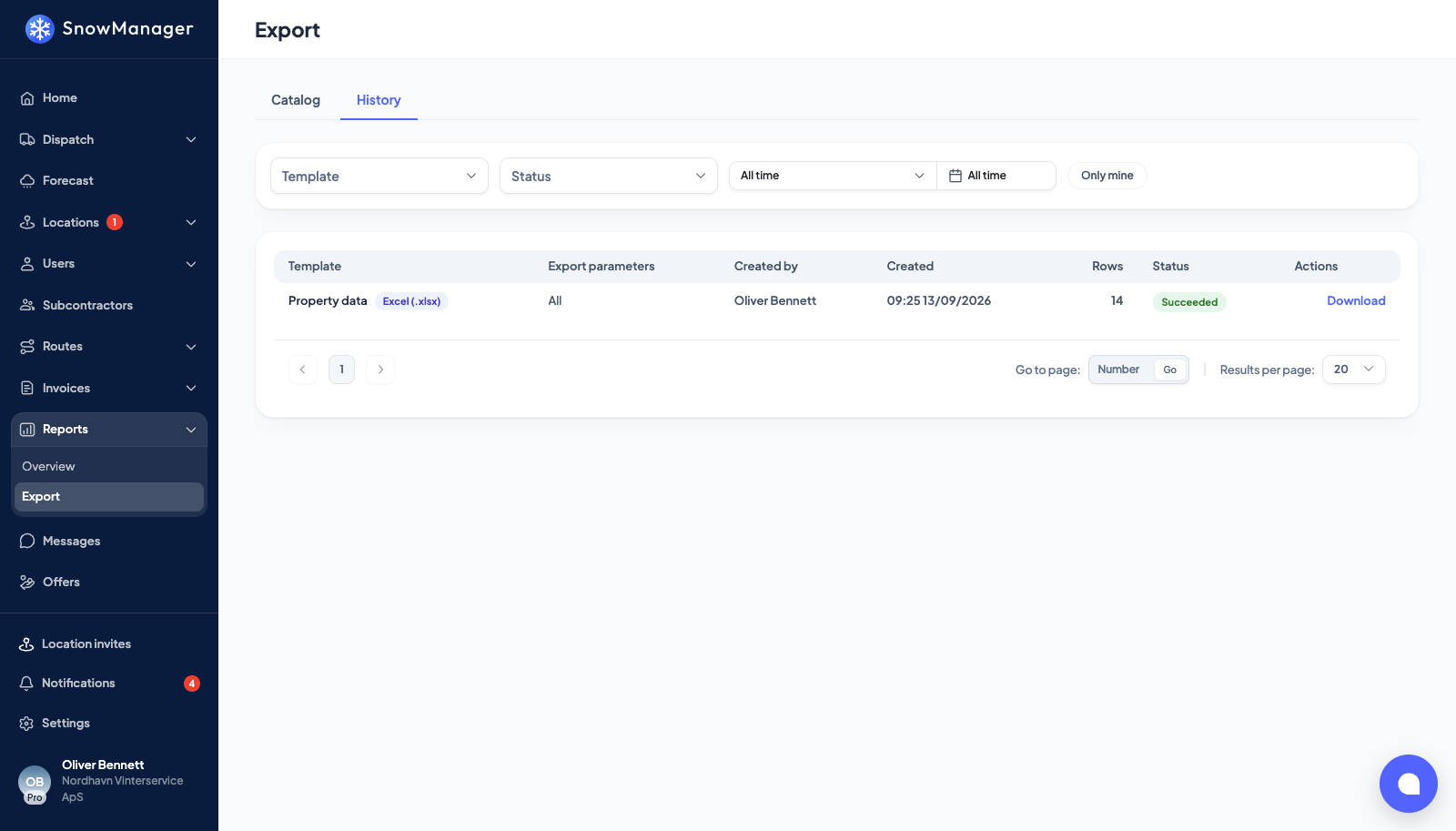
Every run is listed with Template, Export parameters, Created by, Created, Rows and Status: Queued, Running, Succeeded, Failed, Cancelled or Expired. Press Download on a succeeded row, or Cancel while it is still working. Narrow the list by template, status, date range, or Only mine.
A file that was produced but could not be e-mailed to the subcontractor reads Not e-mailed; hover for the reason, then download it and send it by hand. Files are kept for 30 days, after which the row turns Expired.
When the file is ready
Every finished export, from this page or from an invoice page, is e-mailed to the person who started it, in their own language: Your export is ready: Invoice lines. Press Download file in the e-mail and this page opens on the file's row and downloads it straight away. If you are signed out, you sign in first and are then taken to the file.
The e-mail links to the page, not to the file itself, so the usual sign-in still applies: forwarding it does not give anyone else the file. The bell rings as well, Export ready: {0}, and opens the row.