Without a connection, invoices stay drafts. The connection lives at the bottom of Settings → Customer invoice.
Choose the system
-
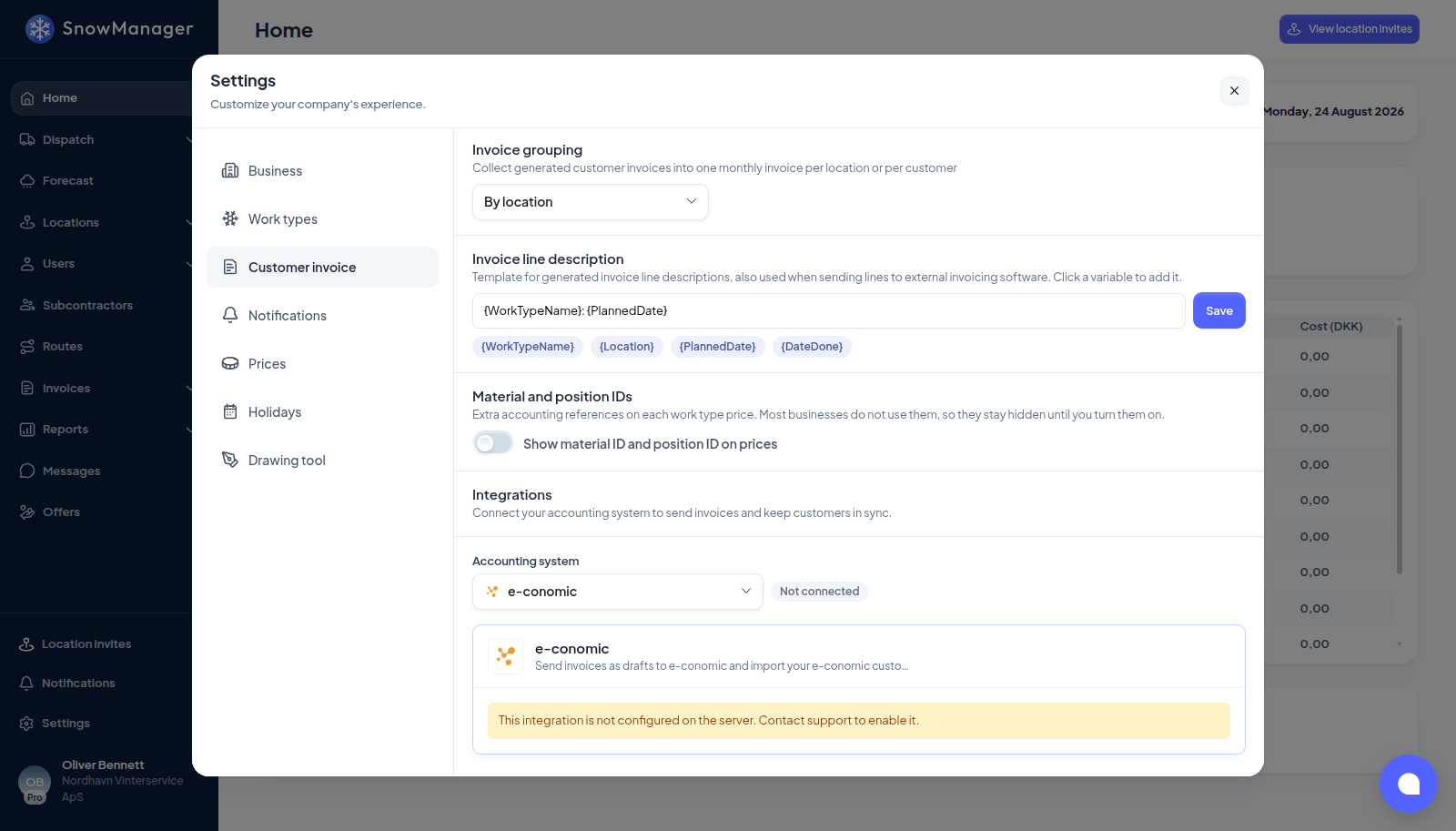
Pick one in Accounting system: e-conomic, Dinero, Fiken, QuickBooks Online, QuickBooks Desktop or Dynamics NAV. The card shows whether that one is Connected or Not connected.
-
A business holds one connection at a time. While another system is connected, the card says Disconnect {0} first to connect another provider. Connecting a different system wipes the old customer and product mappings; disconnecting and reconnecting the same system keeps them. A card reading This integration is not configured on the server. Contact support to enable it. means that system is not enabled for your installation yet.
-
Connect:
- e-conomic: press Open e-conomic install page, approve the app, paste the token it shows into Agreement grant token and press Connect.
- Dinero, Fiken and QuickBooks Online: press Connect to {0}, sign in at the provider and approve access. You are sent straight back. If your Fiken login has access to more than one company, the card asks you to Choose a company: pick it under Company and press Connect.
- QuickBooks Desktop: a setup guide generates Web Connector credentials and a Download .qwc file. The password is shown once; Setup guide reopens the steps. The Web Connector does the syncing, so there is no Sync now.
- Dynamics NAV: Ask your Dynamics NAV administrator for the API key for this company. Paste it into API key, optionally fill in Default department dimension, and press Connect. There is no sign-in page: the key is the whole connection.
You see Accounting system connected. The first sync is running. The chip reads Syncing and turns to Connected on its own, or Sync failed with the reason.
Invoice defaults
Shown once connected. Values from the mapped {0} customer take priority.
- Invoice layout, Default payment terms and Default VAT zone: only where the provider has them.
- Fallback product: Used for invoice lines whose work type has no product mapping.
- Customer sync: Off, Import from {0} (new and changed provider customers come into SnowManager) or Two-way sync (changes here are also pushed). Two-way is only offered where the provider supports it. Turning sync on runs an import and auto-match at once; two-way also pushes every still-unmapped customer.
Mappings
Work type mappings chooses which provider product each work type is invoiced as, with Use fallback product as the default; the Seasonal invoice row covers seasonal instalments. Customer mappings links your customers to theirs: Unmapped customers cannot be invoiced through {0}. Auto-matching tries the customer number first, then the CVR, then a unique name, and is marked Auto-matched. Use Show unmapped only, then Edit to search the provider's customers, or Unlink. Hand-set mappings are never overwritten.
With e-conomic, a customer created in SnowManager is offered the number after the highest customer number in either system, so the two registers count in step; a customer pulled in from e-conomic keeps e-conomic's number when it is free. The top of the series can be capped, see Invoice settings.
Several of your customers can be linked to the same customer in the accounting system. Every customer whose number matches a provider customer's number is linked to it automatically, even when other customers already share that number; the CVR and name matches only link a provider customer nobody has yet. You can also link more customers to one provider customer by hand, and linking one never unlinks the others. A shared link is used for invoicing only: with customer sync on, changes in the accounting system are not copied onto the customers that share it, and editing one of them does not rename the customer in the accounting system.
Credits and invoices below zero
SnowManager has no credit-note document, so a credit is a line with a negative price, and an invoice can end up with a total below zero; see Review and send a customer invoice. Nothing here stops such an invoice from being sent: it is pushed as an ordinary invoice with each line keeping its sign, never as a credit memo, whichever system you have connected.
What the accounting system does with it is its own business, and we have not tested every one. Before you credit a whole invoice for the first time, try one small negative line on a real invoice in your own system, send it and look at what arrived: some systems book a document with a negative total happily, some round on it, and some expect a credit note instead and will want the booking corrected by hand. Do that once per accounting system, and you know what to expect afterwards.
Fiken
Fiken is for Norwegian businesses. Sending an invoice to Fiken creates an invoice draft there, and nothing more: you open the draft in Fiken, check it, book it and send it to the customer from Fiken. SnowManager never books or sends anything in Fiken for you.
- Sending again replaces the draft in Fiken, as long as it has not been booked. Once it is booked, sending again is refused with Fiken's invoice number: a booked invoice is changed in Fiken with a credit note. If you delete the draft in Fiken, the next send creates a new one.
- The invoice number comes from Fiken. Until you book the draft, the invoice in SnowManager carries Fiken's draft reference instead. After you book it, the next Sync now (or the nightly sync) picks up Fiken's invoice number, and marks the invoice paid once Fiken records the payment.
- VAT is sent exactly as you chose it on the product or line. A Fiken company that is not VAT registered only accepts "Outside the VAT Act" (OUTSIDE), so choose that, or Fiken refuses the invoice and the reason is shown on it.
- Currency: Fiken needs the invoice and the customer in the same currency. A customer with no currency in Fiken is in NOK. If they differ, the invoice is stopped before anything is sent and the message names both currencies: change the customer's currency in Fiken, or the business currency in SnowManager.
- The customer's reference on the invoice is printed as "Deres referanse".
- Customers sync both ways: name, email, organisation number, address and contact persons. Inactive Fiken customers are left out, and a customer deleted in Fiken stays as it is in SnowManager.
- Long line texts are not cut: Fiken shows 200 characters per line, and the rest continues in the line's comment, printed under it.
While a Fiken app is new, Fiken lets only a few companies connect to it. If connecting fails with an access message from Fiken, contact us.
Dynamics NAV
Dynamics NAV is only offered to companies SaberTask has switched it on for; if you do not see the card, ask us. NAV is an invoice destination only. Customers are not mapped: every invoice goes to the NAV customer with the same customer number as the customer in SnowManager, so the number on the customer has to be the NAV one, and a customer without a number cannot be sent. The Customer mappings section is therefore not shown for NAV. The products you map work types to are NAV's G/L accounts, and for NAV you type the account number into the fallback product and into each work type row rather than picking from a list: NAV does not always hand the list over, and the accounts themselves are created in NAV, never from here. The number is not checked when you type it; NAV refuses an invoice whose account it does not know, and the error names it. A sent invoice cannot be changed from SnowManager or read back as paid.
Every invoice is booked on one department, NAV's first dimension. It comes from the location group of the invoice's addresses: the group's ID is the department. Addresses in no group, or in a group without an ID, fall back to the Default department dimension on the connection; with neither, the send is refused. An invoice whose addresses sit in groups with different IDs is refused too: Dynamics NAV books one department per invoice, so split it into one invoice per group.
Long line texts are not lost: NAV shows at most 50 characters per line, so a longer description arrives as comment lines above the amount line.
SnowManager does not talk to NAV directly. It goes through its NAV forwarder at nav.snowmanager.com (the same forwarder that used to be reached as api.wintermanager.dk), which holds the connection to your NAV. The API key is a key for that forwarder, and it decides which NAV environment, production or test, your invoices land in.
Sync now and disconnect
Sync now refreshes products, layouts, terms, VAT zones and customers, and reads back what became of the invoices you sent. If one is running: A synchronization is already running. Wait until it finishes. Disconnect asks for Confirm disconnect; it only removes the connection, your invoices are untouched.