Open Settings from the sidebar and pick the Customer invoice tab. Everything on it saves on its own: the toast All changes saved confirms each change, and a change that fails to save is put back.
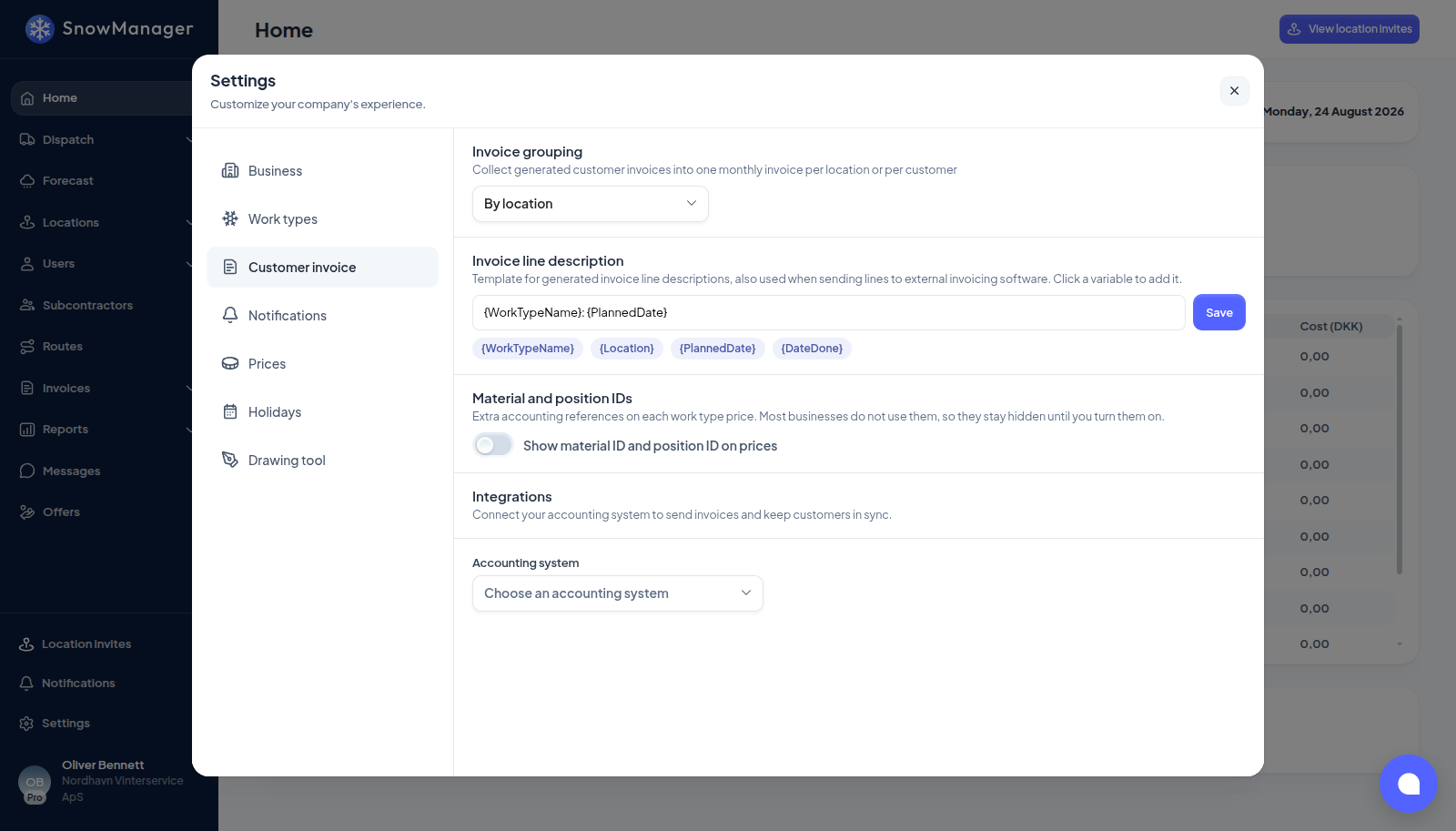
Invoice grouping
Invoice grouping decides how generated lines collect into drafts: By customer makes one monthly draft per customer, with every address on it; By location makes one draft per address. This is the business default. A single customer can override it: when you edit the customer, its own Invoice grouping offers Default (business setting), By location and By customer, and the customer's choice wins. Grouping always follows the business that invoices the customer, never the subcontractor that did the work; see when an invoice line is created.
Highest customer number
A new customer is offered the number after your highest customer number, the way accounting systems count. With e-conomic connected, e-conomic's own customer numbers count too, so a customer created in SnowManager gets the number e-conomic would give next. A deleted customer's number is not handed to anyone new. You can always type a different number yourself.
Highest customer number sets the top of your series. Numbers above it are ignored when the next number is suggested, so one mistyped number such as 99125129 in a series around 10500 does not push every new customer out of the series. A number above it cannot be saved on a customer, except that a customer who already has one keeps it. When your numbers reach the limit, the new customer form leaves the number empty and asks you to raise it here. Leave the field empty for no limit. Unlike the rest of the tab, this field has its own Save button.
Invoice line description
Invoice line description is the template every generated line is written from, and the
text sent to your accounting system. The default is {WorkTypeName}: {PlannedDate}. Type your
own (up to 200 characters) and click a variable pill to append it: {WorkTypeName},
{Location}, {PlannedDate} (the dispatch's planned date) or {DateDone} (the check-out
time, which can be a different day). Press Save. Leaving the field empty puts the default
back. The accounting system receives the description exactly as it stands on the line, so
editing a line's text is the only way to change what the customer reads.
Material and position IDs
Material and position IDs adds two reference fields to every work-type price. They are hidden by default because most businesses do not use them; switch on Show material ID and position ID on prices and they appear on the price rows of each address's Prices tab.
Insurance report
The Insurance report card holds one switch, Hide start times and duration on the report. Off by default. On, the PDF a stop's Insurance report button produces shows only when the work was completed: the start time, the duration and the timestamps under the photos are left out, so the recipient cannot tell how long the work took. It is a printing choice for the whole business, not a per-stop one, and the recorded times stay as they are; see Download the driving documentation for a stop.
Integrations
The bottom of the tab is the Integrations section: the Accounting system picker and, once a system is connected, its invoice defaults (Invoice layout, Default payment terms, Default VAT zone, Fallback product) and the customer and work-type mappings. That part has its own article: connect e-conomic, Dinero or QuickBooks.
A municipality has no tab
A business set up as a municipality invoices nobody, so the Customer invoice tab and the Prices tab are not shown at all.