A dispatch you have accepted sits under Active on Home. This article is about a dispatch with addresses (a route of stops, or single addresses). A painted road route, where the map is the work, is driven differently; see drive a painted road route.
Open it
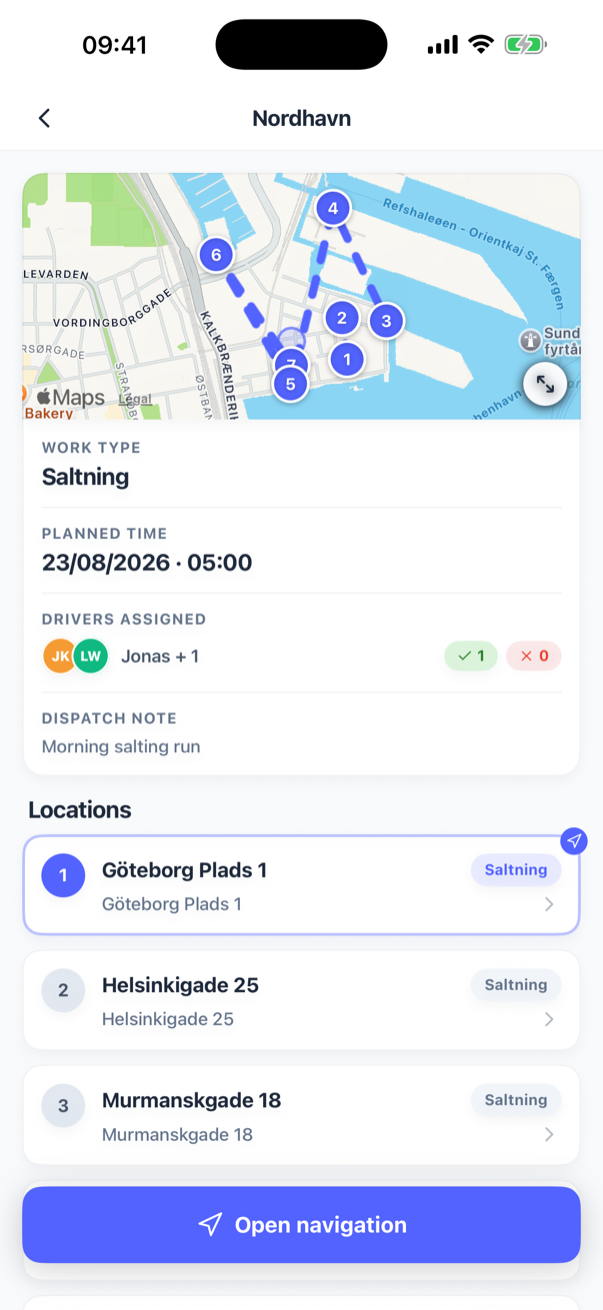
Tap the card on Home. The screen shows the route name at the top, a card with Work type, Planned time, Drivers assigned and the Dispatch note from the office, a map, and the Locations list in route order. Each stop shows its name and address, and a tag once it has an outcome: Completed, Unable or Removed.
In the latest version of the app, a Materials card sits under that card, above the start button: how much of each material the run needs, such as Salt 120, so you know what to load before you leave. It adds up the quantity the office set on every stop in your list, finished or not, and only the stops you can see. With no materials on any stop, the card is not shown. Where the numbers come from is in what a route is worth.
The screen refreshes itself every ten seconds while it is open, so a stop a colleague finishes, or the office completes from the web, changes colour without you doing anything.
Start
Press Start route (Start on a single address). Two things happen:
- The dispatch is marked as started for everybody. The office sees it running on the web, and the button disappears for good; colleagues who open the dispatch later do not start it again, they carry on.
- Your phone starts recording your position for this dispatch. The first time, the app explains why (GPS while you drive) and iOS asks for permission; choose Always Allow, or automatic check-in stops working as soon as the phone is in your pocket. What is recorded, and what it is used for, is in what the app does with your location.
If your phone is already recording another dispatch, the app asks Another drive is running and lets you Start anyway; the other dispatch stays open and can be taken up again later. The phone records one dispatch at a time.
Drive to the stops
Press Open navigation to drive in SnowManager's own map: turn-by-turn directions to the next open stop, with the stop's drawn areas and lines, and your trail, on the map. A painted road route uses the same map; see drive a painted road route.
Arriving is registered for you: when the phone enters the stop's area (the drawn areas on the address plus 15 metres round them, within 20 metres of a drawn curb or path, or a 40 metre circle round its pin when nothing is drawn) the stop's check-in time is stamped and a clock starts in the panel, and the check-out when you have been outside the area for five minutes. You can also do both by hand. Recording the outcome of a stop, a note and photos is described in record a stop.
A stop that needs a photo shows This location requires a photo on the map while you are inside its area; tap it to open the stop and add one.
Taking a stop out of turn
Navigation heads for the next open stop in route order, and tapping a pin on the map only opens that stop to look at it. To be sent somewhere else instead, open the stop (from its pin, or from the line under the big figure in the panel) and press Navigate here. Directions switch to that stop from wherever you are, however far down the list it sits. You do not have to be on the map first: every open stop in the dispatch's list has a navigate arrow at its right edge, and pressing it opens the map already heading for that stop.
The app remembers where you were heading. When the stop you picked is done, it asks Where to next? with two answers: Carry on takes the next stop after the one you just did, and Go back returns to the stop you left the route at. Closing the map and opening it again also puts you back on the route's own next stop.
The other drivers
Every colleague on the dispatch sees the same list and can work any stop. The Drivers assigned card shows who is on it, with Accepted, Pending or Declined beside each name and You on your own row. Two crews on the same address each record their own pass; the stop completes when both have.
Finish
When every stop on the dispatch has an outcome (completed, unable, or removed by the office), the Finish route button at the bottom shows the count, for example Finish route (7/7). Press it to close the dispatch. The office is told by the dispatch turning complete on the web; the invoices are created from there, see complete a dispatch. Your phone stops recording your position at the same moment.
Whether you may finish at all is a setting on the route (Driver may end dispatch). If the office keeps that for itself, the bottom of the screen shows Finish driving instead: it signs you off and stops your GPS while the dispatch stays open for the office to close. Administrators get Finish route whatever that setting says, on any route of the business, crewed on it or not, once every stop on the route is settled.
Finishing a route is not the same as closing the run. Finish route settles that route; Complete dispatch, the green button below it, marks the whole dispatch completed and is what the invoices are created from. Only administrators of the business that owns the dispatch see it, and an Invoicing section under it confirms each business's finished work. Both are the same actions as on the web, described in complete a dispatch and create the invoices.
A stop you cannot reach does not block finishing: mark it Unable with a reason. Finishing with open stops is not possible; the button stays greyed out until the last one is resolved. Finish driving is there in the meantime: as soon as the stops assigned to you are all done, you can sign off and stop your phone recording, whether the route is waiting on a colleague's stops or on the office to close it.
Changing or cancelling
The pencil on the card opens Edit dispatch when the office has allowed you to change the time, the work type, the note or the crew, and the Cancel dispatch link lives there too; see change or cancel a dispatch from the phone. A dispatch the office cancels leaves Home at once, and so does a single route they pull off a dispatch that is still running; a route run you can still look up under Routes, History, marked Canceled.