Every address on a dispatch is a stop, and every stop ends with an outcome: completed, or unable with a reason. You record it on the phone by opening the stop from the dispatch's Locations list. The office sees what you record the moment it is saved, on the dispatch and later on the invoice.
The stop sheet
Tap a stop in the list. Location info opens with the map of the address and its drawn areas, the Work type this stop bills under, Uploaded photos, your note field, the office's Location note (gate codes, where to pile the snow) and Site contact with a Call button.
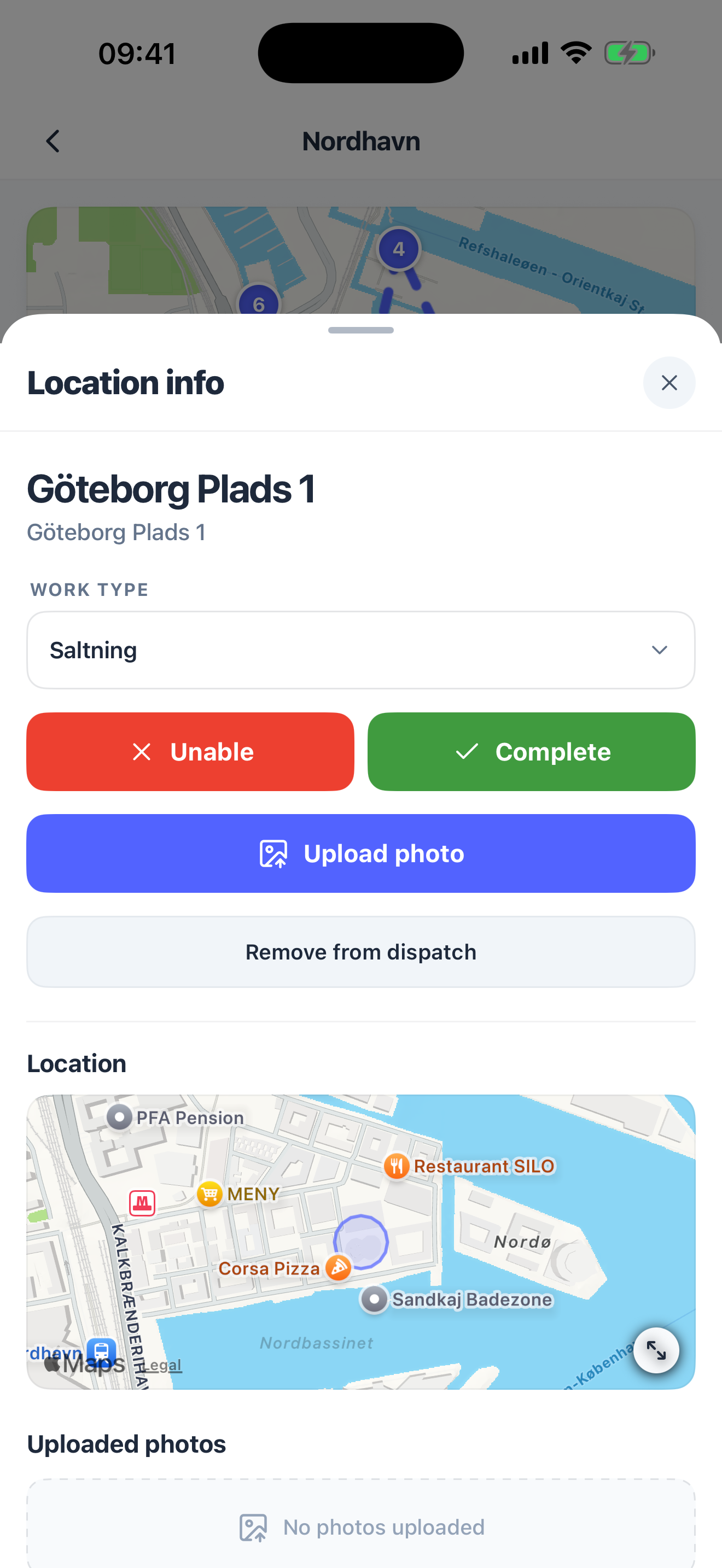
The map card shows the address's drawing: the areas to clear as the office drew them, your own company's drawing first, otherwise the owner's. An address without a drawing shows the plain map of the address instead. This comes from the server, so it works in the app you already have.
The map block also shows the visits the phone registered: Arrived and Left times, and one line per visit per driver, for example 07:12 – 07:41, or Still on site while you are inside the area. If there are times but no visit, it says No visits were registered inside the area. How those times come about is in what the app does with your location.
Check in
Most of the time you do nothing: entering the area checks you in. On an address that is billed by the hour the sheet shows Start work, which stamps the check-in now, for when the phone did not register your arrival. The check-out follows the same way, when you press Complete or when the phone has been outside the area for five minutes, whichever comes first; resolved times are never rewritten.
Complete
Press Complete. The sheet asks Confirm completion: Are you sure you want to mark this location as complete? This action cannot be undone. Press Confirm.
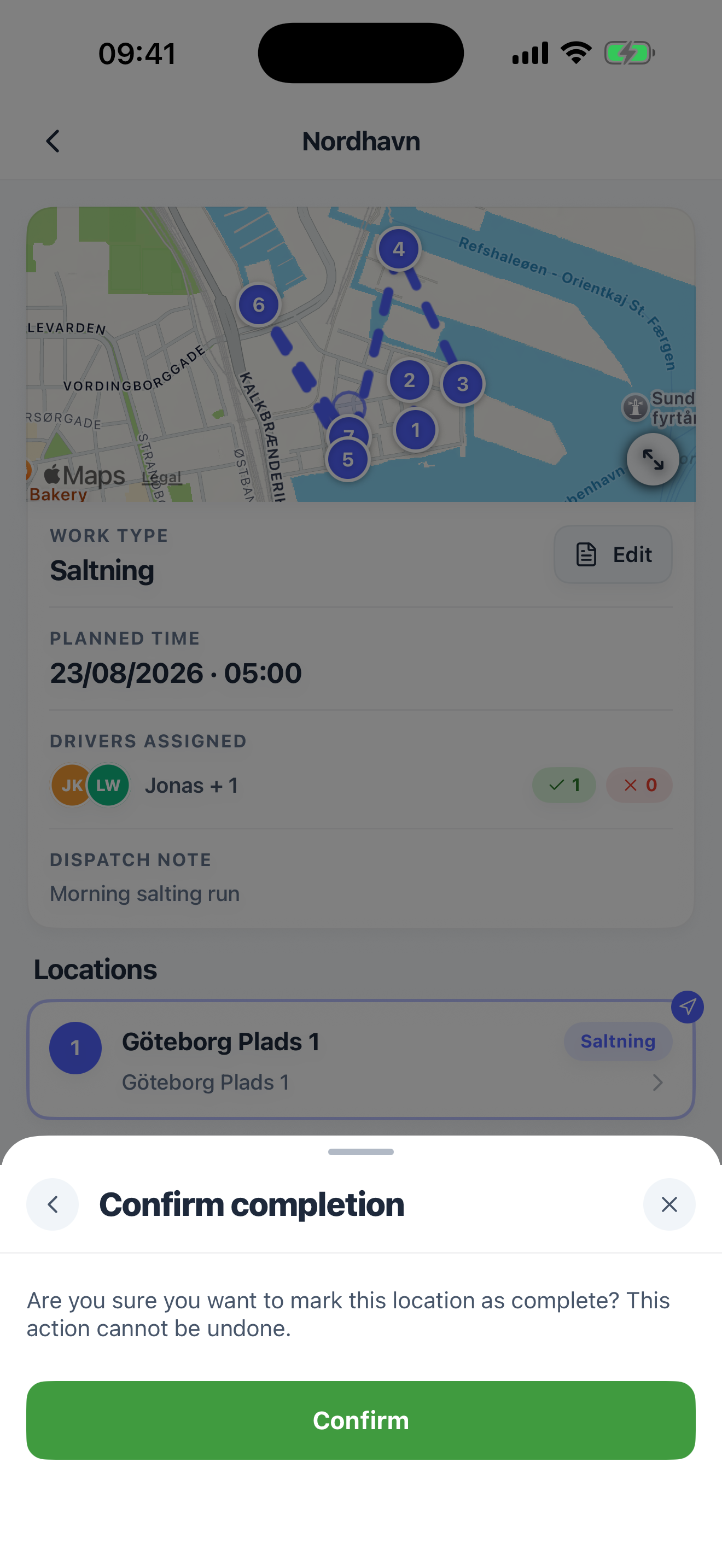
The stop turns green on the dispatch with your name and the time on it. If the address requires a photo and none has been uploaded, the server refuses and tells you so; add the photo first. That applies to every way a stop closes from the phone, the automatic check-out when you drive away included. Only the office can complete such a stop without a photo, from the web, and the dispatch's timeline records that they did. A completed stop still takes photos and a note afterwards (completion locks the times, not the record), and its work type can still be changed (see Work type below), but its outcome is final from the phone. If something was wrong, the office can turn a completed stop back to unable from the web while the dispatch is still open; see complete, mark unable, remove or restore a stop.
Unable
Press Unable when the stop cannot be done: the gate is locked, a car blocks the area, the address was cleared by somebody else. The sheet says Are you sure you cannot complete this location? Please make sure you have added a note or image explaining why. Write the reason in the note first, then confirm. The stop is marked Unable on the dispatch; it does not block finishing and is not invoiced. The Unable button is only offered on stops the office has allowed it for.
Marking a stop unable also sends an e-mail to the office, when your company, or the company that gave it the work, has an address saved under Email on error in its web settings. The mail carries your note and the number of photos, so a clear reason saves a phone call. It is sent after the stop is saved and never holds you up, even when the mail cannot be delivered. See who is told what.
Note
Type in the note field (Write a note about this location…) and press Save. The note is yours: colleagues see it under Note from driver, the office sees it on the stop. You can still write or change it after you have completed the stop, until the office completes the dispatch; on a stop marked Unable the field is read-only.
Photos
Press Upload photo and choose Take a photo or Upload from gallery. A photo taken with the camera is stamped with the date and time in the corner; a photo from the gallery is not. Pictures are shrunk before upload, so they cost little data. A stop whose address demands a photo shows This location requires a photo until the first one is uploaded.
Your own photos can be removed again (Remove photo, with a confirmation); photos the office attached to the address cannot.
Work type
The Work type at the top of the sheet is what this stop will be invoiced as. It starts as the dispatch's work type; change it if you did something else at this address (salted instead of ploughed). The change saves at once.
You can change it when you are on the stop's crew, whether you drive for the company that sent the dispatch or for the subcontractor doing the stop, or when you created the dispatch yourself. The list holds the work types of the company that sent the dispatch, because the customer is invoiced at its prices; a subcontractor's driver is offered only those priced on this address, plus the one the stop already has. The field is locked once the dispatch is completed or cancelled, on a stop you marked unable, and as soon as a line for the stop is on an invoice that has left draft.
The round + beside Work type adds an extra work type to the visit: work done on top of the stop's own, such as gritting an address that was salted. The app asks you to confirm and says which invoice line it adds; each extra shows as a chip under the field. See Extra work types on a stop.
Extra fees
The stop sheet lists the address's materials (salt, grit) with the amount this stop uses. Where your company lets drivers change it, − and + set how many you used, for example 12 instead of 10. An extra set up as on/off shows a switch instead: switched on, it counts once, however often it is tapped. A fee added to the invoice when the task is done starts switched on, so switch it off if it was not used; other on/off fees start off. Where your company does not let drivers turn it on and off, the switch is greyed out. A fee that goes on the customer's invoice says so under its name.
Remove and add back
While a stop has not been started and the office allows it, Remove from dispatch takes it off your list, and Add to dispatch brings a removed stop back (It will count toward the dispatch again and needs to be completed.). A stop the office deactivated from the web shows This location is deactivated and can be reactivated. and is theirs to restore.