A dispatch you are allowed to change carries a pencil marked Edit on its info card, the card at the top of the dispatch with the work type, planned time and drivers. The pencil is there only when the server lets you edit this dispatch; most drivers see it on dispatches they created themselves, administrators on every active dispatch of the business. If there is no pencil, the office changes the dispatch from the web and your phone follows.
Change the dispatch
- Open the dispatch from Home and press Edit on the info card.
- The Edit dispatch sheet opens with the dispatch name as its title. Change Work type, Date or Time, and write or change the Note (placeholder Add a note).
- Press Save changes. Discard closes the sheet without saving.
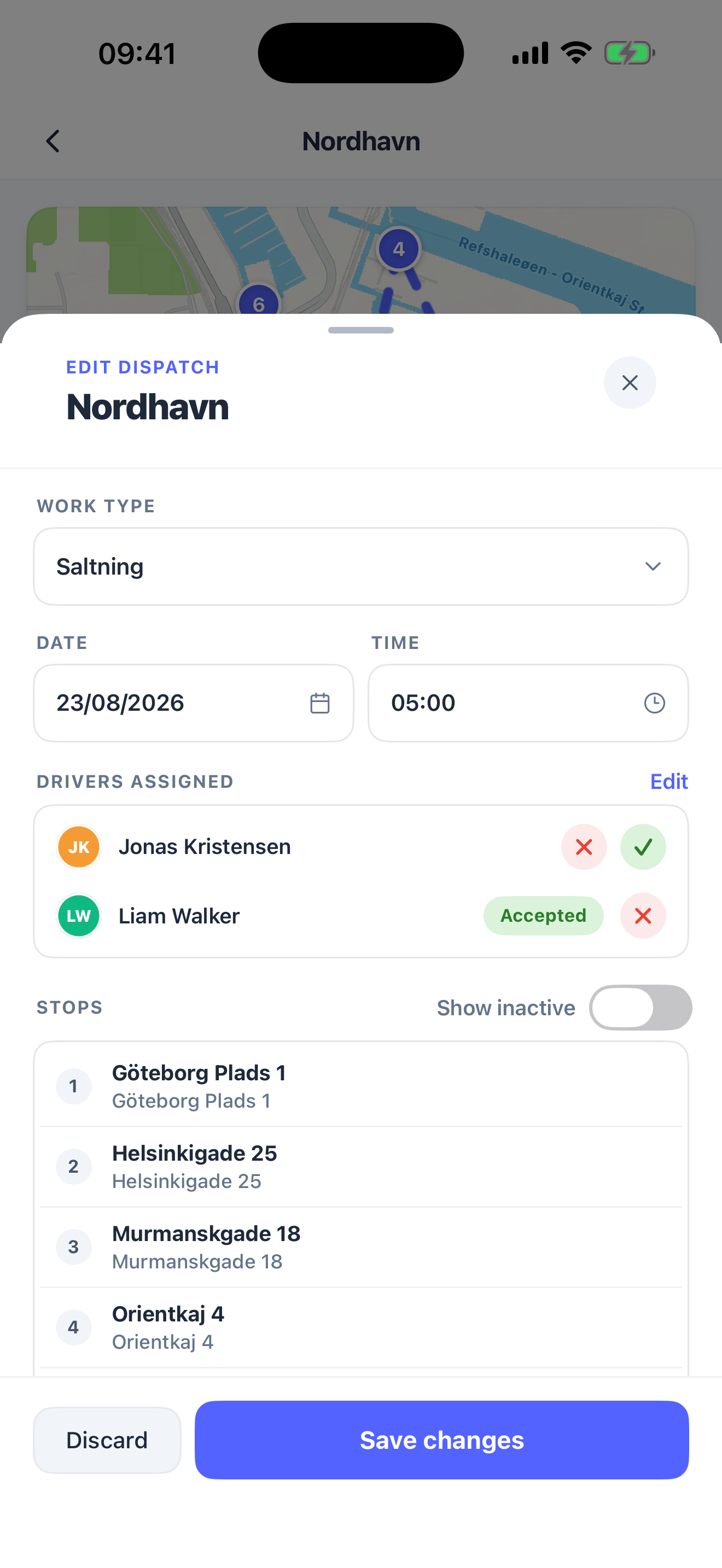
Work type, date, time and note are saved together. When the save goes through, the dispatch reloads and the sheet closes; the office sees the new values on the web at once. If the server refuses, the sheet stays open and shows Something went wrong with the server's reason, for example The planned date and time must be in the future. Press Done and correct it. The time is judged on your company's clock, not the phone's, and a planned time you move is refused only when it lies more than five minutes in the past, so a minute that passed while you were editing does not count against you. The Note field is greyed out when you are not allowed to change the note.
Crew
Drivers assigned lists who is on the dispatch, each with Pending, Accepted or Declined. When you may change the crew, press Edit beside the heading, tick and untick people (Search drivers narrows the list) and press Done. The crew is saved the moment you press Done, separately from Save changes, so a driver you add is on the dispatch even if you then press Discard. No drivers assigned means nobody is on it yet.
An administrator also gets Accept and Decline buttons on each driver. Use them to answer for a driver who confirmed by phone: a Pending driver gets both buttons, an Accepted one can be flipped to declined. Without the crew permission the list is read-only.
Stops
On a dispatch made of addresses, the Stops section lists them in order. Switch on Show inactive to see stops that were taken out; they are dimmed and tagged Inactive. The list does not change anything. To take a stop out or put it back, open the stop itself from the dispatch and press Remove from dispatch or Add to dispatch. Both exist only while the stop has not been started and the server allows it. A dispatch that follows a painted road has no Stops section.
Once work has started on any stop, the server refuses to change which stops are in the dispatch, and the alert shows its message. Work type, time, note and crew stay editable. The office has the same limits, see manage the stops of a dispatch.
Cancel the dispatch
Cancel dispatch sits at the bottom of the sheet, in red, when you are allowed to cancel. For an administrator it cancels the whole dispatch. For a subcontractor it cancels only your own assignment on the owner's dispatch.
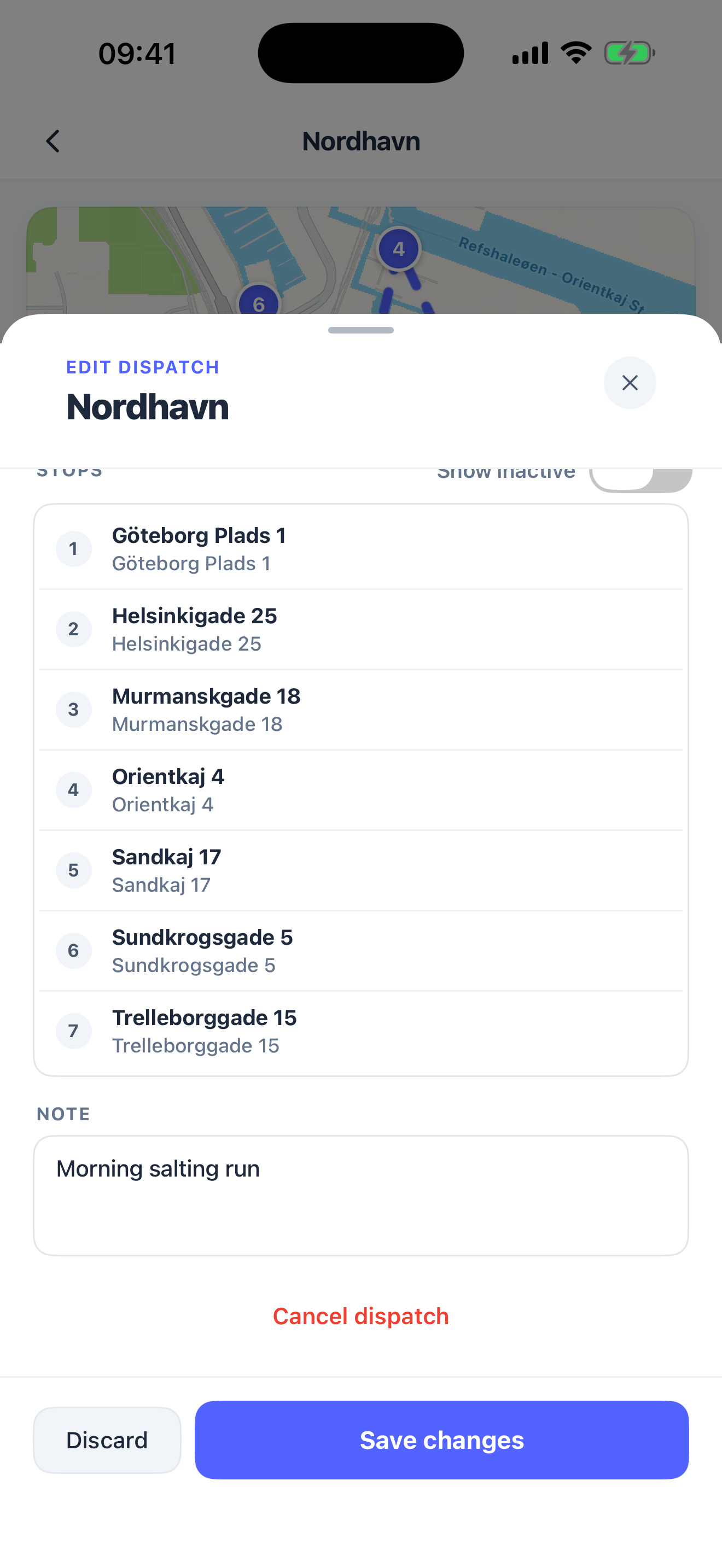
- Press Cancel dispatch. The sheet closes and a confirmation opens: This will cancel the dispatch for all drivers and notify them. This cannot be undone.
- Type your reason under Why are you cancelling this dispatch?. The Cancel dispatch button stays disabled until you have written something.
- Press Cancel dispatch, or Keep dispatch to change your mind.
On success you see Dispatch cancelled and Close takes you back to Home. The dispatch is gone from Active on your phone and on every other driver's phone, at once rather than at the end of the day, and a route run is read back under Routes, History, marked Canceled; GPS tracking for it stops. Your reason is written to the dispatch's changelog, where the office reads it on the web. Nobody receives a push or a bell about the cancellation, even though the confirmation says drivers are notified; tell your colleagues yourself if they are on the road. See cancel a dispatch for what cancelling means for stops and invoices.
If cancelling fails you see Couldn't cancel the dispatch. Please try again. and the dispatch is untouched.