A subcontractor is another company that clears addresses for you. In SnowManager it is a business of its own, with its own users, drivers and routes; you hand it addresses, it does the work, and the system settles between you. Start by adding it under Subcontractors.
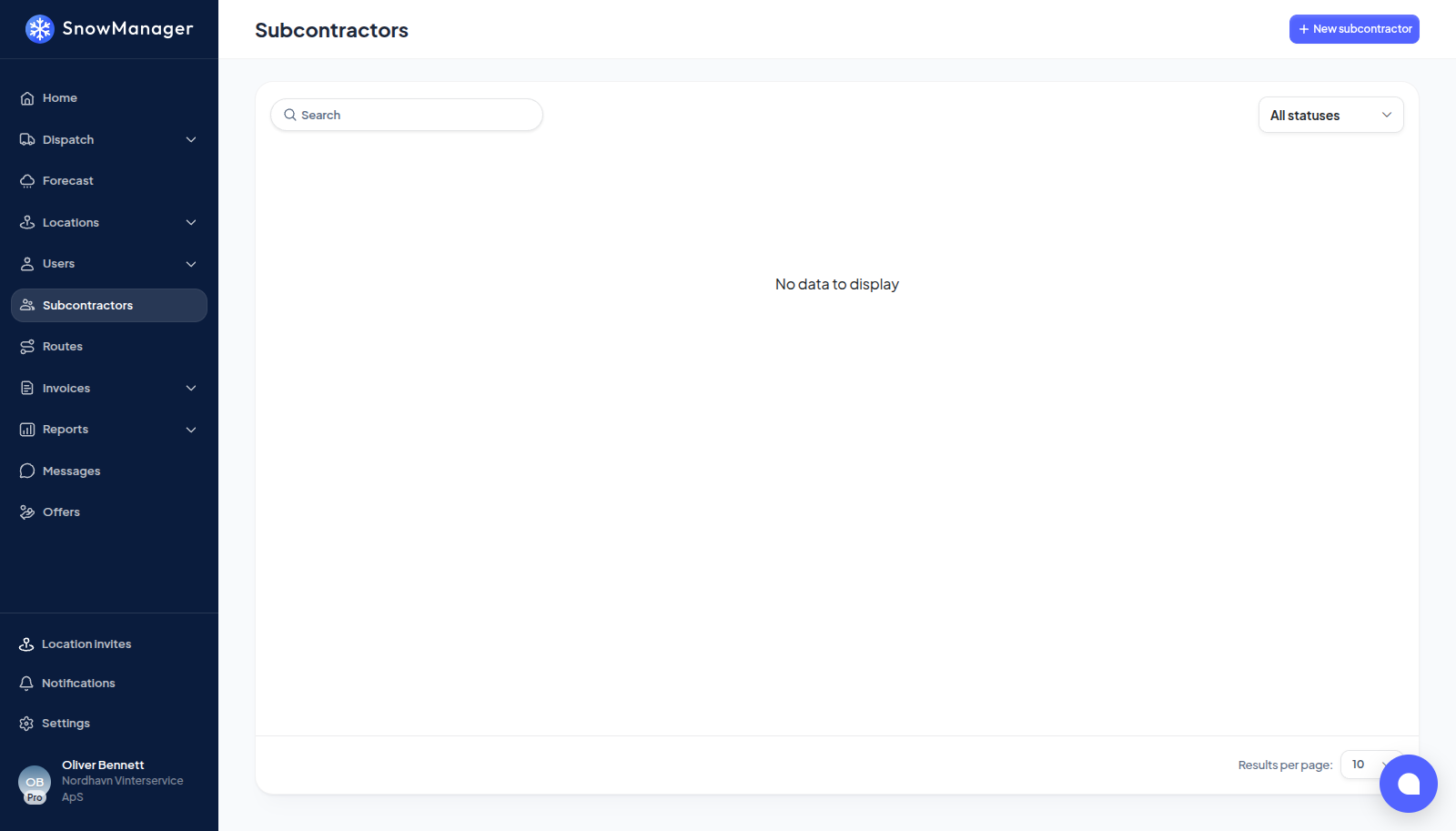
The list shows twenty companies at a time, and Assigned locations on each row counts how many of your addresses are with that company right now. It is counted from your side of the arrangement, so work the same company does for somebody else is not in the number.
Add one
-
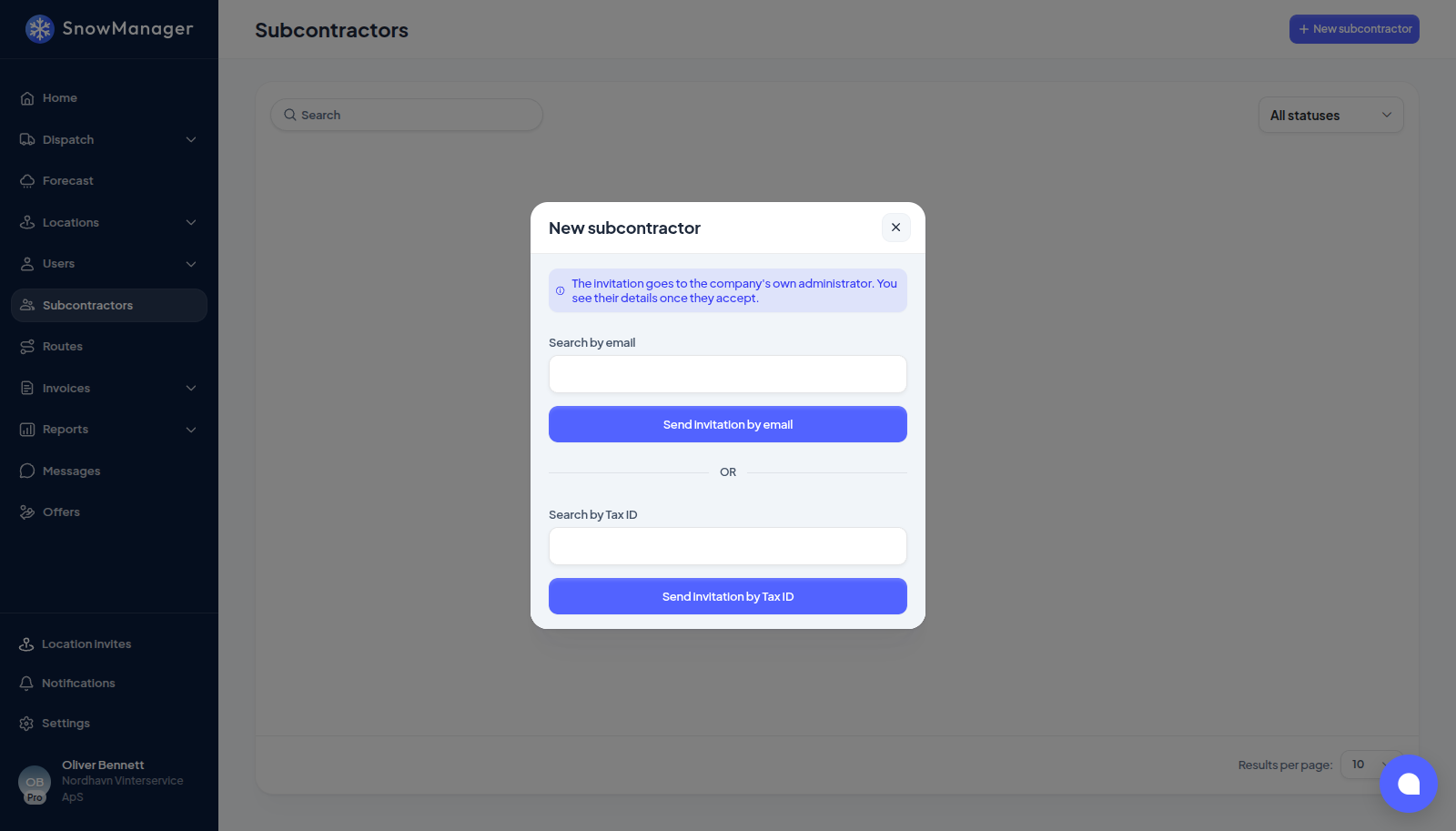
Open Subcontractors in the left menu and press New subcontractor.
-
Two ways in. Enter the company's tax ID under Search by Tax ID and press Continue with Tax ID, and the public register fills in the company's legal details for you. Or enter the contact's address under Search by email and press Continue with email, for a company the register does not know, or one that already uses SnowManager.
-
Check the company step (legal name, office address, Standard Currency, Time Zone and season range) and press Continue.
-
Enter the first admin user for the new business: first name, last name and Work Email. Press Create subcontractor.
The person you named gets an invitation email and becomes the administrator of the new business. Until they accept, the subcontractor is listed as Pending and has nobody who can sign in.
The link in that email does not expire with time: it works for as long as the invitation exists. Once the invitation is accepted, or you withdraw it, the link stops working.
While the invitation is pending
You do not have to wait for an answer. Click the pending row to open the subcontractor. A banner says Invitation not yet accepted. Locations you assign now are visible to them as soon as they log in. The Details and Locations tabs are there; Drivers, Complaints and the statistics are not, since a company that has not accepted has shared nobody and has no history with you yet.
- Hand it addresses now, from Add on its Locations tab or on the address itself. They count as that company's straight away, see Hand an address to a subcontractor.
- Withdraw invitation, on the row or at the top of the panel, takes the invitation back after a confirmation that says how many addresses you have assigned to them. Those addresses go back to being unassigned, the company is taken off the stops it has not done yet and off your routes, and it gets a notification that you withdrew. The invitation link stops working.
If the company already uses SnowManager, the tax-ID search says Subcontractor already exists and links you to the existing business instead of creating a second one.
After it is added
Open the subcontractor from the list. The details slider has tabs for its Locations (the addresses you have handed it), its Drivers, complaints, statistics and dispatch history. You can also give it a Nickname, the name you use for it in your own lists.
Main contact, on the details, is who you call at that company: a Contact name, a Phone number with its country code, an Email and a Note for anything else, such as when they can be reached. Press Edit, fill in what you know and Save; the phone number and email become links you can tap to call or write. It is your own record and only your company can see it: the subcontractor does not, and another company working with the same subcontractor keeps its own. It is there once the subcontractor has accepted your invitation, and it is deleted along with the subcontractor if you remove it.
- Locations names the route each address is driven on, the subcontractor's own route where it has built one and yours otherwise, and No route where nobody has put it on one yet. It lists the addresses being served today and those waiting for their start date, which carry Active from and the date; a line above the list says how many of the assigned addresses it shows. Show inactive with the count adds the ones whose active period has ended, faded and tagged Inactive; it switches off again when you open another subcontractor. Click a row to open the address on top of the panel; closing it puts you back where you were.
- Drivers lists the people the company has shared with you, including the ones who have not answered their invitation yet, so a crew that arrived by import is not simply missing.
- Statistics plots cost beside revenue for the period, so what the company earns you and what it costs you are read off one graph.
- Dispatch history carries each run's ID, and Open dispatch on the row opens the run itself.
Under Permissions sit two switches that matter on a snow night. May dispatch my addresses is on by default: the subcontractor can start dispatches on the addresses you assigned it. Off, it still services them when you dispatch, but it cannot send its own drivers to them on its own initiative: those addresses are greyed out in its pickers, and a route that mixes them in is dispatched without them, with a note saying why.
Runs zone call-outs on my addresses itself is off by default. Turn it on for a subcontractor that runs every call-out on its own addresses: your zone dispatches then skip the addresses you assigned it, and it dispatches them itself from its own zone or routes. Only zone dispatches change. An address, route or manual dispatch still invites the subcontractor exactly as before, and a dispatch that is already open keeps its stops. The zone popup and the zone map list those addresses in their own box under the zone, so you can see what the zone leaves to whom. Turning this on also turns May dispatch my addresses on and keeps it on: with both off nobody could dispatch those addresses, so taking the dispatch permission away is refused until you turn this off first. The subcontractor sees both settings read-only on its Contractors card. See how a zone dispatch is built.
Handing the subcontractor actual addresses is done from the address itself, or in bulk from the subcontractor's Locations tab, where Add opens a list of your addresses with a Select all that ticks everything it is showing and turns into Deselect all; see Hand an address to a subcontractor.
What the subcontractor is told about the companies below it, and what you are told about them, is one link in each direction: see owner, subcontractor, sub-subcontractor.