SnowManager runs in the browser. Your sign-in is the email address you were invited with and the password you chose when you accepted the invitation.
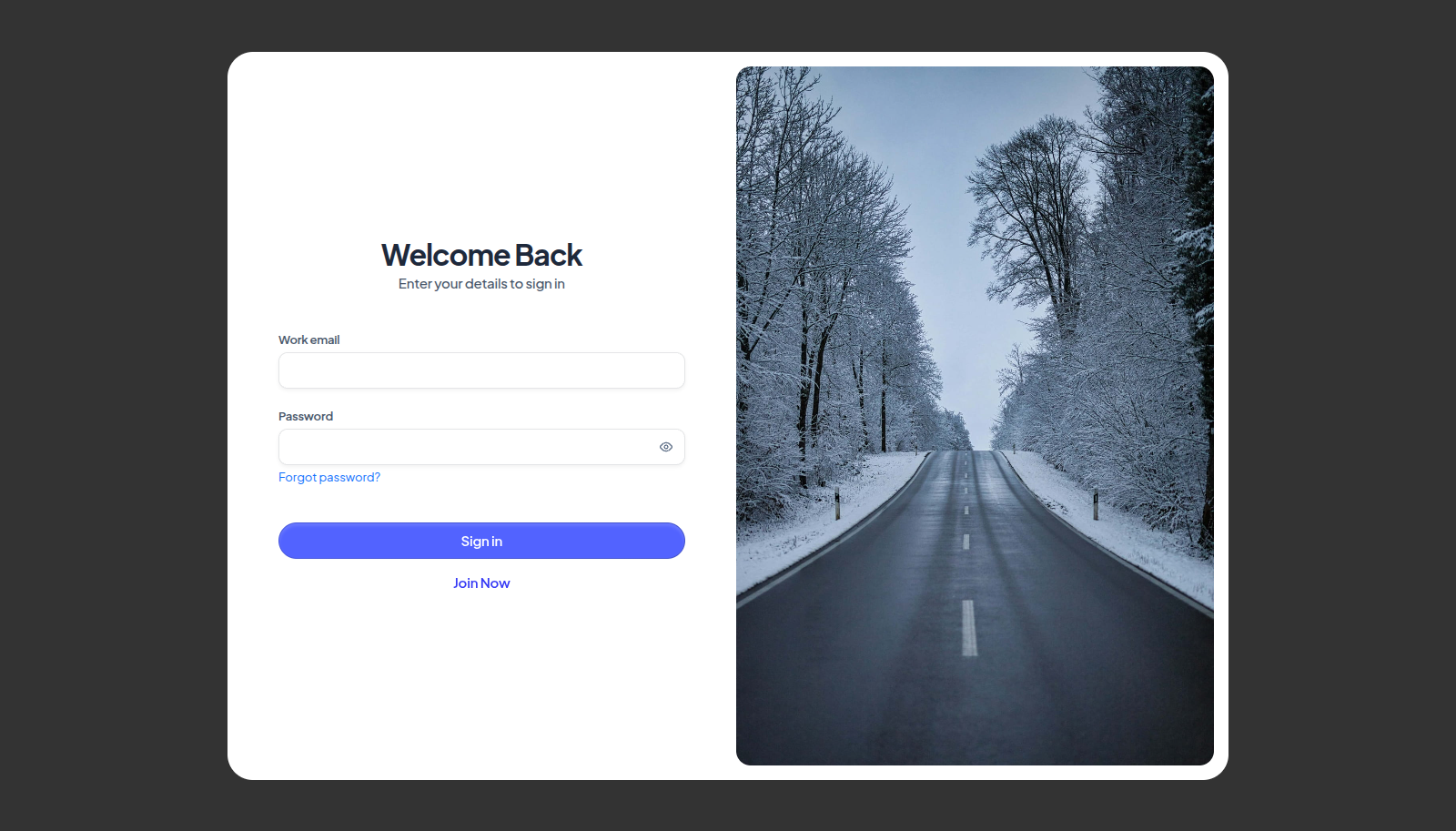
Sign in
- Open your SnowManager address in the browser.
- Enter your Work email and Password. The eye icon shows what you typed.
- Press Sign in.
If your account has two-factor authentication switched on, one more step follows. With both methods set up you are asked to Choose a verification method to continue. The choice is Authenticator App or Text message (SMS); with one method set up you go straight to it. Enter the six-digit code under Enter verification code and press Verify. No phone at hand? Press Use a recovery code instead and enter one of the recovery codes you saved when you turned two-factor on. Each recovery code works once.
Drivers sign in the same way, but the web has nothing for them to do: a driver who signs in here is shown where to download the mobile app, and that is where their work is. A driver who was added without an e-mail address signs in to the app with their phone number; see Add a driver who has no email.
Reset a forgotten password
-
On the sign-in form, press Forgot password?.
-
Enter the Email Address you sign in with and press Send Reset Email. Back to login returns to the form.
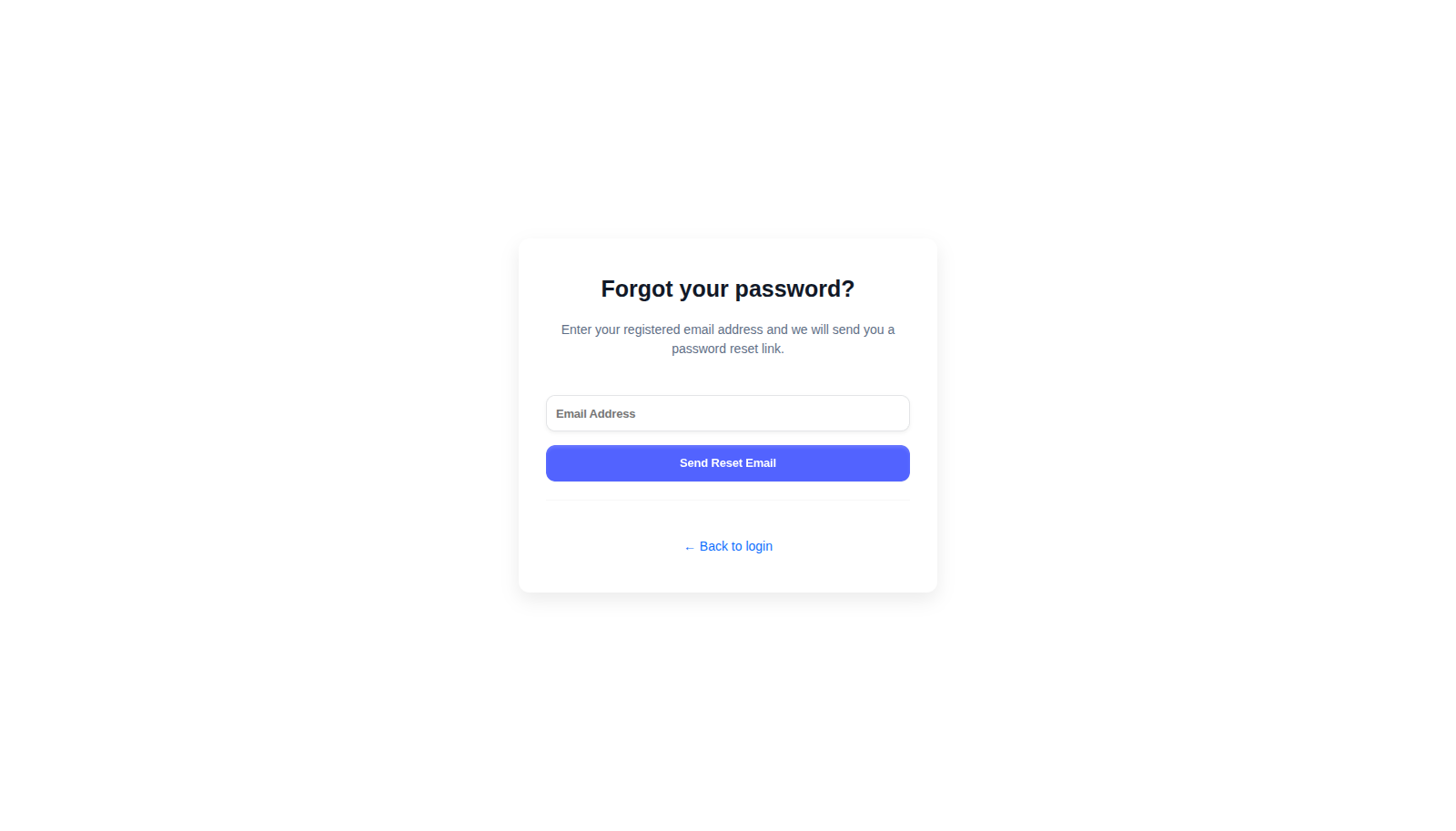
-
Check your inbox for the reset link, follow it and choose a new password. The link is good for 72 hours, as the e-mail says; if it has expired, ask for a new one.
This also works for someone who was invited but never chose a password: the same steps send the invitation again, with a fresh link that is good for 72 hours.
A password must be at least 12 characters long and pass the checklist shown on the form (upper- and lower-case letters, a digit and a special character). You cannot reuse one of your recent passwords.
If you cannot get in
- Wrong password five times locks the account for 15 minutes. Wait, then try again or use the reset link; the reset works during the lock.
- "Invitation sent" users have not chosen a password yet. They need the link in their invitation email; an administrator can send a fresh one from Users.
- Customer accounts sign in on the same form and land in the customer portal, not in the staff workspace.