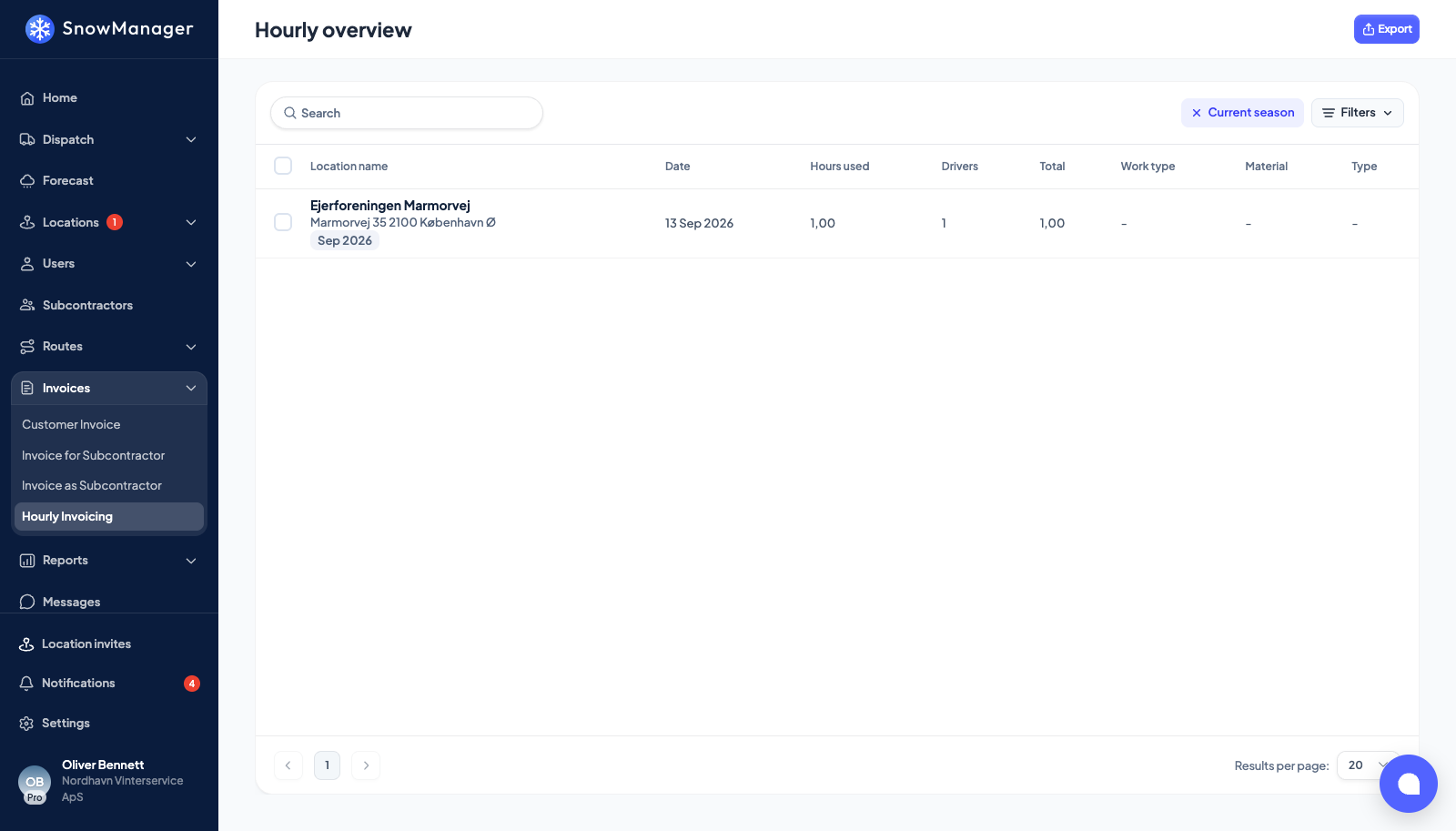
An address priced per hour bills the time the driver spent there. Invoices → Hourly Invoicing opens the Hourly overview: the same customer invoices as the main list, kept to the ones whose lines come from hourly addresses, for the current season.
Read the overview
Each row is an invoice: Location name, Date, Hours used (the hours on its active lines), Drivers, Total, Work type, Material and Type. The period tag shows which month the draft collects. Possible duplicate marks a line for an address that another dispatch also billed within six hours. Every visit is billed on its own line, so two runs at one address are two lines; the badge is there so you can check the second run was meant.
Filters narrows by Routes, Locations and Date range; the search box matches the customer. A blue chip shows the active period or search, and clears it.
Where the hours come from
The quantity on an hourly line is check-out minus check-in, in hours, rounded to two decimals, multiplied by the address's hourly price. Two things to know:
- If the stop has no usable times, the line is still drafted, with quantity 0 and the note Hourly duration is missing or invalid for this location. It is there to be fixed, not to be missed.
- When two routes cover the address on one dispatch, the line bills the sum of the passes, not the stretch from first arrival to last departure. See when two routes cover the same address.
Correct the hours
- Click the row. The invoice opens with its lines; Quantity shows the hours.
- Open a line with View. A line with a dispatch stop behind it opens the stop panel; a line without one opens the Address overview drawer, with Check In and Check Out under Timings.
- Change the times. The hint Invoices are also updated says what follows: the line's quantity is recalculated from the new times.
Editing the quantity directly on the line works too, while the invoice is a draft, but then the stop and the invoice no longer agree. Fix the times when the times are wrong.
Send and export
The hourly page is a view: it does not send. Send the invoice from Customer Invoice like any other; see review and send a customer invoice. Export here produces the CSV files of the selected rows, for a period you choose. The file downloads as soon as it is ready if the dialog is still open, and you are e-mailed a link to it as well; see Export invoices and reports.