Some addresses have conditions: not on Sundays, never before seven, at most twice a week, double price over Christmas. In SnowManager these are Rules on the address. They are applied automatically when a dispatch is created, so the dispatcher does not have to remember them on a snow night.
An example
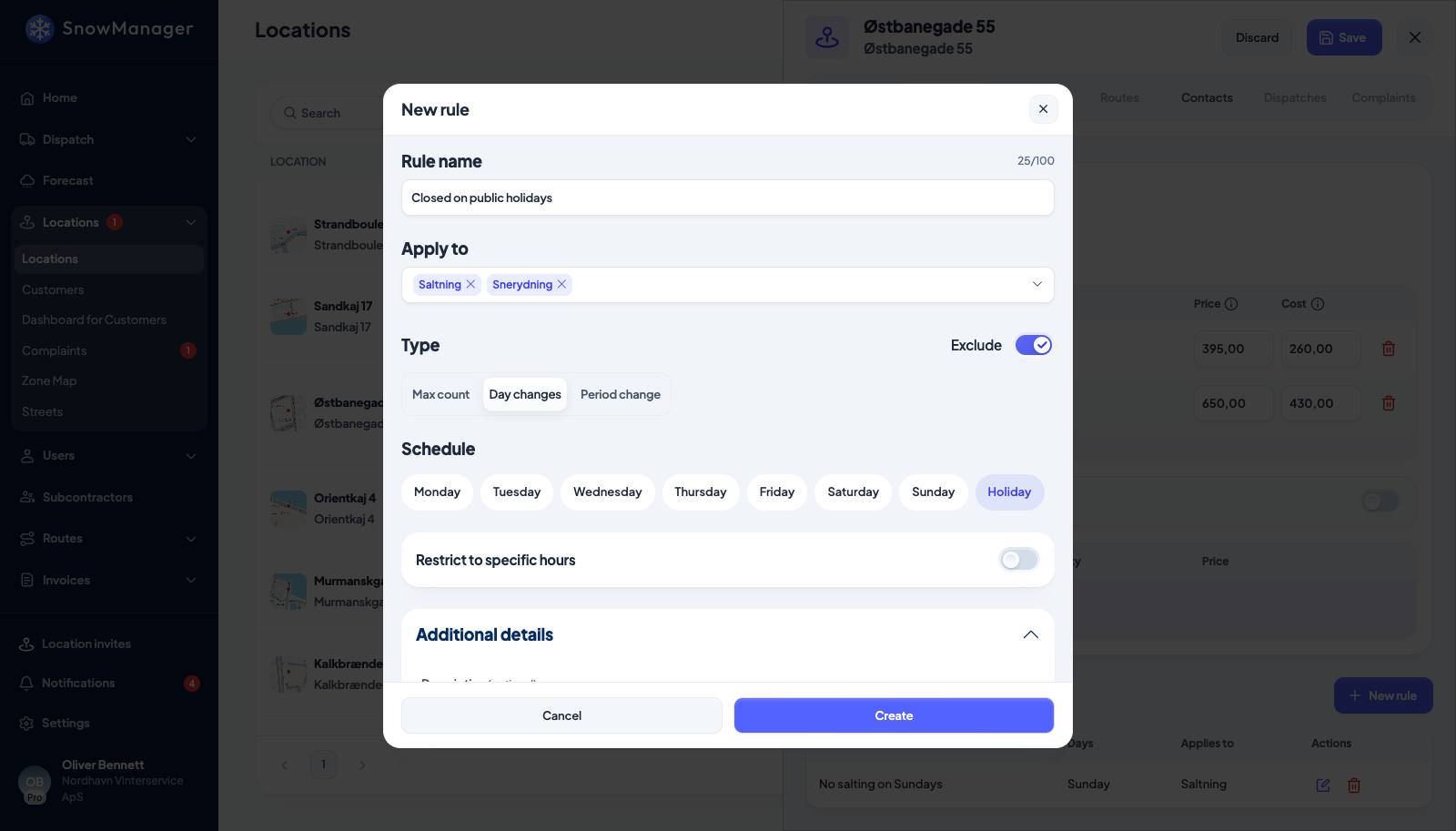
Østbanegade 55 is a housing association's car park that stays shut on public holidays, so nobody should be sent there on those days, whatever the weather. The rule for that:
- Rule name: Closed on public holidays, which is what the dispatcher reads when the stop is taken off a dispatch.
- Apply to: both work types, Saltning and Snerydning, because neither can be done behind a locked gate.
- Type: Day changes, with Holiday ticked under Schedule, so it follows the holidays under Settings → Holidays instead of dates typed by hand.
- Exclude on: a matching dispatch leaves the address out rather than charging a different price.
Create a rule
- Open the address from Locations, find Rules and press New rule.
- Give it a Rule name: it is what the dispatcher sees when the rule removes a stop.
- Choose the Type:
- Day changes: the rule applies on chosen days of the week.
- Period change: the rule applies between two dates.
- Max count: the address may be dispatched at most Max times per Period (a day, a week, a month or the season).
- Under Apply to, pick the work types. Leave it empty and the rule applies to all of them.
- Set the Schedule. Tick the days (Monday … Sunday), or tick Holiday to make the rule apply on your business's holidays (Settings → Holidays). Turn on Restrict to specific hours to give each day a From and To; Same for all days copies one window to every ticked day.
- Decide what the rule does when it matches:
- tick Exclude to keep the address out of dispatches that match, or
- enter a Price and Cost to charge differently while the rule matches, instead of excluding. A minimum snow depth is not a rule: it is set once for the address, on the Prices tab's Snow depth rules panel (see Pricing by snow depth).
- Add a Description and images if it helps the next person understand why, then press Create.
What the rule does
- An excluding rule removes the address from any dispatch whose planned time matches, at the moment the dispatch is created, merged or edited. The stop stays on the dispatch as Removed, with Removed automatically by the rule "…", and can be restored by hand for that one dispatch.
- A Max count rule counts the dispatches the address is already on in the period (planned, not performed) and removes it from the one that would exceed the limit.
- A price rule changes the invoice line for stops whose planned time matches. It beats the address's normal price and the work-type price. Only one price rule may cover a given period and work type; the form refuses an overlap.
- The address's minimum snow depth (on the Prices tab, not a rule) removes the address from a dispatch whose snow depth is below it, for plowing work types only; salting-only work goes out regardless. The stop shows as removed with the threshold as its reason, can be restored by hand, and is re-checked when the depth on the open dispatch is edited. It raises no error or warning; see Pricing by snow depth.
Rules never change anything already dispatched. A dispatch created before the rule existed is not re-checked.
Good to know
- Weeks run Monday to Sunday. "Season" is your business's season range from Settings; a per-season limit is skipped when no season is configured or the date falls outside it.
- A rule with no work types shares one budget across all of them; a rule naming two work types shares one budget between those two.
- The customer can be shown the rule in the portal, or not: it is one of the things you choose to share per address.
- Rules are owner-only: a subcontractor sees them on the address but cannot change them.
- The list on Locations marks an address that carries rules with a small Rules chip in its price column, on your own addresses only, and the With rules filter lists them all; see Filter the list. Hovering the chip (or tabbing to it) opens a card that lists each rule with its days, hours, limit and work types, but not its prices; those stay on the rule itself.