A route is more than its stops. It also says how its drivers are reached, whether they may start and finish on their own, and whether a zone dispatch may pull it in. Those switches live on the route's Details tab, under Driver settings and Dispatch settings, each shown as Enabled or Disabled.
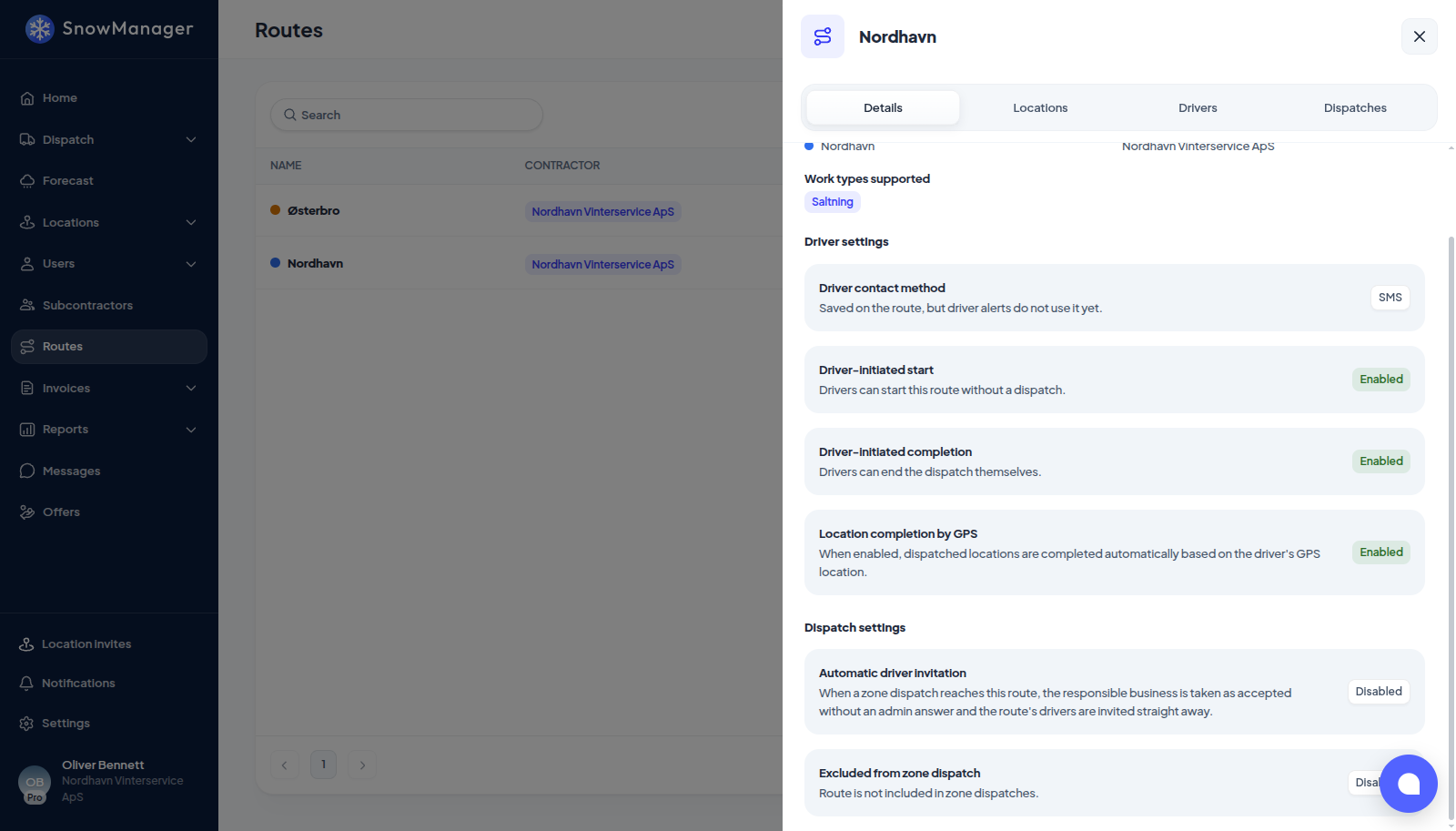
Change them
-
Open Routes in the left menu and click the route.
-
On Details, press Edit. Only the business that created the route has the button; a route another business handed you is read-only here.
-
Flip the switches you need and press Save. Cancel drops the changes, and if you try to close the slider or switch tab with unsaved changes, it asks first.
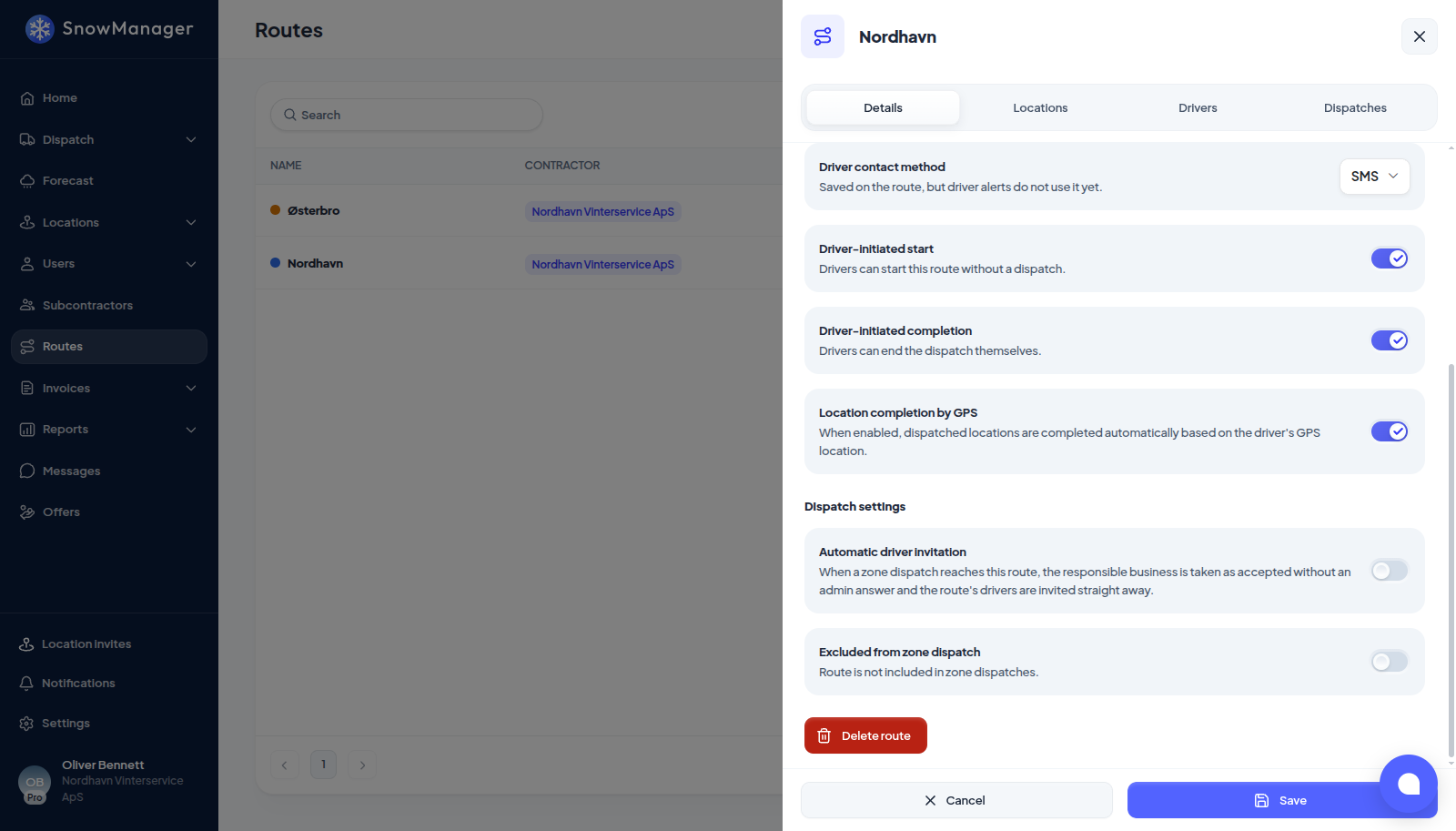
The same form edits the route's Name, its colour, Work types supported and Contractor.
Driver settings
- How drivers are told about work: When a dispatch is sent out or a driver is called out on one. Choose any combination. The choices are Push notification (free), SMS ({0} per SMS) and Phone call (free), and at least one must stay chosen. Drivers without a phone number on their profile get no SMS. A text is paid by the company the drivers drive for, and a call can be answered by pressing 1 to accept; see Who is told what.
- Driver-initiated start: Drivers can start this route without a dispatch. The setting travels with the route to the driver app.
- Driver-initiated completion: Drivers can end the dispatch themselves. With it off, a driver cannot finish the route from the app; an administrator can finish it regardless.
- Location completion by GPS: When enabled, dispatched locations are completed automatically based on the driver's GPS location. A route is enabled by default. With it off, the phone still records when the driver arrived and left, but the stops are not closed by driving away: the driver marks each one done, and the app says so on the route. What the phone reports, and how a visit is timed, is described in how GPS check-in works.
Dispatch settings
- Automatic driver invitation: Drivers are automatically accepted and invited when dispatched through a zone.
- Excluded from zone dispatch: Route is not included in zone dispatches. A zone dispatch normally collects every route with addresses inside the zone; with this on, the route stays out. See what happens when you dispatch a zone.
- Hourly time tracking: Will save and monitor how much time is spent on each stop. (Enable only if you know what you're doing.)
Customer notifications
- Never send customer notifications: The customer gets no started, completed or incomplete email from this route. Use it for a second pass over addresses another route already covers: an address also on a route without this switch is still told about by that route. See What the customer is told about a job.
Not on the route
Photo required is a setting of the address, not of the route: it is switched on the address itself, and the printed route marks the addresses that have it. Which people drive the route is on the Drivers tab, see drivers on a route.