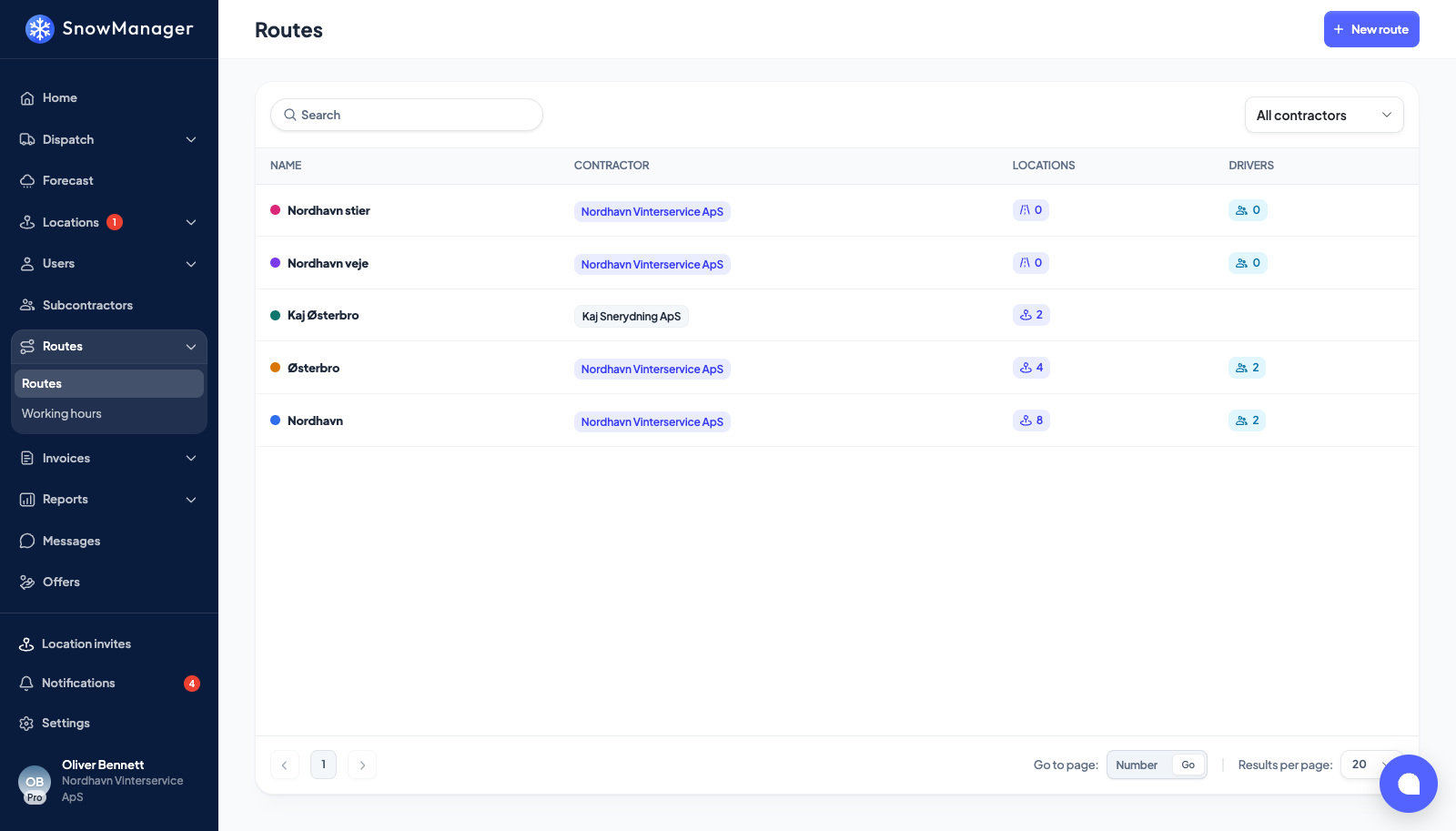
A route is what a plow actually drives: addresses in order, with the drivers who drive it and a few settings about how. Dispatch a route and every address on it goes out in sequence to those drivers. Build the routes once, before the season; dispatch them all winter.
Create the route
- Open Routes in the left menu and press New route.
- Give it a Route name and Pick route color; the colour is how the route shows on maps and in lists.
- Under Select contractor, choose who runs it: your own business, or a subcontractor if the route is made of addresses you have handed them.
- Under Select work types, tick the work types this route is dispatched for.
- If the Road routes switch is on for your business, a Route type choice appears: keep Stop route for a route made of addresses. Road route is for painting the streets themselves instead, with or without a municipality picked, see paint a road route. With the switch off the route is a stop route and nothing is asked.
- Press Create.
Put addresses on it
Open the route from the list. An empty route says There are no locations on this route. Add them first. and offers two ways:
-
Add locations using map opens the Route builder, a map of every address you can route, with a list of the route's stops beside it. There are three ways to put addresses on:
- Click a pin. A grey pin is an address not yet on this route; click it and it is added as the last stop. Clicking never removes a stop, so a stray click costs nothing; remove from the list instead.
- Draw area. Draw a polygon around the part of town and every address inside it becomes the route. Drawing a new area replaces the current selection, and the builder warns you so.
- Search road or address finds one address and centres the map on it.
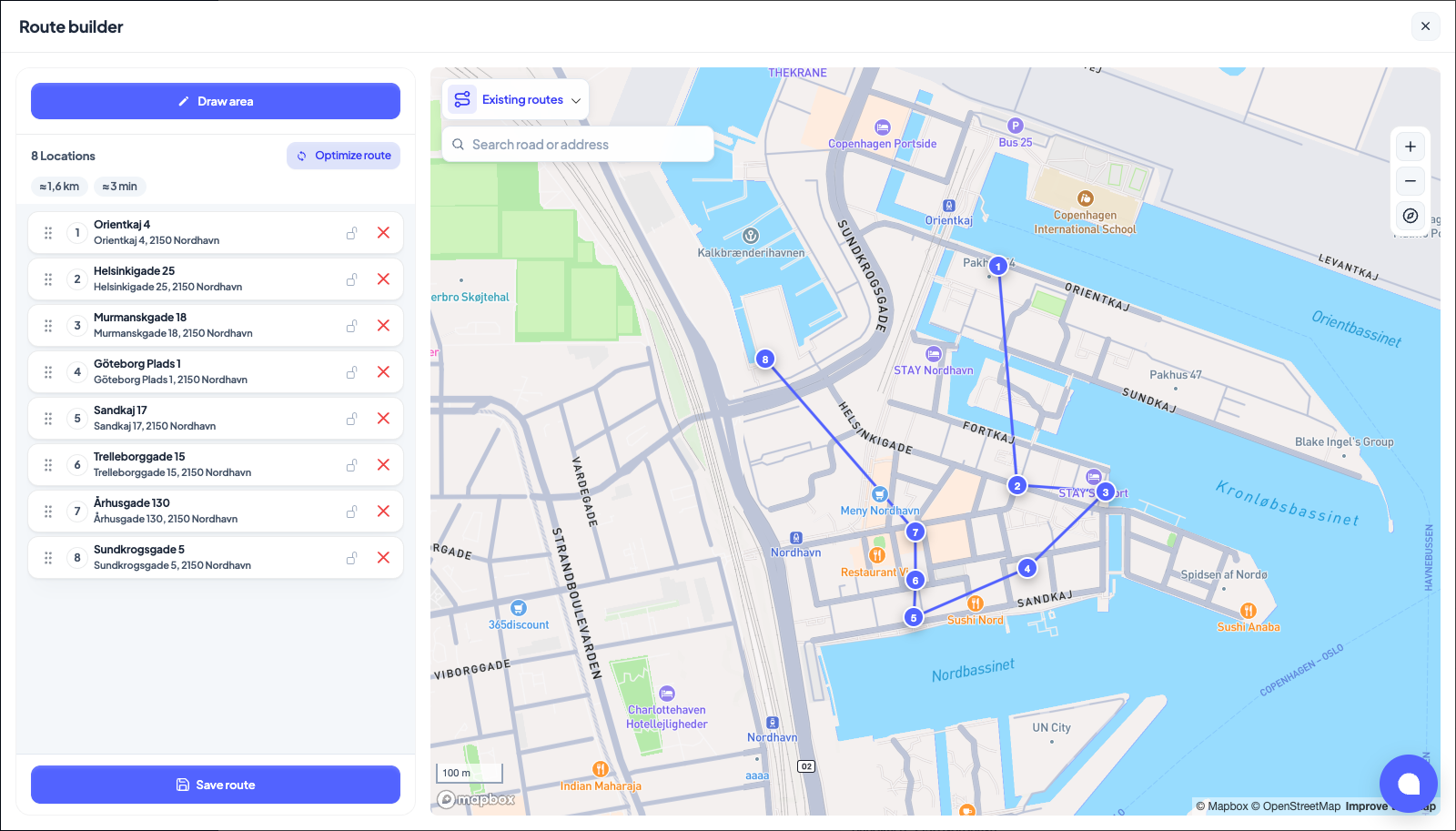
Open Existing routes at the top of the map to see the routes you already have. Tick one, or Show all, and its stops appear as numbered pins in the route's colour, so you can build the new route around them. Click one of those pins and Routes containing this location lists the routes it is on, with Add to this route: the same address can sit on as many routes as you need, a morning plow route and a salting route say, or two plows that meet at the same car park.
-
Add locations manually lists all addresses with a search; tick what you want.
Which addresses a route will take
A route only takes an address somebody is going to serve. An address that is active now can go on it, and so can one whose Active from date is still in the future, because next season's routes are built before the season starts. An address whose Active until date has passed cannot: nothing dispatches it, so a route carrying it would plan work nobody does.
In the manual list such an address is greyed out with an Inactive tag and its add button is disabled, saying why when you hover it. On the map, clicking its pin answers An inactive address cannot be added to a route. and adds nothing. An address waiting for its season shows Active from with the date instead of Inactive, and adds normally. If a request somehow reaches the server anyway, the save is refused and names the addresses it refused.
Addresses already on the route are never re-judged. A stop whose address ended last spring keeps its place, shown greyed with an Inactive tag on the route's Locations tab, in the route builder and in the dispatch pickers, so you can still reorder the route or take the stop off when you mean to.
Two views of the route show only the work it does today, and leave inactive stops out (an address whose season is over, has not started yet, or that was deleted):
- The map above the stops on the route's Locations tab: no pin, no place on the line joining the pins, and none of its drawings. The pins keep their number in the stop list, so pin 4 is still the fourth row when stop 3 is inactive. Click an inactive stop's row to see where it is: it appears on the map as a faded pin with its list number, outside the line, and goes again when you click another row.
- The printed route: inactive stops are not on the sheet at all, and the printed stops, and the pins on its map, are numbered 1, 2, 3 and on over what is printed, so the driver's sheet lists only work to do. Duplicate route is the exception: a copy is a new route, so it leaves behind an address the original has outlived.
Then put them in driving order: Drag to reorder, or press Optimize route and let the system order them by driving distance (it handles a limited number of stops per run, and says so if the route is longer). Lock location in place pins an address so optimisation leaves it where it is: the depot first, the hospital second. Press Save route.
Addresses you take off a route sit under Recently removed with Re-add, so a slip is one click to undo.
Drivers and settings
- Edit drivers: the people who drive this route. They are attached automatically to every dispatch of it, as long as they are the crewing company's own staff and can sign in. If the route belongs to a subcontractor the drivers are theirs to set; the picker tells you so. See Drivers on a route.
- Dispatch settings and Driver settings decide how the route behaves on a dispatch: Automatic driver invitation, Location completion by GPS, Hourly time tracking, Excluded from zone dispatch, Driver-initiated start, Driver-initiated completion, Photo required and Driver contact method. See Route settings.
Keep it useful
- Duplicate route copies the addresses and settings to a new route, for a second plow on the same ground, or next season's variant. Addresses the original route has outlived are left behind: the copy is a new route, and a new route only takes addresses that are served or about to be.
- Print route produces an A4 sheet of the stops in order, for the glovebox. Inactive stops are left off it, see Which addresses a route will take above. When a stop's address has PDF files, tick Include location PDFs beside the print button to add them to the sheet, page by page right after that stop. A file that cannot be read says This PDF could not be added to the printout. in its place.
- Delete route is permanent and cannot be undone; dispatches that already used the route keep their history.
An address may sit on several routes. Dispatched together, it is one stop with a visit per route, and one invoice line. A route's dispatch history, with length and duration per run, is on the route's Dispatches list.
The route list and the route's Locations tab also add up each route's area, time estimate and what one dispatch is worth per work type; see what a route is worth, and who sees which price.