A dispatch is how work reaches your drivers. It says where (one or more addresses, a whole route, or everything inside a zone), when (a planned date and time) and what (the work type: salting, plowing, or whatever your business has set up). Drivers see it in the app the moment you send it.
Send a dispatch
-
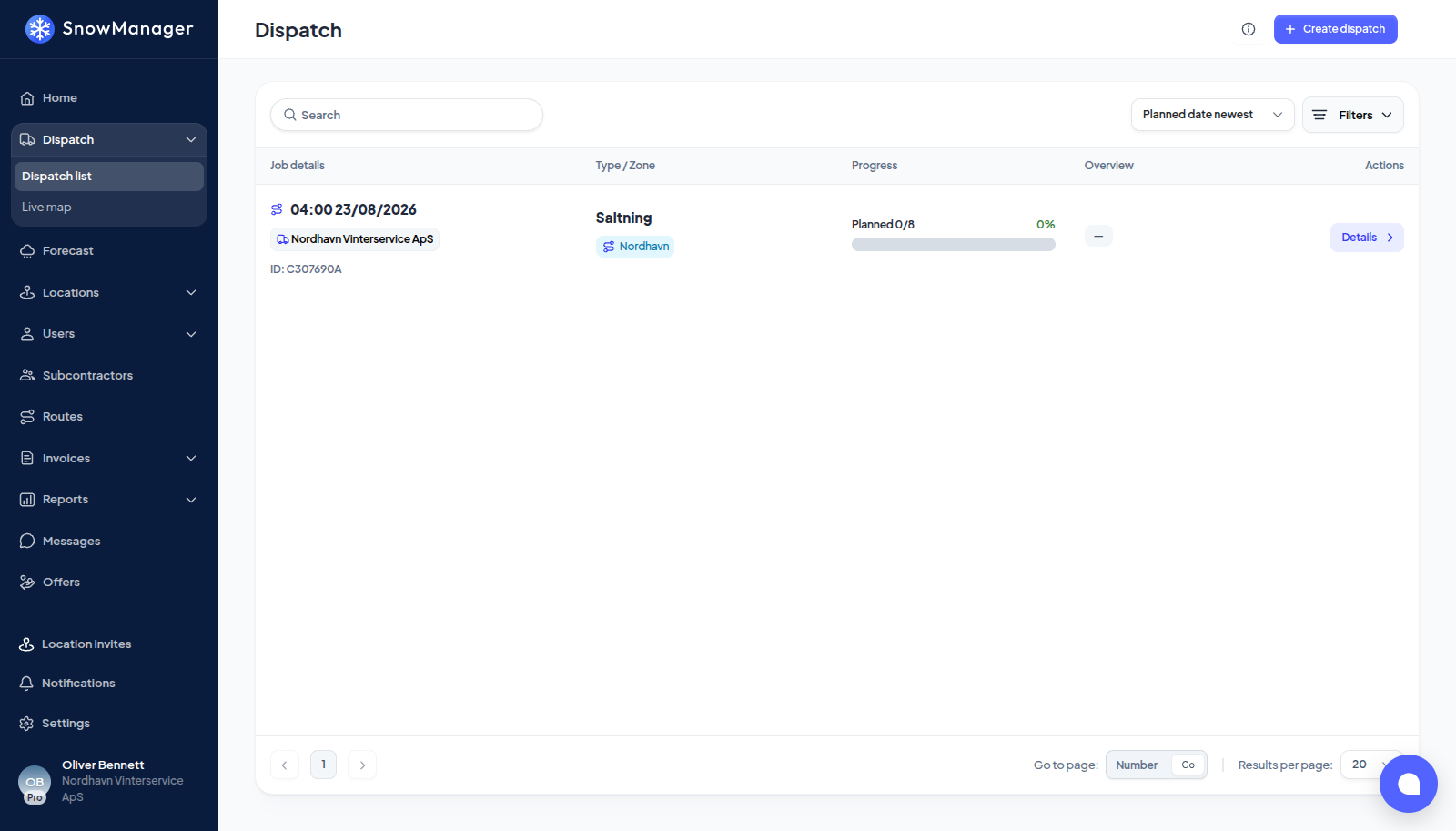
Open Dispatch in the left menu.
-
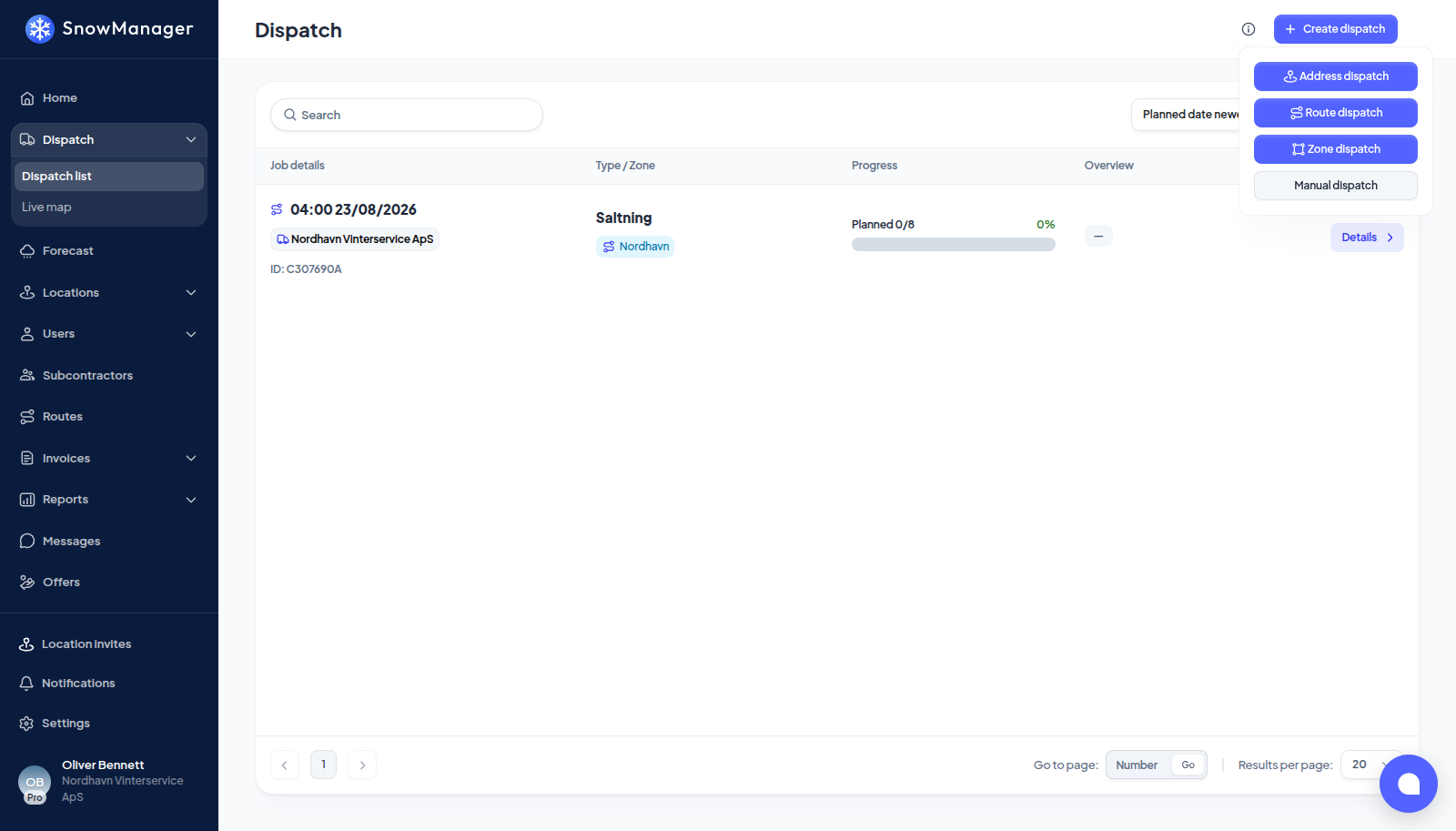
Press Create dispatch and choose what you are dispatching: Address dispatch for single addresses, Route dispatch for whole routes, or Zone dispatch for everything inside a zone. (Manual dispatch is for registering work that was already done.)
-
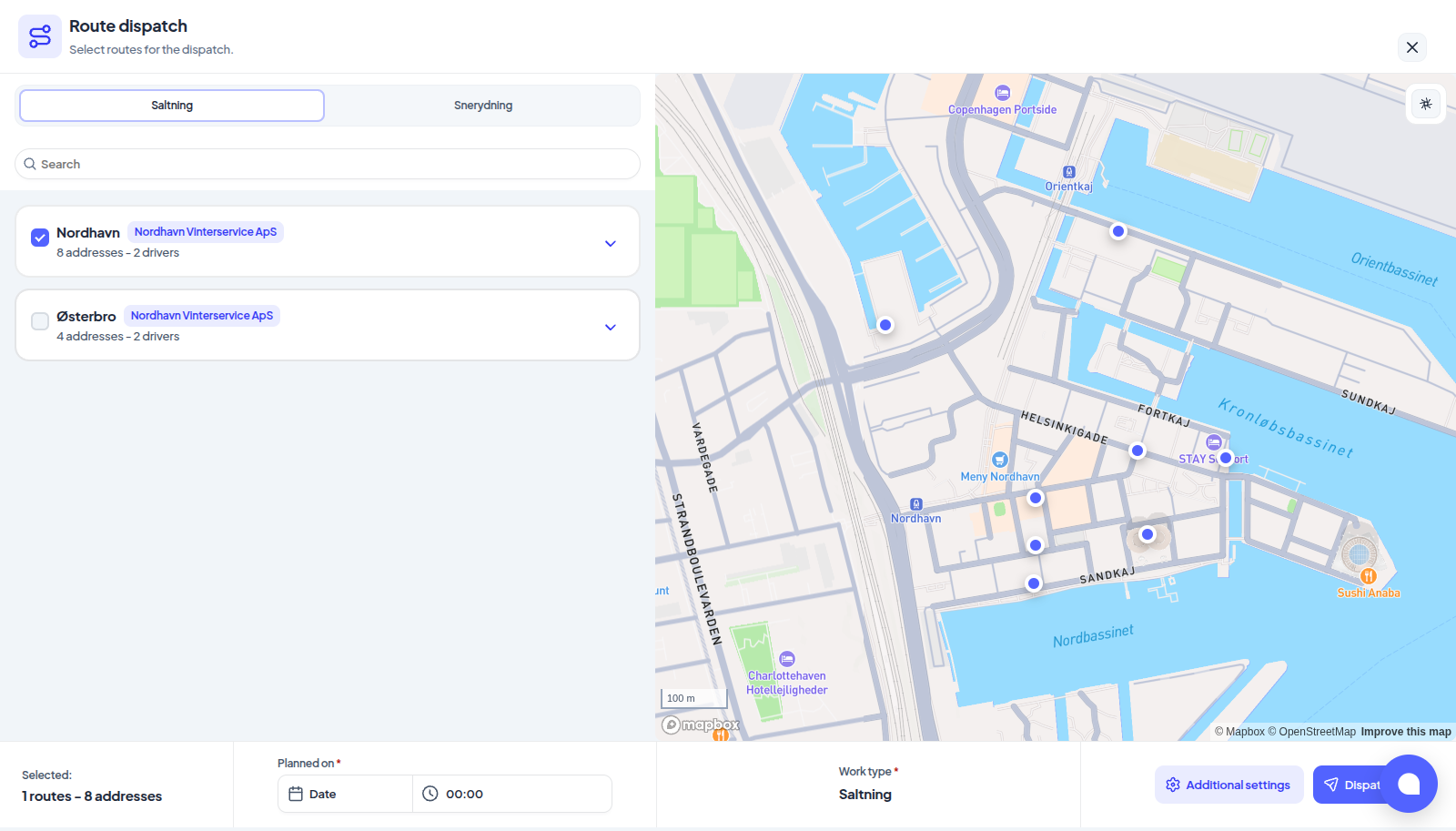
Pick the work type at the top, then tick the items to include. For a route or zone, every address it contains is included automatically; addresses whose owner has disabled dispatching for you are listed but left out, with a note saying why. The bar at the bottom keeps count of what you have selected.
On a zone dispatch, the search box (Search zone, address or customer) finds more than zone names. From three characters it also looks through the addresses your zones can dispatch, by address, address name, customer name and customer number, and lists every zone whose name matches or that holds a hit. Each hit reads In zone and the zone's name, with its customer, so you can tell which zone an address belongs to before you tick anything. While the search narrows a zone to its hits, that zone's box ticks only the addresses shown, not the whole zone; a zone found by its own name lists, and ticks, everything in it. Clearing the search closes what it opened and keeps every tick you made.
On an address dispatch, an address that sits on a route of the business responsible for it goes out with that route's crew as well as the drivers you add in the popup, exactly as it would through a route or zone dispatch. An address on no such route takes only the drivers you picked.
On a route dispatch, the filter beside the search decides whose routes are listed: All routes (the default), Our routes (the ones you drive yourself) and one entry per contractor, each with its route count. Tick as many as you like; ticking All routes clears the rest. A contractor's entry holds both the routes you handed to them and the routes they built themselves around your addresses. You can dispatch those too: only your own addresses on the route go out, to that contractor, and they add the rest of their route from their own screen.
-
Open a route (the arrow on its row) to see Drivers above its addresses. The people the route is configured with are already picked and sit at the top as chips; press the cross on one to take them off for this dispatch only. To add somebody, type in the search box under the chips: the drivers who match are listed in the small window below, and Add puts them on. The route's own driver list is never changed by this, so a stand-in tonight is not a stand-in tomorrow; to change who normally drives a route, use Drivers on a route. Leave the panel alone and the route goes out with its usual crew, exactly as before.
A chip or a search hit tagged Deactivated, Not invited or Removed is someone who cannot sign in. Only people who may crew the route are sent out (the company's own staff, with an account that can sign in), so such a name, or someone from another company still on the route, is skipped when the dispatch is created.
A route cannot be dispatched with nobody on it. If you clear the last name, or a route you picked has no drivers configured, Dispatch now stops and names the routes that need a crew. Add somebody, or untick the route. Routes you have handed to a subcontractor, and routes a contractor built, are the exception: they crew those themselves, so the panel is not shown and they are never held up here.
-
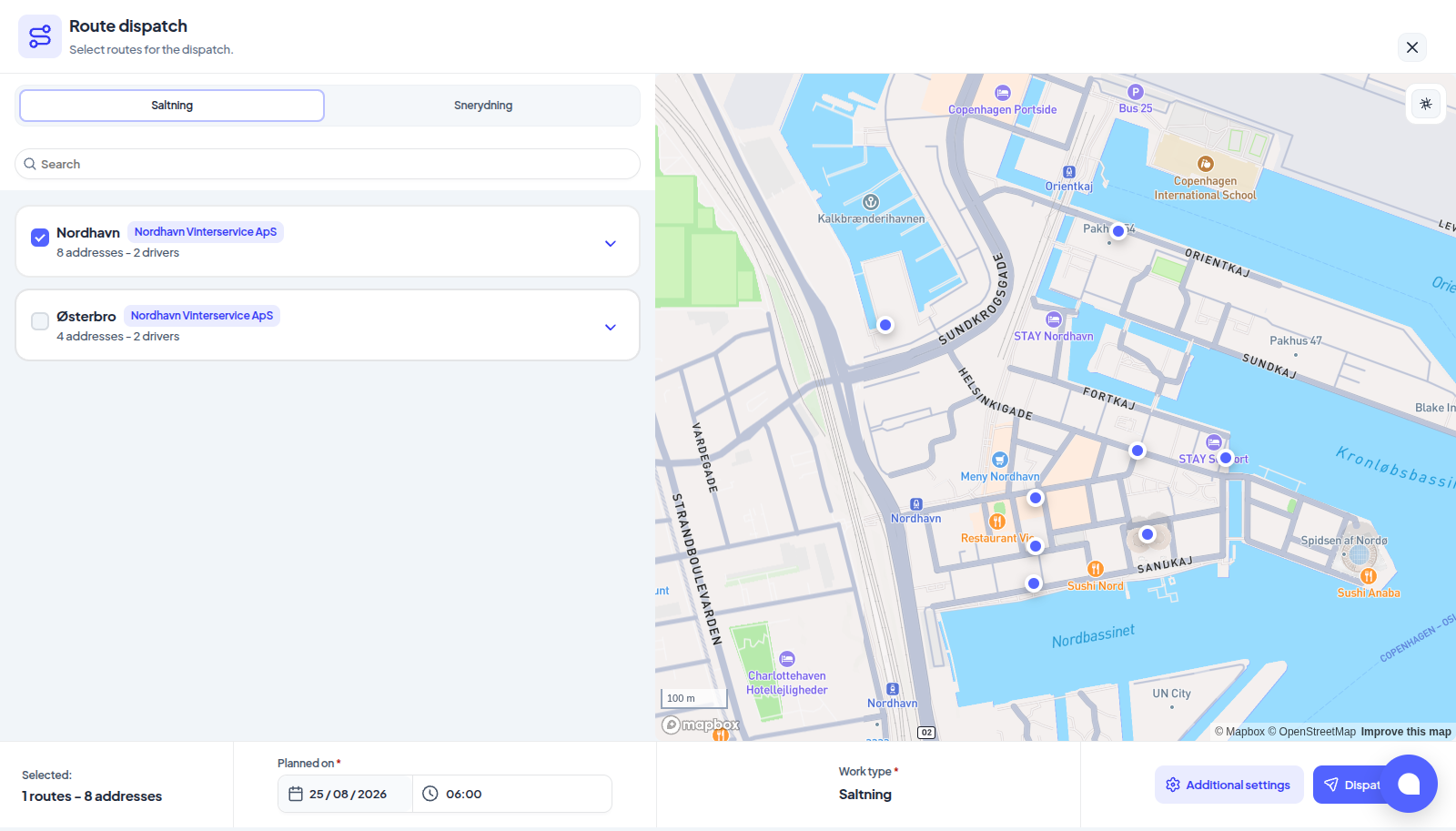
Set the Planned on date and time in the bottom bar. The dates and times are your business's clock (the Time Zone under Settings → Business), not the computer's, so a dispatcher working from another country is offered the same days and times as the office.
- Now fills in the date and the time together: five minutes from now, rounded up to the minute (after 23:55 that is tomorrow).
- Today can be picked. If the time is still empty, or already gone, it becomes five minutes from now; the picker does not offer times that have passed, and a passed time you type is replaced the same way.
- On any other date the time stays empty until you choose one, and Dispatch now says Choose a time for the planned date. rather than sending the work out at midnight.
- Time spent filling in the rest of the form does not count against you: a planned time is accepted until five minutes after it has passed, so Now stays good for ten minutes. Older than that, the dispatch is refused with The planned date and time must be in the future.
Beside the planned time, some businesses see a Snow depth field: US and Canadian businesses, and any business with a work type priced by snow depth. Type the depth on the ground, or leave it empty to take the weather snapshot's snowfall; the depth decides which tier a depth-priced address bills, and it can still be edited on the dispatch until completion. See Pricing by snow depth.
-
On an Address dispatch only, decide about the money: Should be invoiced is on by default, and while it is on, Who should be invoiced? offers Customer and subcontractor, Customer only or Subcontractor only. Route and zone dispatches always bill both sides and ask nothing. What each choice does is in Who is invoiced for an address dispatch.
-
Press Dispatch now. A summary shows the work type, the planned time, the routes and who they are assigned to, and on an address dispatch the invoicing choice. Press Confirm and dispatch.
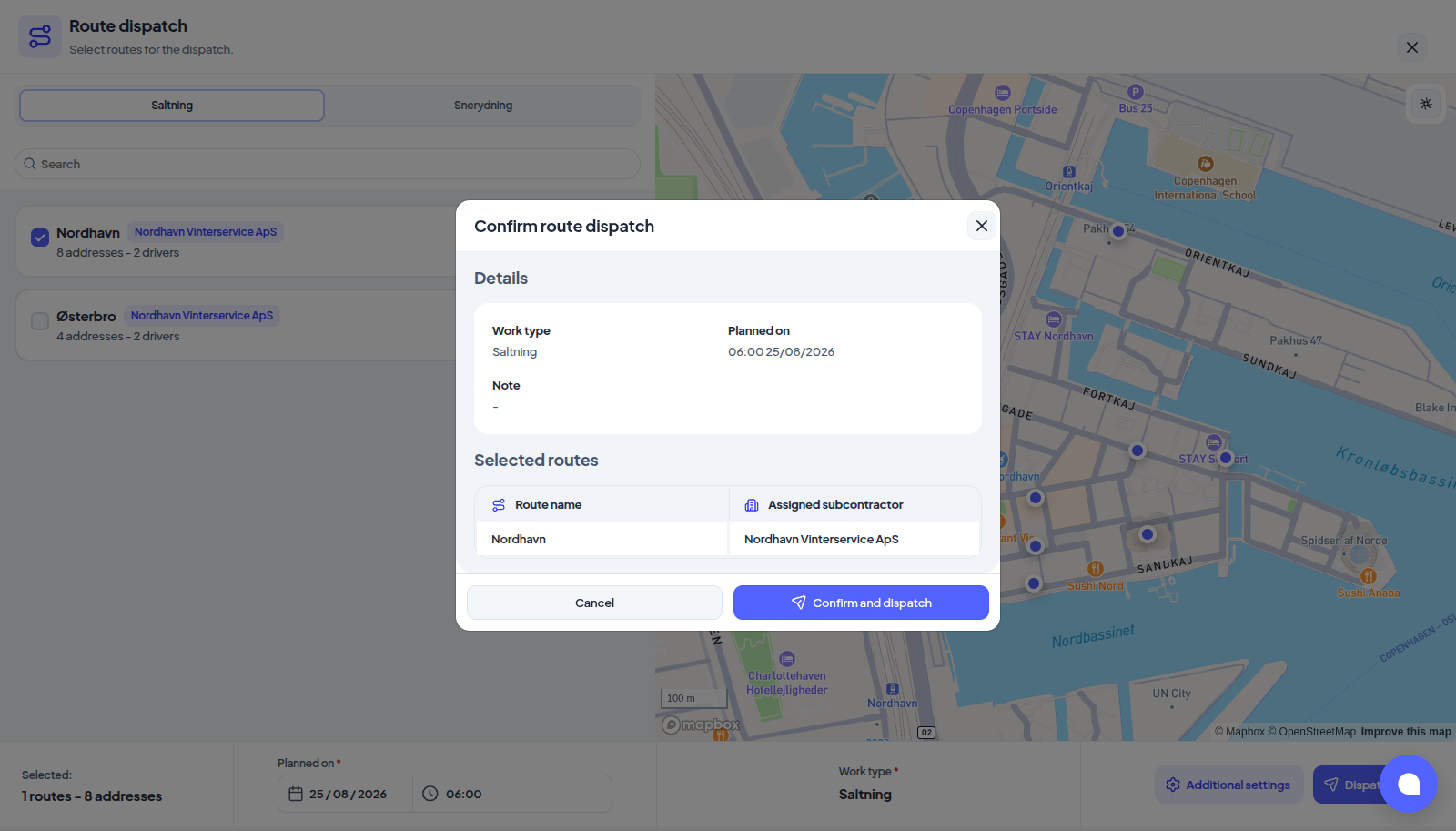
The dispatch appears at the top of the list with its planned time, and every driver on the route is notified.
If you are told about an existing dispatch
Two things can happen when you press Dispatch now:
- You are invited to an active dispatch: another business that shares these addresses with you has already dispatched them. Join the existing dispatch adds your selection to theirs and accepts those addresses on your behalf; Create new dispatch keeps the two separate. See Why your dispatch was merged into another.
- Active dispatch close to this time: you already have a dispatch near this planned time. Collect into existing adds the new addresses to it; Create new dispatch keeps them apart. With several such dispatches the prompt lists them newest first and you pick the one to collect into before pressing Collect into selected.
Neither choice can be undone from this screen; if you picked wrong, open the dispatch and remove the stops you did not mean to add.
A dispatch created from a complaint asks neither question. It is always a dispatch of its own, never joined to or collected into another, so the complaint's choice of who carries out the work and who is invoiced for it stays as you set it. See Handle a complaint.
Why was my dispatch refused
If the dispatch does not go out, the message says which rule stopped it and what to change. It lists every reason at once, not just the first, and it names the routes and addresses involved, so you do not have to press Dispatch now again to discover the next problem.
| The message says | What it means | What to do |
|---|---|---|
| None of the selected routes has an address that can be dispatched on that date | The routes are yours, but every address on them was filtered out. The lines underneath say why: not active on the planned date, withheld by another business, or not yours. | Fix whichever the lines name, or pick different routes. |
| None of the selected addresses can be dispatched on that date | Same thing for an address or zone dispatch. | See Active period on an address. |
| ...(n) address(es) not active on the planned date | Those addresses are outside their active period on the day you are dispatching, not today. An address that stops being serviced in October cannot be dispatched for November. | Change the planned date, or extend the address's active period. |
| ...(n) address(es) withheld from you by business | The business that delegated those addresses to you has switched dispatching of them off. You still service them; you may not start the dispatch. | Ask that business to allow it. See Who owns an address. |
| ...(n) address(es) neither owned by you nor assigned to you | The route still carries an address whose assignment to you was revoked. | Take the address off the route, or have it assigned to you again. |
| None of the selected routes belongs to your business | The routes are somebody else's. | Pick a route you own or one assigned to you. |
| None of the selected zones belongs to your business | Same, for zones. | Pick a zone from your own zone map. |
| A subcontractor chosen for one of the addresses is not one of yours | The subcontractor picked for a stop is neither below you nor one you have invited. | Choose one from your own list, or leave the address unassigned. See Assign a subcontractor. |
| The dispatch you were adding this to has been completed or cancelled | You chose to collect into a dispatch that ended while the prompt was open. Nothing was added. | Open the list again and pick one that is still running, or create a new dispatch. |
| Another dispatch for the same work type is being created right now | Someone else pressed the button at the same moment. Nothing was created. | Wait a few seconds and press Dispatch now again. |
| Nothing could be added to this dispatch | Every address you picked was already on the run or was filtered out. | The lines underneath say which; see Add stops to a running dispatch. |
A dispatch can also go out short. If some addresses were left behind but enough survived, the dispatch is created and the same lines are added to the confirmation, so you can see what did not go with it. Rules that skip a stop after the dispatch exists are a separate thing: Addresses skipped by a rule.
If you see "An internal error occurred" on a dispatch create, that is now a genuine fault rather than a rule, and it is worth reporting.