The drivers on a route are the crew every dispatch of that route starts with. Set them once, and each time the route goes out the stops land with those people. A driver who is ill on the night, or an extra plow for one evening, is handled on the dispatch itself, see putting drivers on a dispatched route. When you plan by date instead, with working hours, the schedule for the planned date wins and this list is only used for days no period covers.
Put drivers on
-
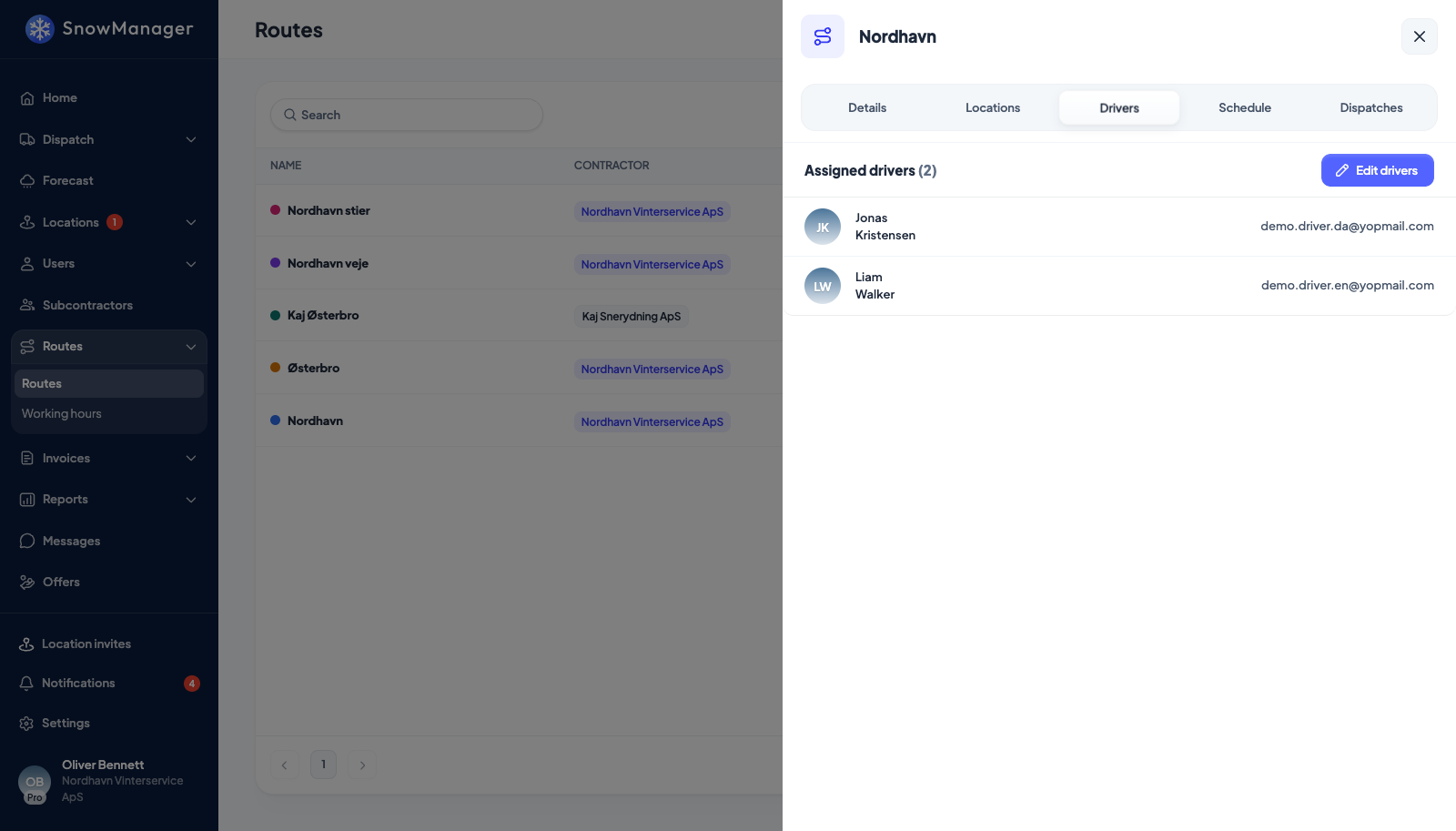
Open Routes in the left menu, click the route and go to Drivers. The tab lists the Assigned drivers with their phone number and email.
-
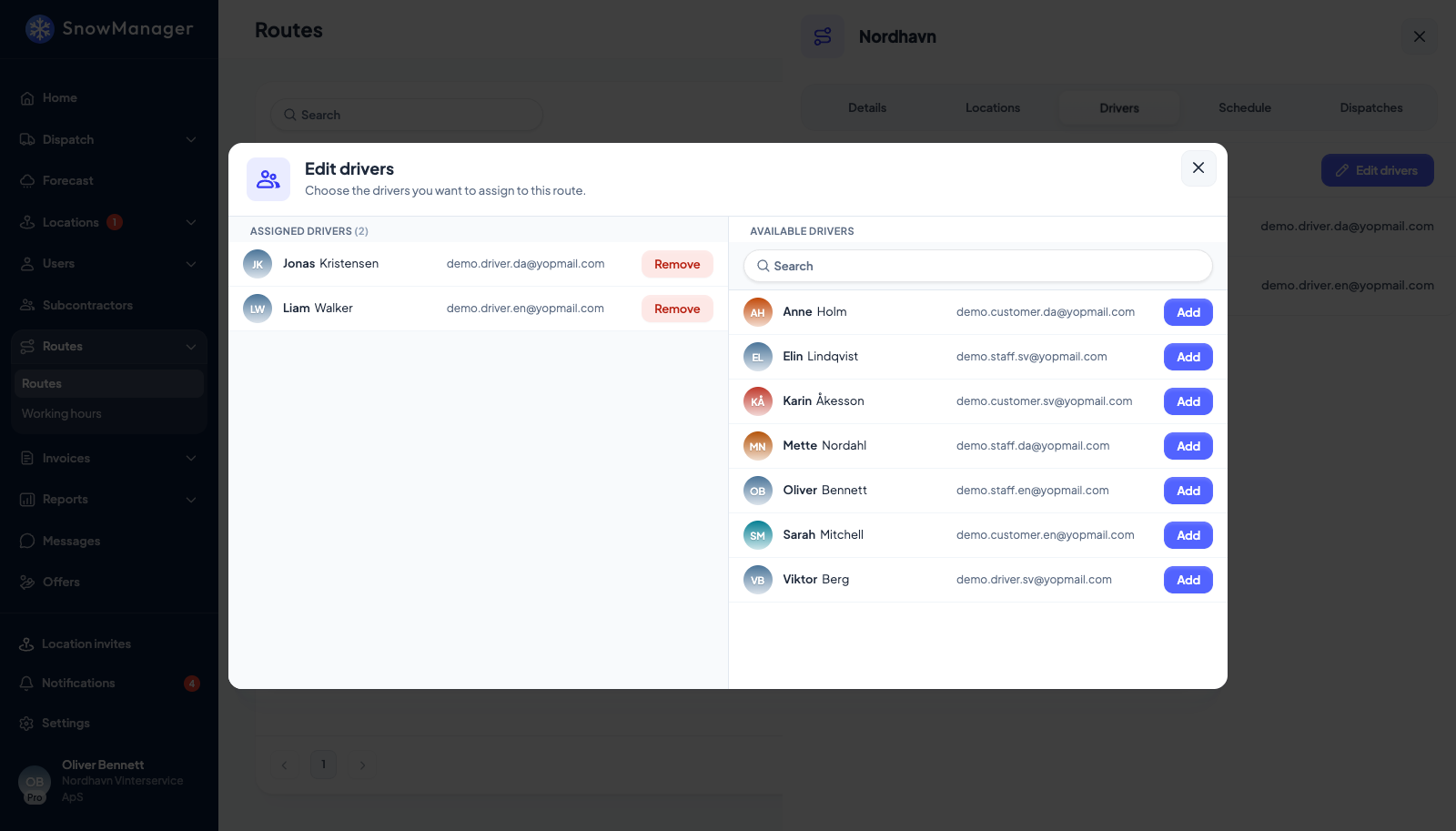
Press Edit drivers. The popup says Choose the drivers you want to assign to this route. On the left are the Assigned drivers, each with Remove; on the right the Available drivers, with a search box, each with Add.
-
Press Add beside each person you want. Every press saves at once (the message Driver added successfully confirms it), so there is nothing else to submit; close the popup when the list is right. People are added one at a time, here and on a dispatch.
Who can be added
Only people who can actually do the work. Available drivers lists the staff of the company that crews the route (you on your own route, the subcontractor on a route you handed to them) with a staff role (administrator, driver, dispatcher or support user) and an account that can sign in. Never a customer login, never someone from another company, and never someone already on the route.
A person whose role has no access to the driver app is listed with the tag No access to the app and a greyed-out Add. Hover it for the reason: This person's role has no access to the app, so they could not see the route or its addresses. Give the role app access first.
Someone who is deactivated, deleted or has not accepted their invitation yet is not offered at all. Should anyone try anyway, the server refuses with This person cannot sign in (deactivated, deleted or the invitation is not accepted yet), so they cannot be put on a route.
Take a driver off
-
Open the route, go to Drivers and press Edit drivers.
-
Find the person under Assigned drivers on the left and press Remove beside them.
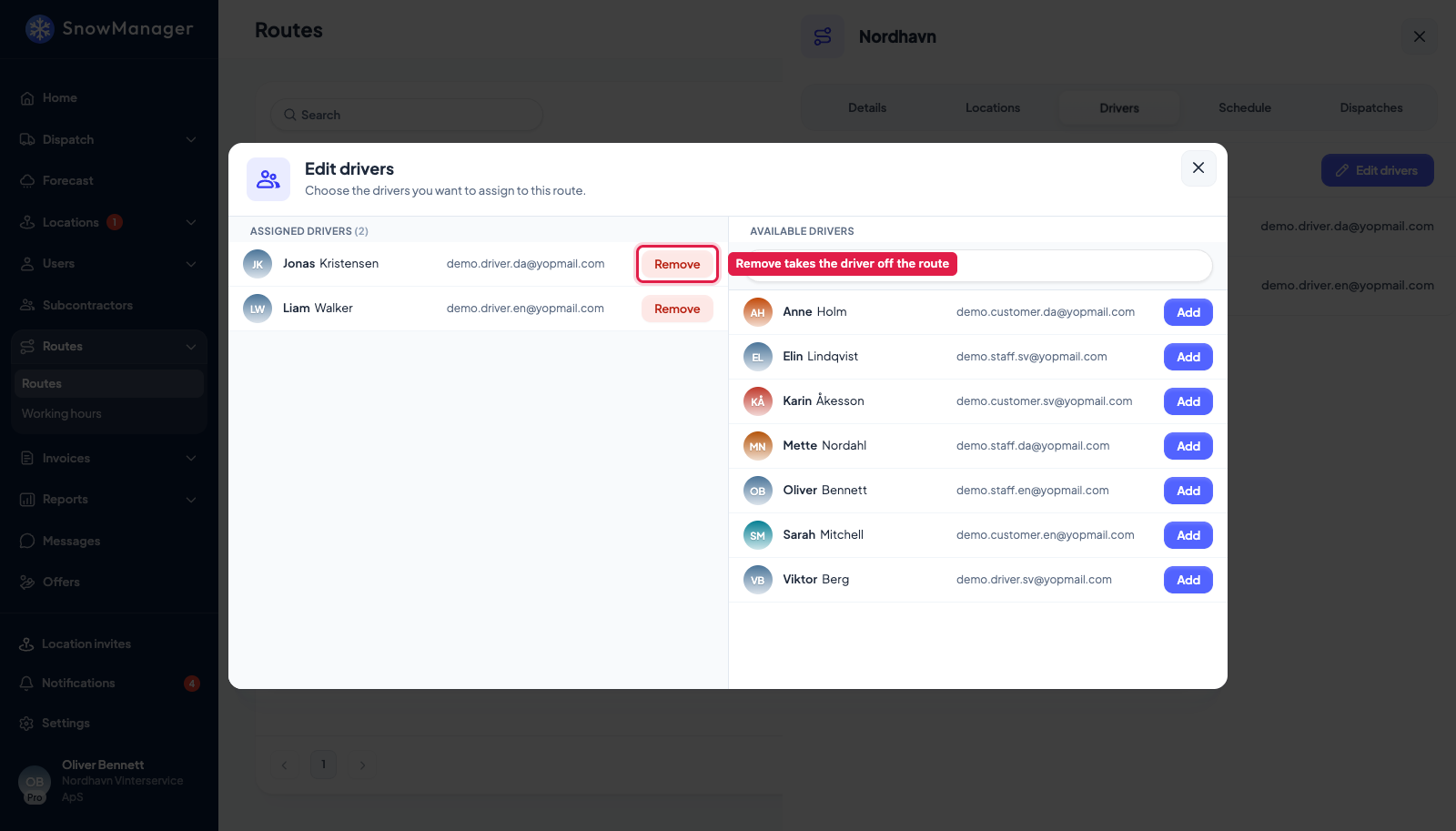
It saves at once, like Add. A dispatch that is already planned or running keeps the crew it was sent with; change that crew on the dispatch itself, see putting drivers on a dispatched route.
Anyone on the crew can be removed, whoever they are: a deactivated or deleted account, someone never invited, someone from another company. That is how you clean up a crew that still names people who no longer drive for you.
The tags on a crew
A name on the Drivers tab and in the popup can carry a tag saying what stands in the way of that person driving the route:
- Deactivated: the account is switched off.
- Not invited: the account was created (by a file import, for example) but no invitation has been sent.
- Removed: the account has been deleted.
- Other company: the person belongs to another business, not to the company that crews the route.
- No access to the app: their role cannot open the driver app, so even when the route goes out with them they could not see it or its addresses. Give them a role with app access, or take them off.
The first four keep the person from being sent out at all. Hover a tag on someone who will not be sent out and it reads Not sent out with the route. Remove them, or fix their account. Someone whose invitation is still open carries no tag, but is not sent out either until they accept it; from then on they go out with the next dispatch.
Deactivated, Not invited and Removed also appear wherever drivers are listed elsewhere: on a dispatch's drivers and its driver popups, in the crew panel when you create a dispatch, in working hours and in the user pickers on shifts.
Who is sent out
A new dispatch only sends out the crew members who qualify: the company's own staff, with an account that can sign in. Everyone else on the list stays on the route, tagged, and is simply skipped, whether the crew came from the route, the schedule or the names you picked in the dispatch popup. The printed route sheet names the same people. Duplicating a route copies its crew, leaving out anyone from another company.
Blocked while a subcontractor holds the route
If the route's Contractor is one of your subcontractors, the crew is theirs. Your Drivers tab shows only a note: You assigned this route to a subcontractor, so you can't add drivers. Only the assigned subcontractor can assign their drivers. They open the same route on their side and see the full picker, with their own staff to choose from. The server enforces it as well: a driver who does not belong to the route's contractor is refused with Driver does not belong to the route's assigned business. To crew it yourself again, change the Contractor back to your own business on Details.
Lending a driver to a contractor
Sharing a user with a contractor (Share profile with contractors, see sharing a user) does not make them part of the contractor's crew. The contractor cannot pick them, and a shared driver still standing on a contractor's route from earlier shows Other company there and is not sent out. For one person to drive for both companies, the contractor adds them as a user of its own.