A route carries its drivers, so a route dispatch normally needs no driver work at all: the people on the route are attached to every stop the moment the dispatch goes out, or, on a route you were invited to, the moment you accept. An address dispatch gets the drivers you pick when you create it, plus the crew of any route of the responsible business that the address is on. This article is for the cases in between: a driver is ill, an address went out with nobody on it, or a plow needs help.
You can also choose the crew as you dispatch, per route, without touching the route itself: see dispatch a route.
Where the crew shows
On a route dispatch, each dispatched route has a row above the stop list with a badge showing how many drivers are on it (their names on hover), or a red No drivers assigned to route when it has none. The badge opens Invite drivers for that route: adding somebody puts them on every stop of it that is yours to crew, and removing them takes them off. A zone dispatch lists your routes under each zone with the same badge; the zone itself has none, see On a zone dispatch below.
What the panel also shows is the gap. The dispatch list flags it first, as Missing driver in the error banner (see finding dispatches and reading the error banner), and the open dispatch repeats it as a red line with an Assign button.
Add a driver to a stop that has none
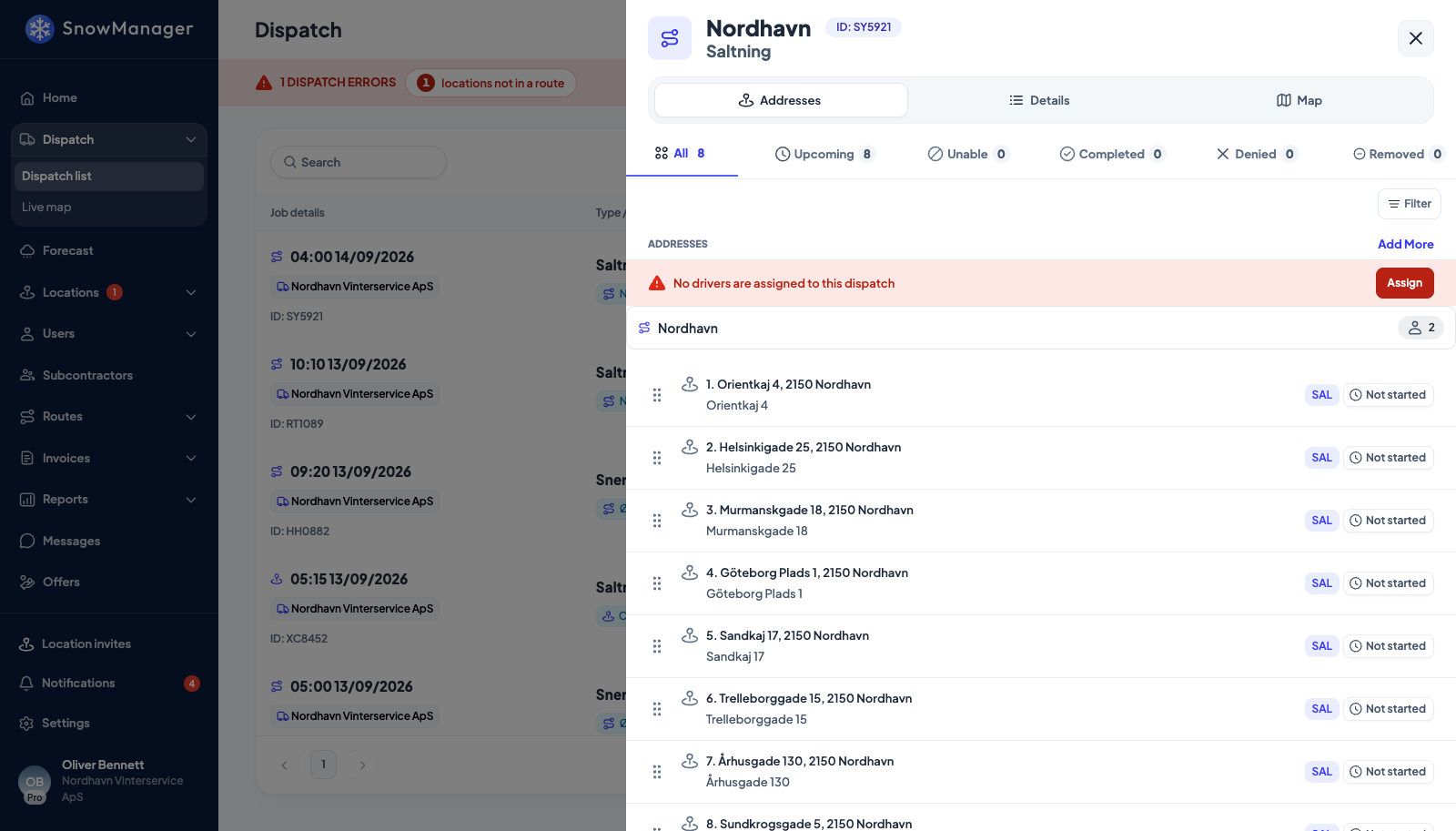
- On the All tab, a red line No drivers are assigned to this dispatch sits above the stops as long as one of the stops you are responsible for has nobody on it. Press Assign.
- Invite drivers opens for the first such stop; its address and business are in the header. Search by name or e-mail and press Add beside a person. Every press saves at once (Driver added successfully), and the counter next to the search box reads how many are added.
- Press Close when the list is right. The red line goes away once every stop has someone; if another stop is still empty, press Assign again and it opens that one.
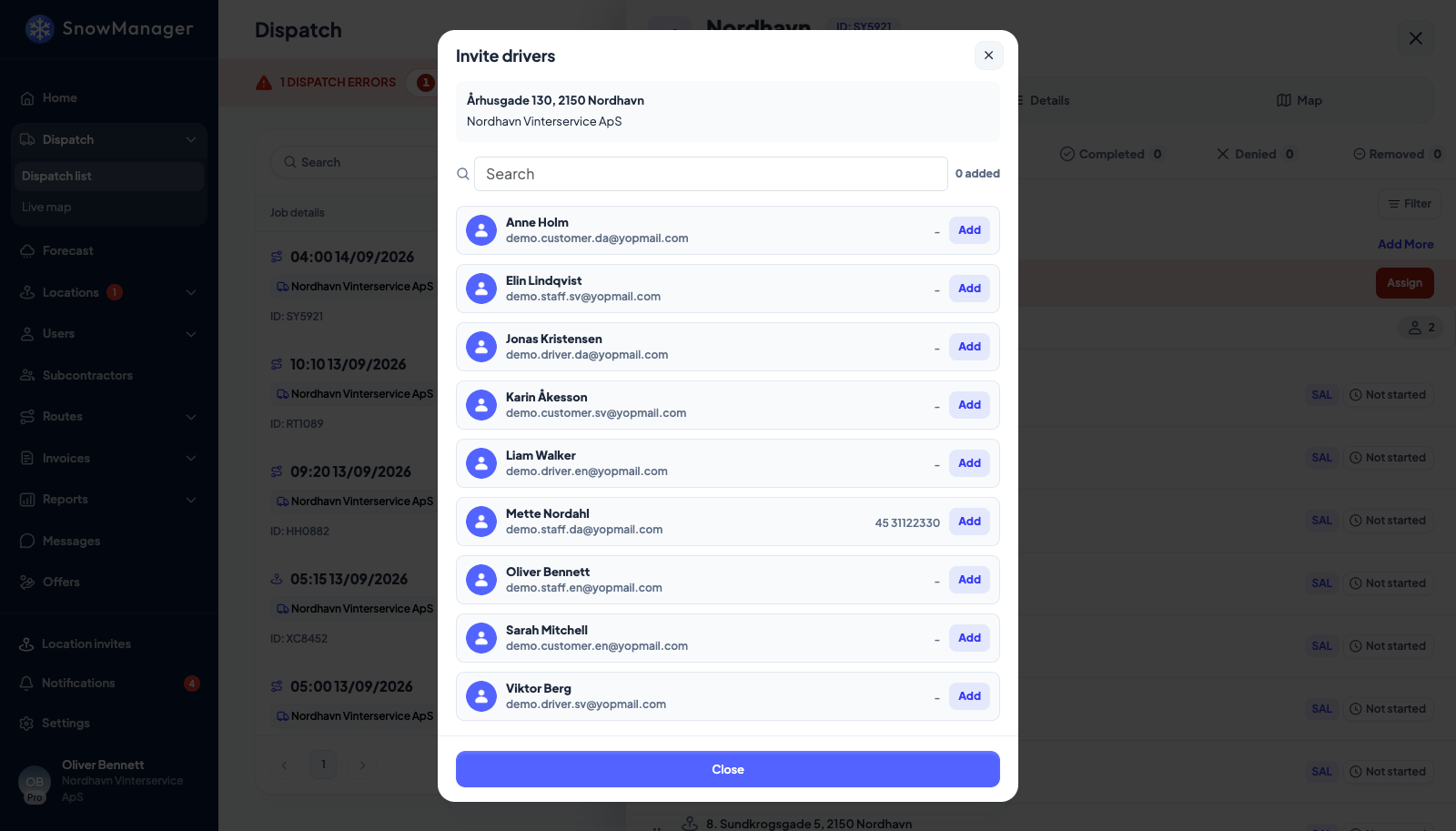
The popup covers one stop. When one route visits the address, the driver is attached to that route's pass; an address that two dispatched routes share (see when two routes cover the same address) gets the driver for both passes.
On a zone dispatch
Drivers are added to routes, never to a zone. A zone dispatch groups the stops by zone, and inside a zone by the business responsible for them. Under your own business, every route you crew that has stops of yours in the zone is listed by name with its number of addresses and a driver pill of its own: a red No drivers while nobody is on the route, otherwise a dark count (hover for the names). Press it to open Invite drivers for that route. Add puts the driver on the route's active stops in that zone that you are responsible for; someone already on a few of them still shows Add so the rest can be covered, and Remove takes them off all of them. The zone header carries no driver pill.
A route is yours to crew when you own it and have not handed it to a subcontractor, or when a business handed it to you. A subcontractor's routes never get the pill in your view: who drives them is the subcontractor's decision. A subcontractor sees its own slice grouped by route, and there too the pill appears only on the routes it crews itself, never on a route that belongs to another business. The server holds the same line: a driver added to a route that is not on the dispatch, or not yours to crew, is refused.
The route pill is also the only way, on this version, to change a crew that is already complete. On a route or address dispatch the Assign line shows only while a stop is empty, so a fully crewed route cannot take a third driver, or swap one, from the web. Change the crew on the route itself before the next dispatch instead (see drivers on a route).
Answering for a driver
Above the search box, Assigned drivers lists who is on the stop (or route) with Accept, Decline and Remove. A driver starts as pending; when you know their answer, press Accept or Decline and the row reads Accepted or Denied. For a route with mixed answers the row stays pending until they agree. The answer is your record of who is coming; nothing waits for it, and a driver on the stop can check in whether or not it has been given.
Who may do it
Staffing a stop belongs to the business responsible for it: the subcontractor it is assigned to, once they have accepted, and otherwise you as the dispatch owner. While a subcontractor's invitation is unanswered the stop is view-only for everyone, and a declined assignment hands the stop back to you. The server refuses anyone else, and refuses every change on a cancelled dispatch or a removed stop.
Who is offered
Everyone on the responsible business's own staff: administrators, drivers, dispatchers and support users, never a customer login. The server then insists the person is active in that business. Someone you invited who has not set a password yet is refused when you press Add, and so is a user another business shared with you: sharing does not make anyone part of your crew (see sharing a user).
A driver listed on the dispatch, or in its driver popups, with Deactivated, Not invited or Removed beside the name cannot sign in. Take them off and put someone else on; the same tags on the route itself are explained in Drivers on a route.
Removing a driver
Remove takes the driver off the stop, or off every stop of the route, on this dispatch only; the route keeps them for next time. Stops they already completed stay completed, with their name on them.
What the driver is told
A driver you add gets a bell notification and a push on their phone saying they have been put on the dispatch, the same alert your own drivers get when a dispatch is created; it appears under Invitations in their app for them to accept (see who is told what). Removing a driver tells them nothing; the dispatch simply leaves their phone. There is no e-mail or SMS either way. Every addition and removal is written to the dispatch's Timeline.