Dispatch in the sidebar opens Dispatch list (the Live map sits beside it). Every dispatch you may see is a row: Job details, Type / Zone, Progress, Overview (the unable, completed, removed and cancelled counts) and Actions with Details. Clicking the row opens the same details.
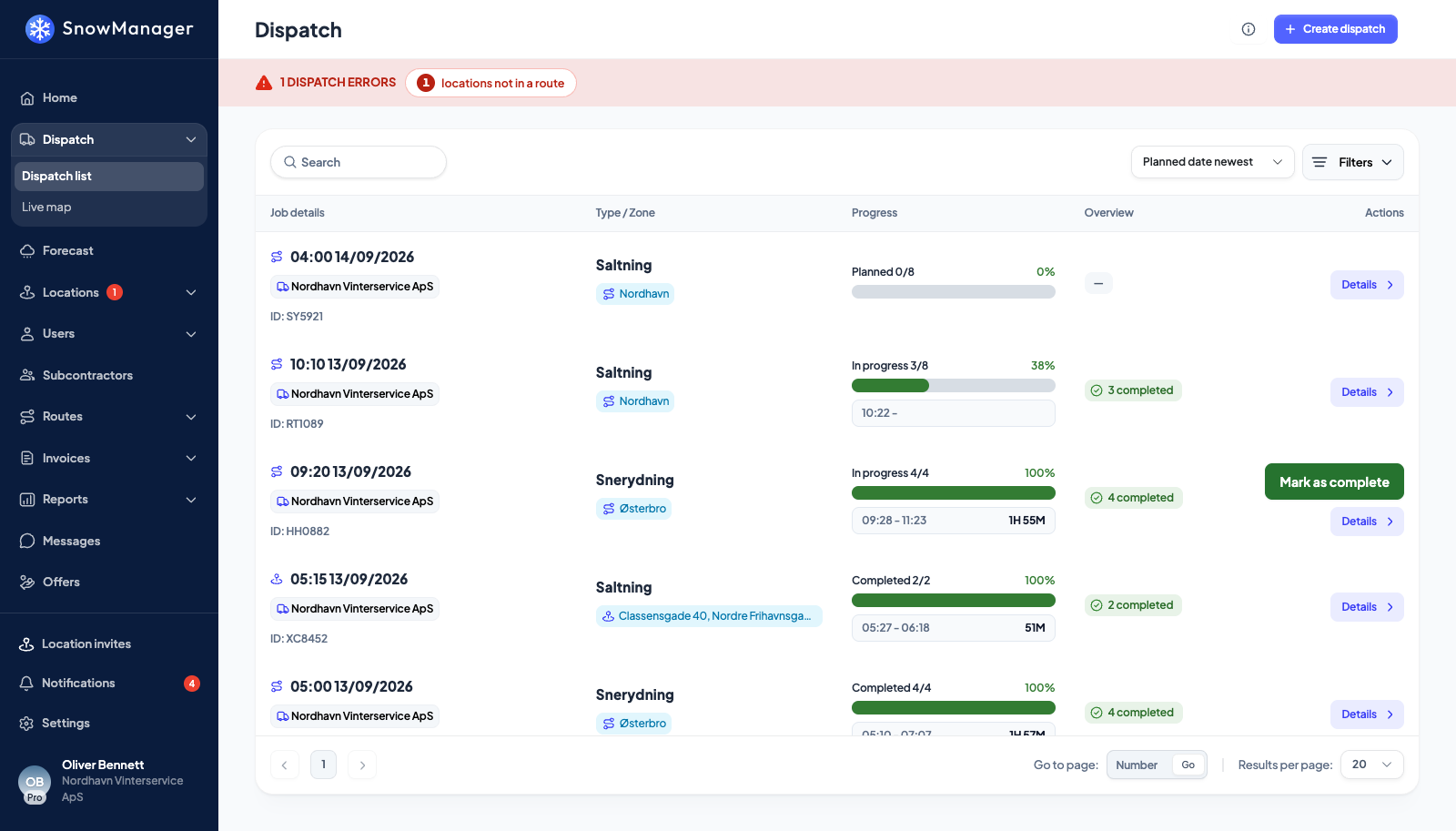
Small marks on a row say more than the counts:
- A speech bubble with a number means somebody wrote something on the dispatch: the dispatch's own Message, its Internal comment, the message to a business, or a note on a stop. Hover it for Messages, one line per text with where it was written, so you can see whether a driver left a reason without opening the run. The internal comment is counted for the business that dispatched only, and a subcontractor counts the dispatch's message only when no message of its own replaces it. Notes on removed and cancelled stops count too, because why a stop was taken off or called off is exactly what you would open the run to read.
- A yellow complaint mark with a number means the dispatch was sent out to put complaints right. Hover it for Linked complaints and how many complaints it carries. Complaint dispatches only in the filters lists just these runs.
- Where the stops of one dispatch were not all worked under the same work type, the work-type cell shows one chip per work type with its stop count. Each work type keeps one colour of its own, the same on every row and inside the dispatch, so you can tell Saltning from Snerydning & Saltning at a glance without reading the chips. Hover for Mixed work types and the addresses that were changed, with who holds them. Inside the dispatch the same chips sit on its zone, contractor and route headers and on each stop's row, and a Filter button narrows the stops by work type, note, missing photo or admin completion. On a zone dispatch that button sits in the title line of the stop list, right of Expand All / Collapse all; elsewhere it sits beside the status tabs. A stop's work type is changed on the stop itself; both are described in Complete, mark unable, remove or restore a stop.
Find a dispatch
-
The list opens with a Planned dates chip set to your business's standard date range, so older dispatches are hidden. Press the x on the chip to see everything.
-
Type in the search box to search by text. A dispatch's six-character ID (for example AB1050, shown on the row and under the title when the dispatch is open) finds exactly that dispatch, and both you and your subcontractor see the same ID. After two letters the box also suggests Zones, Routes and Addresses that have been dispatched: your own zones, your routes and the routes handed between you and a subcontractor, your addresses and the ones you handed out, plus whatever you reach through stops assigned to you. The best match comes first (the exact name, then names that start with what you typed, then a word that starts with it, then any match, shorter names before longer), so the one you mean is usually the top line. Picking a suggestion filters the list to those dispatches and becomes a chip you can remove again.
-
Sort with the dropdown: Created newest (the default, so a dispatch you just sent is the top row), Planned date newest, Planned date oldest, Work type or Business. A sort you choose is kept.
-
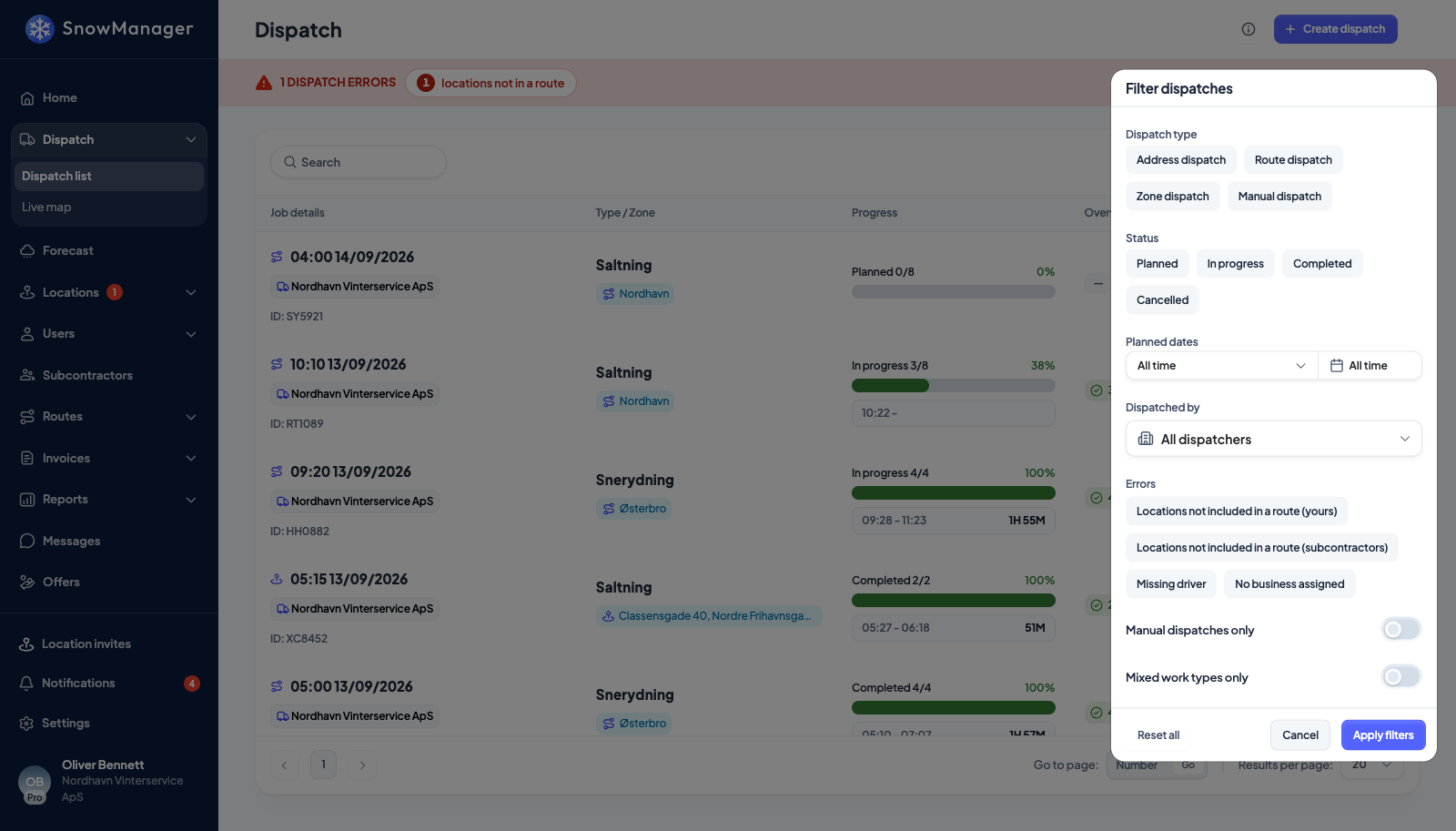
Press Filters to open Filter dispatches.
-
Pick what you need and press Apply filters:
- Dispatch type: Address dispatch, Route dispatch, Zone dispatch or Manual dispatch, one at a time.
- Status: Planned, In progress (the chip reads InProgress today), Completed, Cancelled, any combination.
- Planned dates: a range.
- Dispatched by: one business, or All dispatchers. Useful when you work for several.
- Errors: Locations not included in a route (yours), Locations not included in a route (subcontractors), Missing driver, No business assigned.
- Manual dispatches only: work registered after the fact, see Register work that was already done.
- Mixed work types only: dispatches where at least one stop was worked under another work type than the dispatch's own, the rows showing more than one work-type chip.
- Complaint dispatches only: dispatches sent out to put a complaint right, the rows with the yellow complaint mark. Only complaints on stops you can see count. See Handle a complaint.
Every active filter becomes a chip above the table; press its x to drop just that one. Reset all clears the panel.
The error bar
When something needs attention a slim red bar above the list counts the Dispatch errors. Each error type is its own chip with a count, and a type with nothing wrong shows no chip at all. Clicking a chip opens a popup listing exactly the things behind the number.
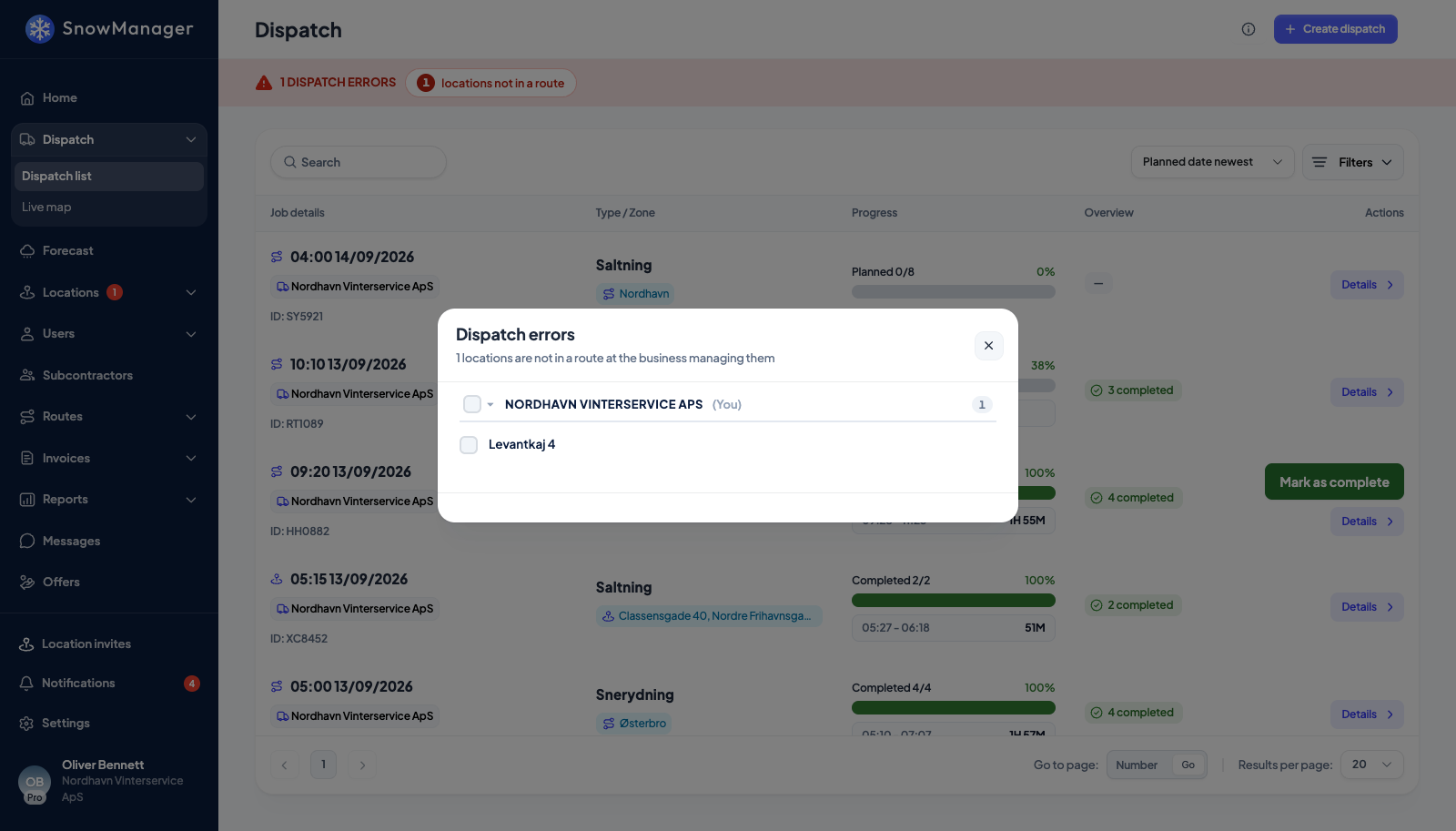
The three chips:
- locations not in a route: every address you own that the business managing it has no route for: the ones you kept, against your own routes, and the ones you handed to a subcontractor, against theirs. The popup is a list of businesses, you first; open one to see which of their addresses are missing from their routes, and Notify asks a subcontractor to route them. Fixing it works from either side: assign the address to a business whose routes cover it, or add it to a route; open dispatches pick the route up automatically either way. A dispatch that is only planned, or already completed or cancelled, does not count, and neither does a single-address dispatch: it is meant to go out without a route, so its addresses are never counted as missing from one. The popup has one section per business, yours first and then each subcontractor whose route book is missing addresses; a subcontractor section has a Notify button that sends them a notification asking them to put the addresses into the right route.
- dispatches missing a driver: planned or running dispatches of yours where work that is yours to drive has nobody on it: a route of your own with no crew and your stops on it, or a stop outside any route that is assigned to you and has no driver. Work handed to a subcontractor is theirs to staff, and an unassigned stop shows under no contractor instead: one problem, one place. Each row shows the dispatch's ID and date, and Show in list filters the list to that dispatch. Fix it on the dispatch, see Put drivers on a dispatched route.
- locations with no contractor: addresses on your dispatches that no business is responsible for. This popup carries the fix: each address has a contractor picker, preselected to whoever last had that address, and Assign and notify assigns them on every dispatch where the address is unassigned and sends them the usual dispatch invitation. One address is one row even when it is unassigned on several dispatches.
A route on which every stop was declined is not a missing driver: nobody is going to drive it, and crewing it is not the fix. The dispatch shows Declined on that route instead, see What a decline does. The same goes for a single stop whose every assignment was declined.
On a row, the red Errors link under the type opens that dispatch on what is wrong. A zone dispatch opens on its Alerts tab, filtered to the stops and subcontractors concerned. A route or address dispatch lists every stop in trouble above its addresses and scrolls to that list: each line names the address and the reason (No business assigned, No drivers assigned, Location not in a route, or Awaiting answer from the business it was assigned to; a single-address dispatch never says Location not in a route) with the button that fixes it: Assign business opens the subcontractor picker (for the business that dispatched), Invite drivers opens the driver popup, and View opens the stop.