Once a dispatch is out, two views follow it: the Live map for everything your company has out today, and the dispatch's own details for one job at a time.
The Live map
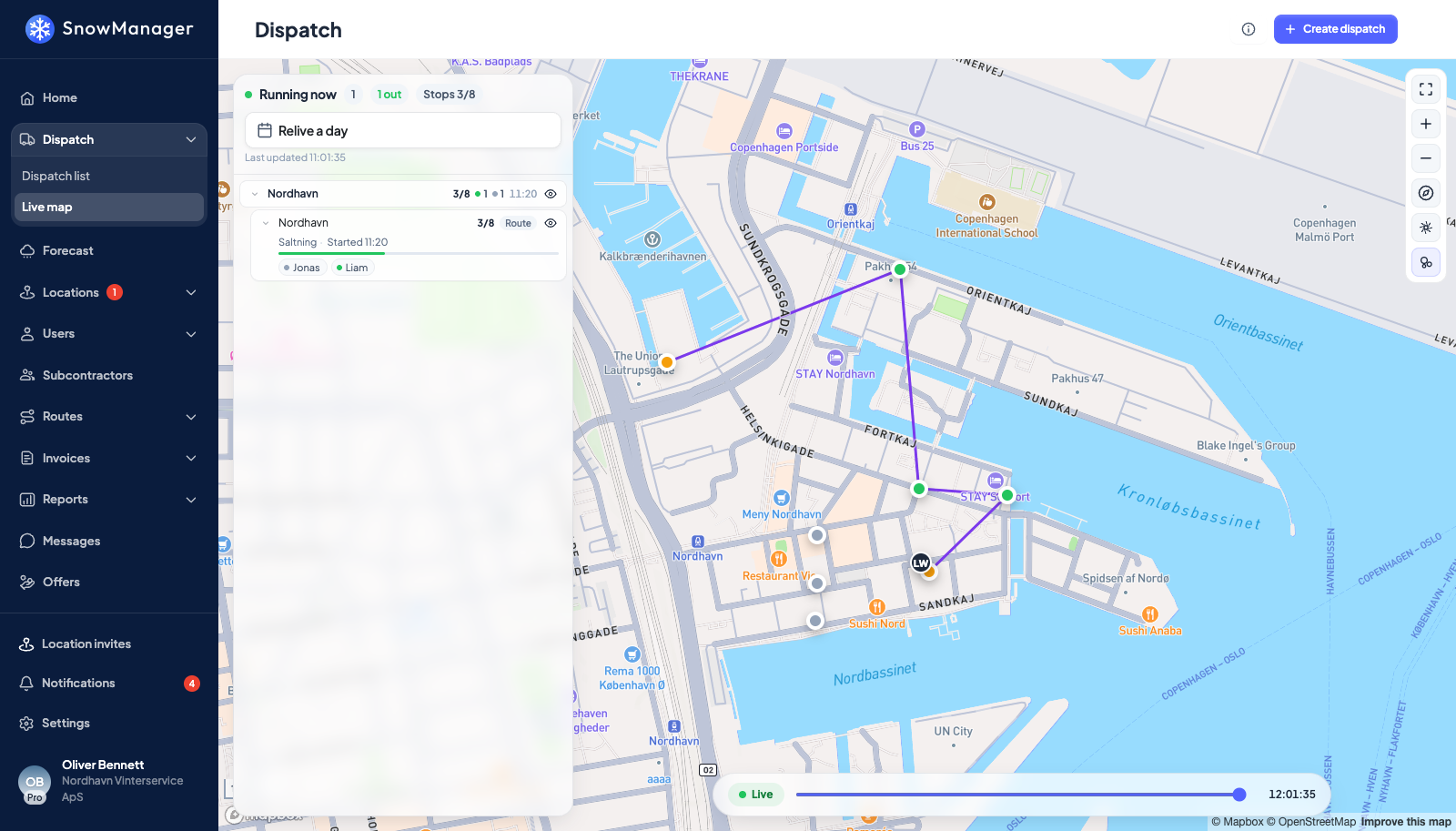
Open Dispatch → Live map in the left menu. The map opens on today, by your company's own date: every run that was planned for today or did any work today, the finished ones included, with the drivers' last positions and speed on the map. The view refreshes itself every fifteen seconds. On a road route the driven part of the route is drawn over the planned one, so you can see how far a plow has got. A dispatch left open from an earlier day is not on today's map unless somebody works it today; pick its day to see it.
The panel on the left is today's work sorted the way you would ask about it:
- Zone first, when anything went out on a zone dispatch, with the zone's own colour.
- Then the company doing the work, your own company first and then each subcontractor.
- Then that company's routes. Addresses no route covers, a single-address dispatch or a zone address none of the crew's routes reach, share one Unrouted row.
- Then the addresses, each with its status (Not started, In progress, Completed, Unable) and its check-in and check-out.
When nothing went out on a zone, the panel starts at the companies. When part of the day did and part did not, the rest gathers under Not in a zone at the bottom. A zone crew's route that crosses two zones appears under both, each time with only the addresses in that zone.
Every row shows how much is done, as a count of addresses or, for a road route, as a percentage, and the drivers on it as coloured dots: green is reporting now, amber has gone quiet for a few minutes, grey has not reported for ten. Click a row to move the map to it. The arrow opens and closes it. The eye, Hide from map / Show on map, takes that row and everything under it off the map without closing anything; hiding a zone hides only that zone's addresses, even on a route that crosses into another.
Each address is drawn with the areas and lines drawn on it. An address with nothing drawn shows the circle its GPS check-in is measured by instead, so you can see where a driver has to be for the arrival to count.
Zoomed out, addresses that sit close together are gathered into one bubble carrying the number of them, in the colour most of them have, so a storm-sized night is a handful of counts instead of a wall of pins. Click a bubble to zoom to what is inside it, and zoom in far enough and every address is its own pin again. Drivers are never gathered up: where the crews are is the question the map is open for.
Before anything has gone out today, the page says Nothing has run today yet.
A subcontractor is not shown its customer's zones, so a subcontractor's panel starts at the companies.
When a subcontractor drives its own customers on the same run as yours, you see its driver only around your addresses. A stretch where the driver stopped at one of the subcontractor's own addresses is a faint dashed Not shared line with its times, and while the driver still has those addresses open you see where it was last seen instead of the live position. See your own customers on a client's route.
Watch a day again
The panel is titled Today, with today's date under it. Click the date: the calendar marks the days that have a run behind them, and the unmarked days cannot be picked. Today can always be picked, and picking it is the live map. Choose an earlier day and the map becomes that day's record: it stops refreshing, and the timeline scrubber runs over that day's work. Back to today returns to the live map.
Two things about which day a run belongs to:
- A run counts for the day it was planned for and for every day it actually worked. A route dispatched at 23:00 and finished at 04:00 is marked on both dates.
- Whichever of the two you pick, you get the whole run. Nothing is cut off at midnight, and the scrubber runs from the first thing that happened to the last, not to the end of the date you clicked.
Days are your company's own dates. A dispatch is dated by the clock your business runs on, not by the browser's or the server's, so a night shift reads the same for everyone in the office.
A dispatch's details
Open Dispatch → Dispatch list and click the dispatch. The slider that opens is the control room for that job. Its title is the route or the address; a dispatch over several routes is titled by the route that was put on it first, with +1, +2 and so on for the others, and a dispatch with neither reads Dispatch and its code. Under the title sits ID and the run's six-character code, which is what the run is called on the phone, in the changelog and in a message to your subcontractor about it.
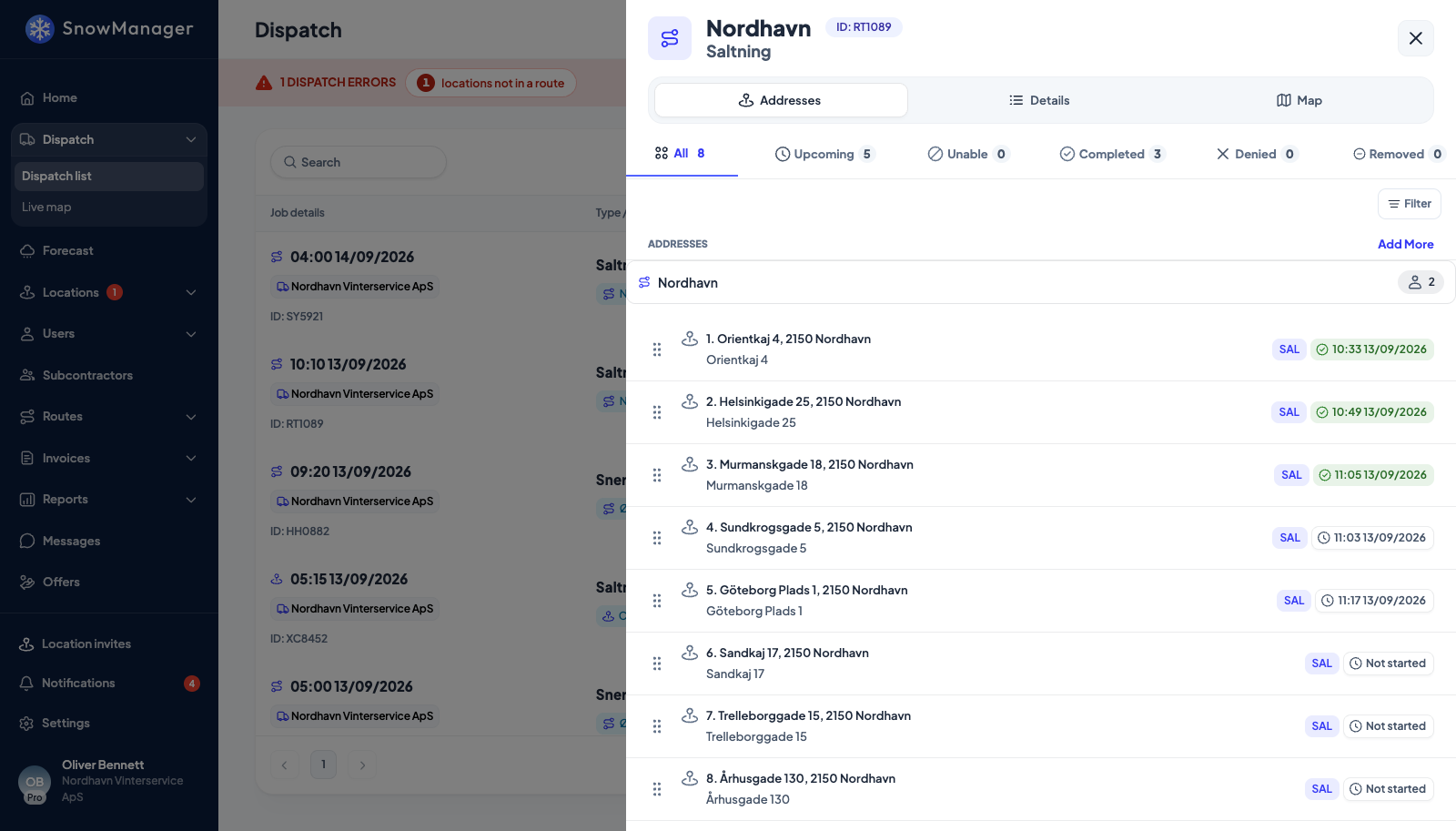
- Details lists the routes and addresses with a status per stop (Not started, In progress, Completed, Unable, Removed, Cancelled) and a progress count per route and per contractor. Expand All / Collapse all folds the routes; on a zone dispatch the stop Filter sits right beside it. Once a crew has been out, the addresses are listed in the order the work was actually done rather than the order you planned it: a driver who starts at the fourth address puts that address at the top. Addresses nobody has reached yet keep their planned order and sit at the end, so a run reads top to bottom as the night went. Until the first check-in there is nothing to reorder and the list is your plan exactly as you built it, which is also the only time you can drag an address to a new place in it.
- Map draws the whole run on one map, on every kind of dispatch: the addresses with the ground drawn at each of them, the paint of any road route with the part actually driven over it, and every driver's trail from their first recorded position to their last. A run whose crew reported no positions at all, an imported season or a round worked off paper, is drawn as the order the addresses were taken in, one line per route. Click an address pin for the stop's route, its status, its check-in and check-out, the note the crew left and its newest photo, and to open the stop itself. The switches at the top left turn the addresses, the drawings, the routes, the trails and the driver pins on and off, one at a time or all at once, which is how you get a fifty-stop night down to the one thing you are looking for. Drag the scrubber under the map to wind the run back to any moment. The map's own buttons zoom, reset north, switch to satellite and open it fullscreen, and addresses gather into counted bubbles while the map is zoomed out, exactly as they do on the Live map. A dispatch that is over loads once and stays put; one still running refreshes itself. You see on that map exactly what you see in the stop list: your own addresses, the routes you were given, and the drivers you work with.
- Timeline is the dispatch's history: created, invited, accepted, declined, stops added or removed, completed, who did it and when. Every entry is written in your language and names the address, route or driver it is about, including a stop an office user completed without the photo the address requires, which reads photo required, none provided.
- Photos gathers every photo the drivers took, by address.
- There is no crew list on the panel: who is on a stop shows inside Invite drivers, reached from the Assign line or a route badge, see adding drivers to an existing dispatch.
- Message is what the drivers were told; Internal comment is yours alone.
A zone dispatch adds a pill beside each contractor (Awaiting response, Accepted or Denied) until their work is under way.
The visit timeline of one address
Click a stop to open it. Beside the check-in and check-out times, the Visit timeline shows what the driver's GPS recorded at that address: Arrived, Left and, while the driver is there, Still inside. The times come from the address's drawn area (or a circle around its pin when nothing is drawn, 60 metres unless the address sets its own radius) and are how check-in and check-out get filled in when the driver does not press anything; see How GPS check-in and check-out work.
Who can follow what
You see a dispatch if you created it, if your business is assigned a stop on it, or if it works addresses you own. A subcontractor sees only its own part; the owner sees the whole thing. The names on the run reach you one link at a time: a company you have no dealings with is reported as the counterparty you handed the work to, see owner, subcontractor, sub-subcontractor.