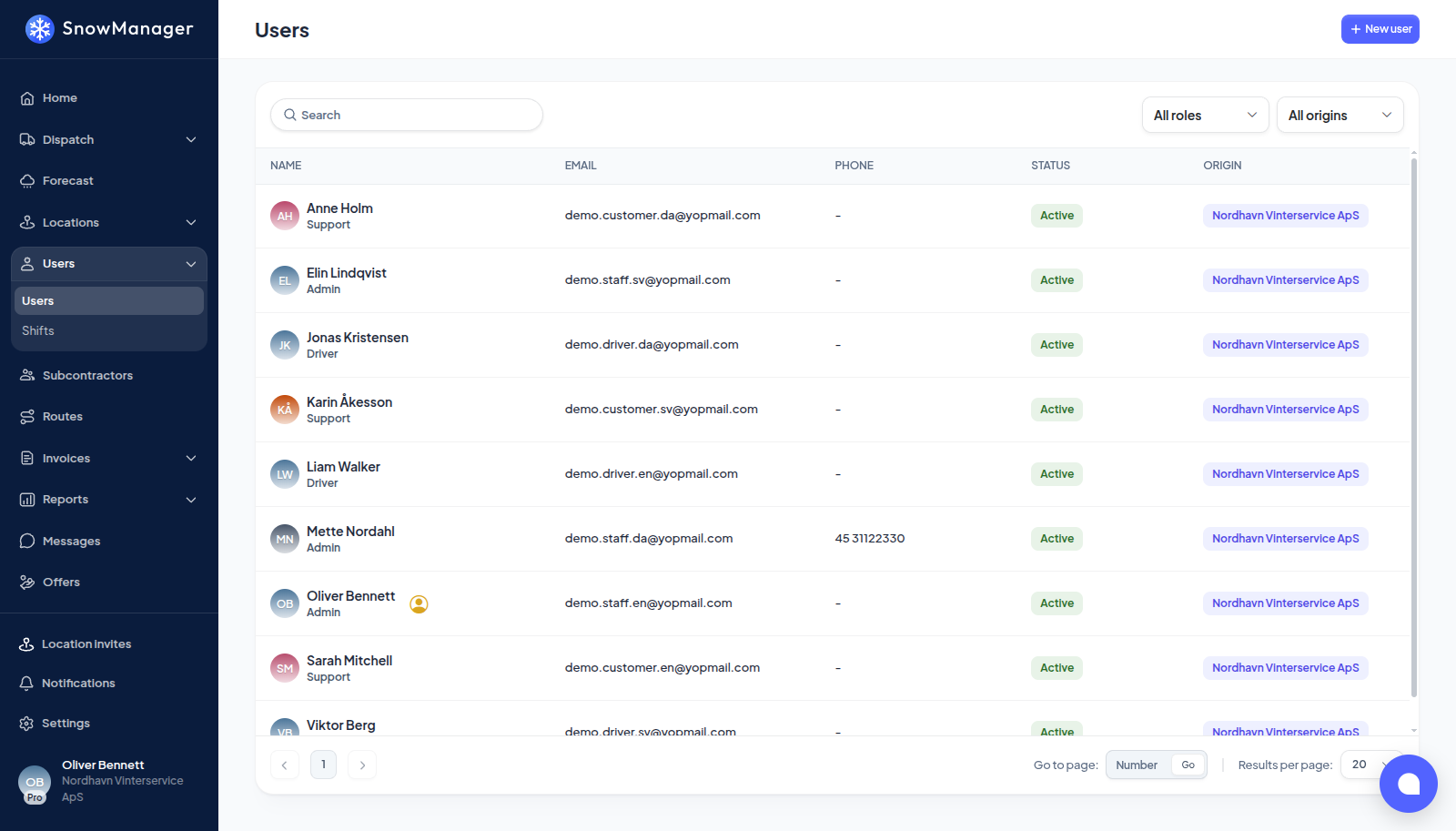
People who work in your business (dispatchers, office staff, drivers) are Users. Each user has exactly one role, and the role decides what they can see and do. Subcontractors are not users: they are separate businesses, added under Subcontractors.
Invite a user
-
Open Users in the left menu and press New user.
-
Enter First name, Last name, Email and, if you like, Phone number.
-
Choose a role under Select role: Admin, Dispatcher, Support or Driver. One role per user; you can change it later by editing the user.
-
Choose the language the person should see under Select language. It defaults to your business's standard language for new users.
-
Press Invite.
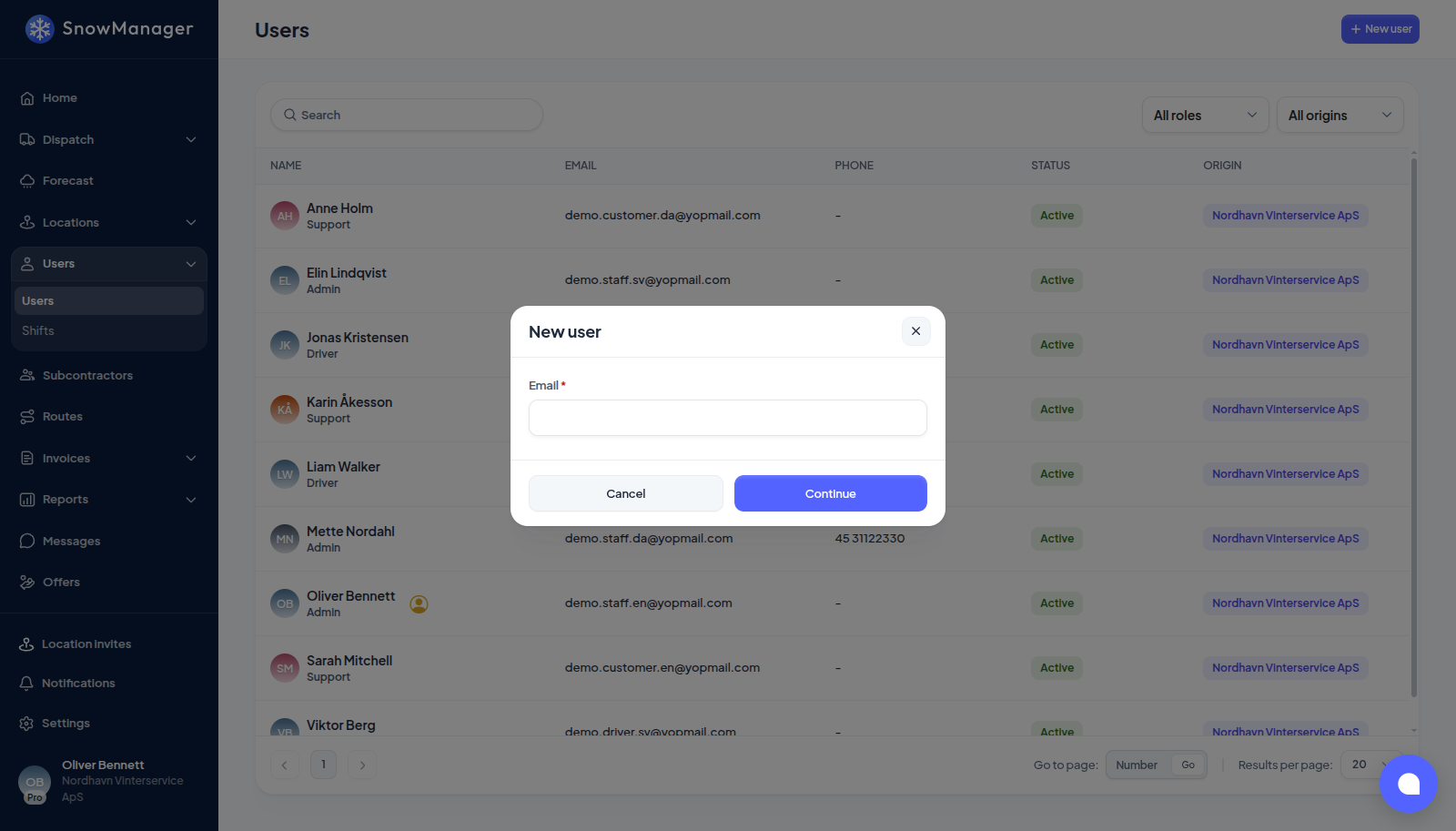
No email address? Under the email field, No email? Add them with a phone number invites the person by text message instead, and they sign in to the app with their phone number; see Add a driver who has no email.
The person receives an email with a link to choose a password. The link is good for 72 hours. Until they use it, the user is listed with status Invitation Sent and cannot sign in. Once they have set a password they are Active.
If the link has expired, nobody needs to re-invite them: on the sign-in form they press Forgot password?, enter their email, and a fresh invitation with a new 72-hour link arrives.
A whole crew at once goes in from a file instead: see Import and export users, which also lets you create the accounts now and send their invitations later.
Drivers work in the mobile app, not in the browser. Invite them the same way with the Driver role; when they sign in on the web they are simply pointed to the app download.
Change, re-invite or remove
Open a user from the list to get to their details.
- Edit user: name, phone, role and language. It is there for an account nobody has invited yet as well, which is what a file import creates, so the details that came out of the spreadsheet can be corrected before the invitation goes out. Editing does not invite anybody: the account stays Not invited until you send it.
- Send invitation: shown for someone imported from a file with their invitation held back, whose status is Not invited. It sends their first invitation email.
- Reinvite: sends the invitation email again, for someone who lost it. Send a new invitation email lets you correct the address at the same time, for a typo in the original. While an invitation is out and unanswered there is no Edit user on the person: changing their details would quietly break the link they are holding, so re-inviting is the way to fix anything about them.
- Reset password: sends the person a reset link, good for 72 hours. For a user listed with No email, the invitation, the re-invitation and the reset link all go by text message to their phone instead.
- Delete user: the account is anonymised and its sessions end at once. The email address becomes free to invite again.
A deactivated or deleted user, or one who is Not invited, stays on the routes they were on, tagged Deactivated, Removed or Not invited, but is no longer sent out on dispatches. A person still holding an open invitation goes out once they have accepted it. Take them off the route, or fix the account, see Drivers on a route.
Sharing a user with a contractor
Share profile with contractors makes the user visible to the businesses you work with. Sharing does not move the user: they stay yours, with the same role and sign-in, and a contractor cannot put them on its routes, see sharing a user.