A shift is a person, a start, an end and a note. Drivers open and close theirs from the app; you can also enter them by hand for somebody who forgot, or for a standby night. Approving a shift is your sign-off on the hours; disapproving sends it back to Not Approved.
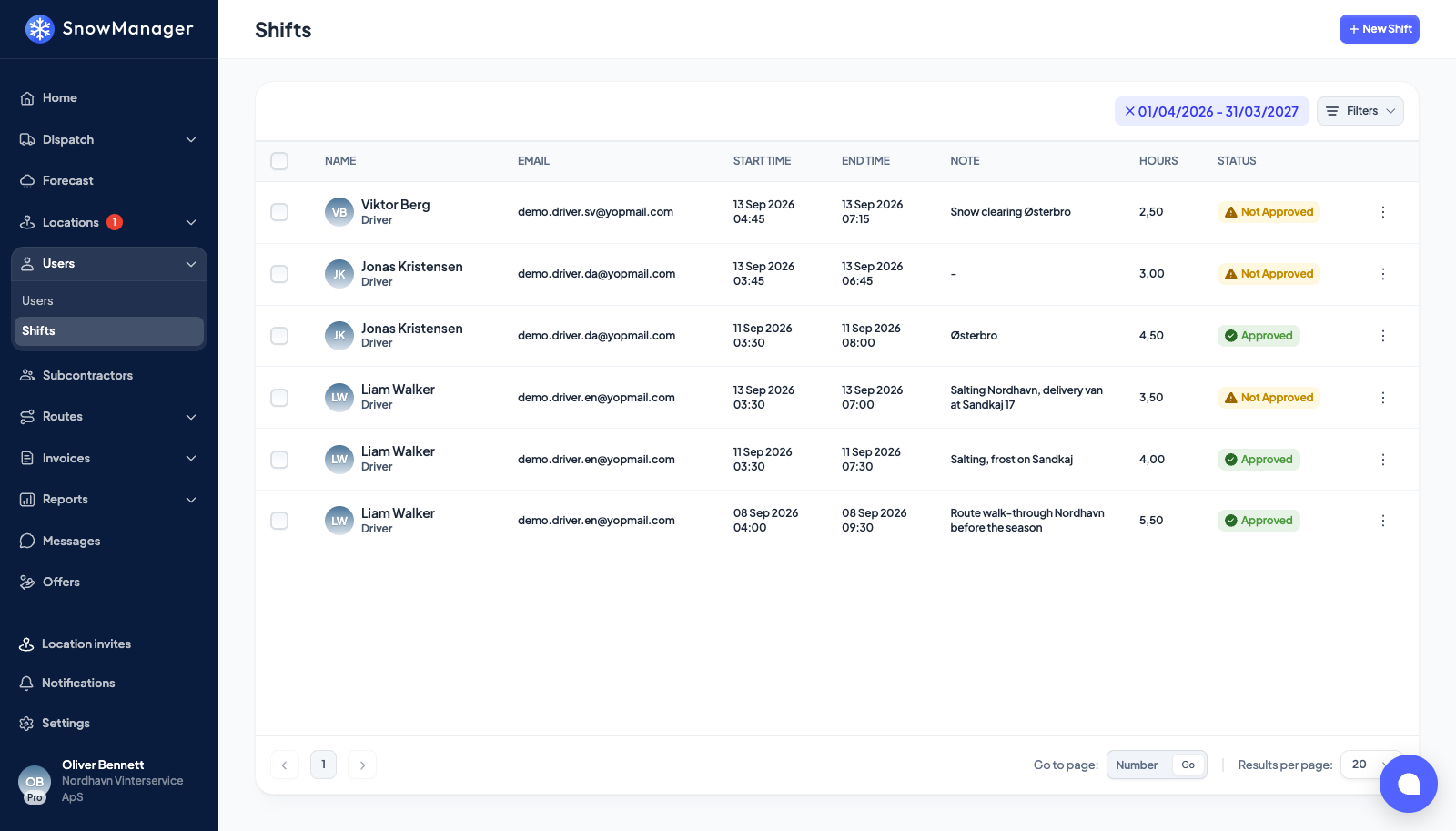
Add a shift
-
Open Users → Shifts and press New Shift.
-
Pick the User, then the Start Time and the End Time (a date and a time each). The end has to be after the start; the form says so if not.
-
Add a Note if the hours need explaining.
-
Turn on Approve if you are signing the shift off at the same time, and press Create.
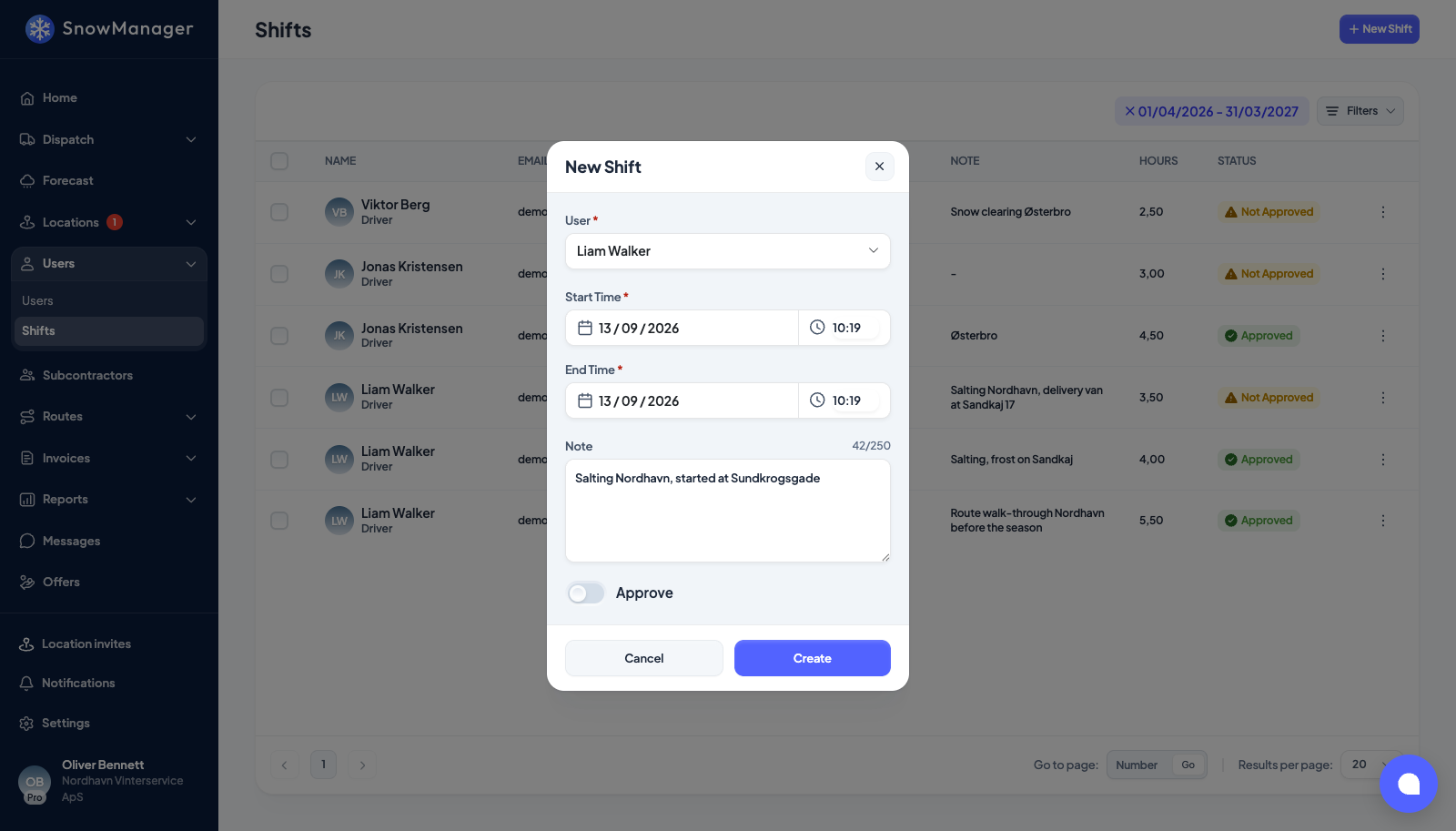
To change one later, open its row menu (the three dots at the end of the row) and press Edit; the same popup opens, and Save keeps it.
Approve, disapprove, archive
Every row shows the person, their e-mail, start, end, note, the hours, and a status badge: Approved, Not Approved or Archived. From the row menu:
- Approve or Disapprove, depending on where the shift stands.
- Archive takes a finished or mistaken shift out of the active list without deleting it. An archived shift offers Unarchive to bring it back.
Each action asks you to Confirm first. The same happens to many rows at once: tick them (the box in the header ticks the page), and the bar above the table shows Total approved and Total unapproved hours for the selection with Approve, Disapprove and Archive buttons. Ticking a row also shows an Export button; today it does nothing when pressed.
Find the shifts you mean
Filters narrows the list by Time range, by User, and by Status: All active (everything not archived), Approved, Not Approved or Archived. Press Apply filters; each active filter becomes a chip above the table that you can close. While the Archived filter is on, the bulk Archive button is hidden, since there is nothing left to archive.
Shifts from the app
A person has one running shift at a time. When Start shift is pressed in the app while a shift of theirs is already running in your business, the app is handed that shift back and no second one is opened. Before this rule, repeated taps could leave several open shifts for one person; those duplicates were closed when the rule arrived, each ended at its own start with zero hours, keeping only the newest open shift per person.
A shift lasts 24 hours at most. One that nobody ended is ended at its start plus 24 hours, with 24 hours on it, the next time that person starts or ends a shift in the app; until then it shows here without an end. Open shifts older than 24 hours when the rule arrived were ended the same way. Where the real end was earlier, Edit the shift and put in the right time.
Start and end times from the app are stored in whole seconds.
Hours
The Hours column is the length of the shift, start to end. The Total approved and Total unapproved figures add up the ticked rows only, so tick a person's rows for a week and you have their approved hours for it.