With two-factor authentication on, a password alone is not enough to sign in as you: the form also asks for a six-digit code from your phone. Each person turns it on for their own account; there is no company-wide switch.
Open the settings
-
Click your name at the bottom of the sidebar and press Manage account (the popup is headed Edit user).
-
Open the Authentication tab. It offers two methods, Authenticator App and Text message (SMS); you can set up one or both.
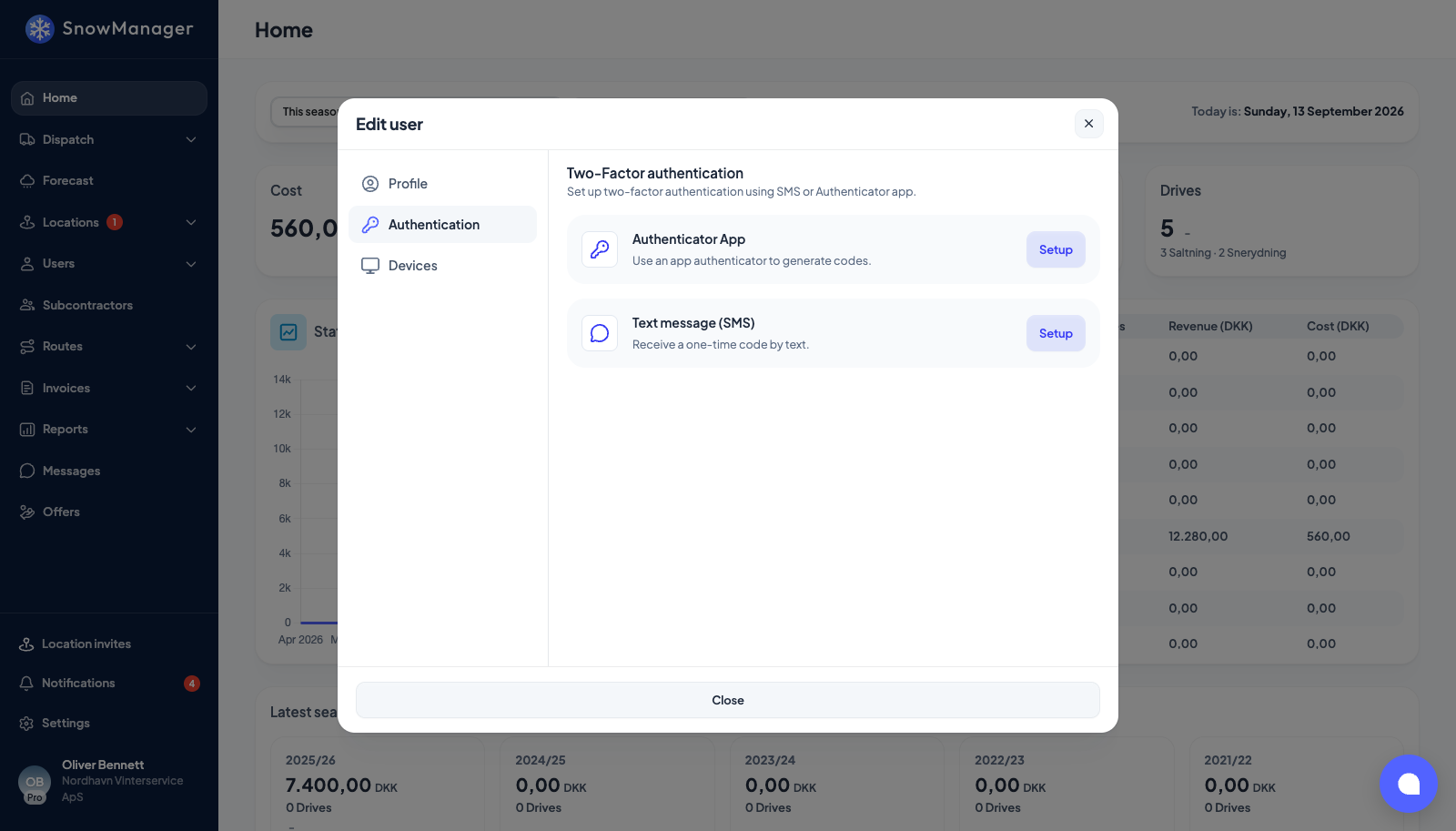
Authenticator app
-
Press Setup on Authenticator App. Set up authenticator app shows a QR code and, under it, the Setup key for apps that cannot scan. Scan or type it into your app (Google Authenticator, Microsoft Authenticator, 1Password and the like).
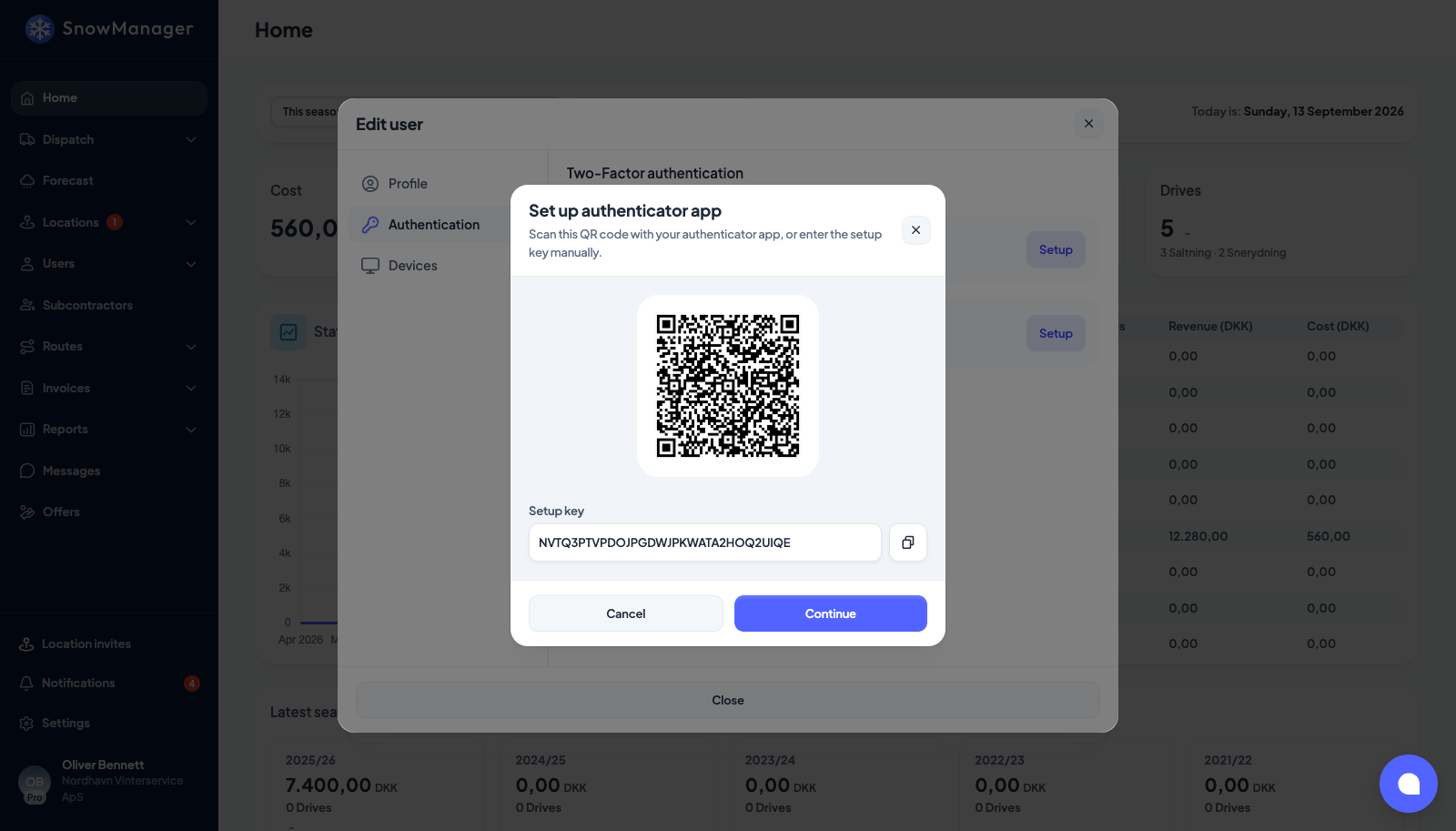
-
Press Continue, enter the six-digit code the app shows, and press Verify & enable.
-
Save your recovery codes appears with ten codes. Copy them somewhere safe, then press I've saved them. Each code signs you in once if the phone is gone.
Text message
- Press Setup on Text message (SMS). Enter your number and press Send code. It has to be the phone number on your account; any other is refused. (An account with no phone number yet can enter one here, and it becomes the account's number. It does not have to be a number nobody else uses.)
- Enter the six-digit code from the text and press Verify & enable. The code is valid for ten minutes; Resend code becomes available after sixty seconds.
- Save the recovery codes, as above.
What happens next
- Every other session of yours, in browsers and in the app, is signed out the moment a method is enabled. The one you are in stays.
- From now on the sign-in form asks for the code after your password. With both methods on, you choose which one to use; Use a recovery code instead takes one of the ten codes instead.
- Three wrong text-message codes at sign-in stop that code; the form asks you to try again in ten minutes.
Recovery codes and switching off
- Recovery codes → Regenerate makes ten new codes and cancels the old ones. Do it when you have used a few, or if the list may have been seen.
- Remove on a method switches it off after a confirmation. With no method left, sign-in is password only again. Removing a method, like adding one or regenerating codes, signs out your other sessions.
- Without the phone, a recovery code is the only way past the second step. Keep the codes.