Left yourself signed in on the office computer? Lent your phone to somebody? Signed-in devices shows every session that is open as you and lets you close the ones you do not want.
Open the list
-
Click your name at the bottom of the sidebar and press Manage account (the popup is headed Edit user).
-
Open the Devices tab.
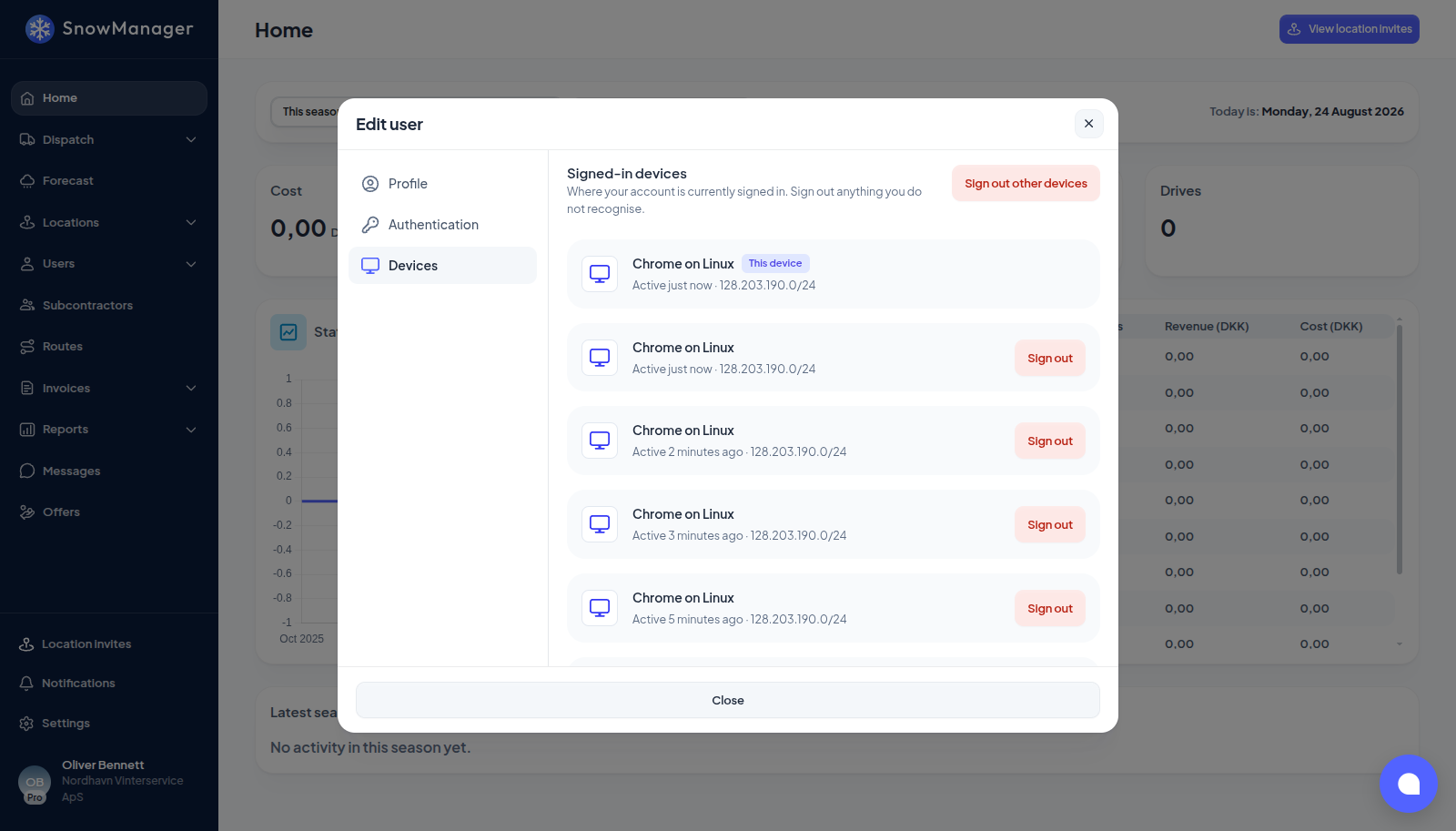
Each row is one session: Browser or Mobile app, named after what could be read from the device ("Chrome on macOS", "Safari on iPhone", or just the kind when nothing could be), with when it was last active and the first part of the network address it came from. The session you are looking from carries This device and sits at the top; the rest are ordered by last activity, so the one that was just used somewhere you do not recognise is near the top.
The heading says what the list is for: "Where your account is currently signed in. Sign out anything you do not recognise."
Sign out one device
- Press Sign out on its row.
- Confirm Sign out this device. The text tells you what happens: the device "will be signed out immediately and will need to sign in again."
The row disappears. Whoever was using that device is back at the sign-in form on their next click.
Signing out normally, from the sidebar or from the app, has the same effect on your own row: it ends that session and takes it off the list. It does not touch the others.
Sign out everything else
Sign out other devices at the top of the tab ends every session except the one you are in. Confirm it, and "Every device except this one will be signed out immediately." Your own session stays. Do this when you are not sure which row is which, and before you change your password if you suspect somebody else has it (changing the password does the same thing by itself, see Account security).
One browser and one phone
Your account holds one browser session and one mobile session at a time, and the two live side by side: you can be signed in on the office computer and on your phone at once, which is the normal way to work.
Signing in again on the same kind of device replaces the one before it. Sign in on a second browser and the first browser is signed out; sign in on a second phone and the first phone is signed out. Neither touches the other kind, so signing in on a new handset never disturbs the browser you left open, and signing in on a browser never signs your phone out.
The device that was replaced finds out the moment it is next used: it lands back on the sign-in form. Its row leaves this list at the same time, so a list showing one browser and one mobile app is a list showing everything.
How long a session lives
A session expires on its own after 30 days without use, and no later than 90 days after it was created; it then drops off the list, and that device has to sign in again. Turning two-factor authentication on or off, regenerating recovery codes and changing your password all end your other sessions too.
The list is empty
"Sign in again to see your devices here." means your own sign-in predates the device list. Sign out and in once, and it fills in.