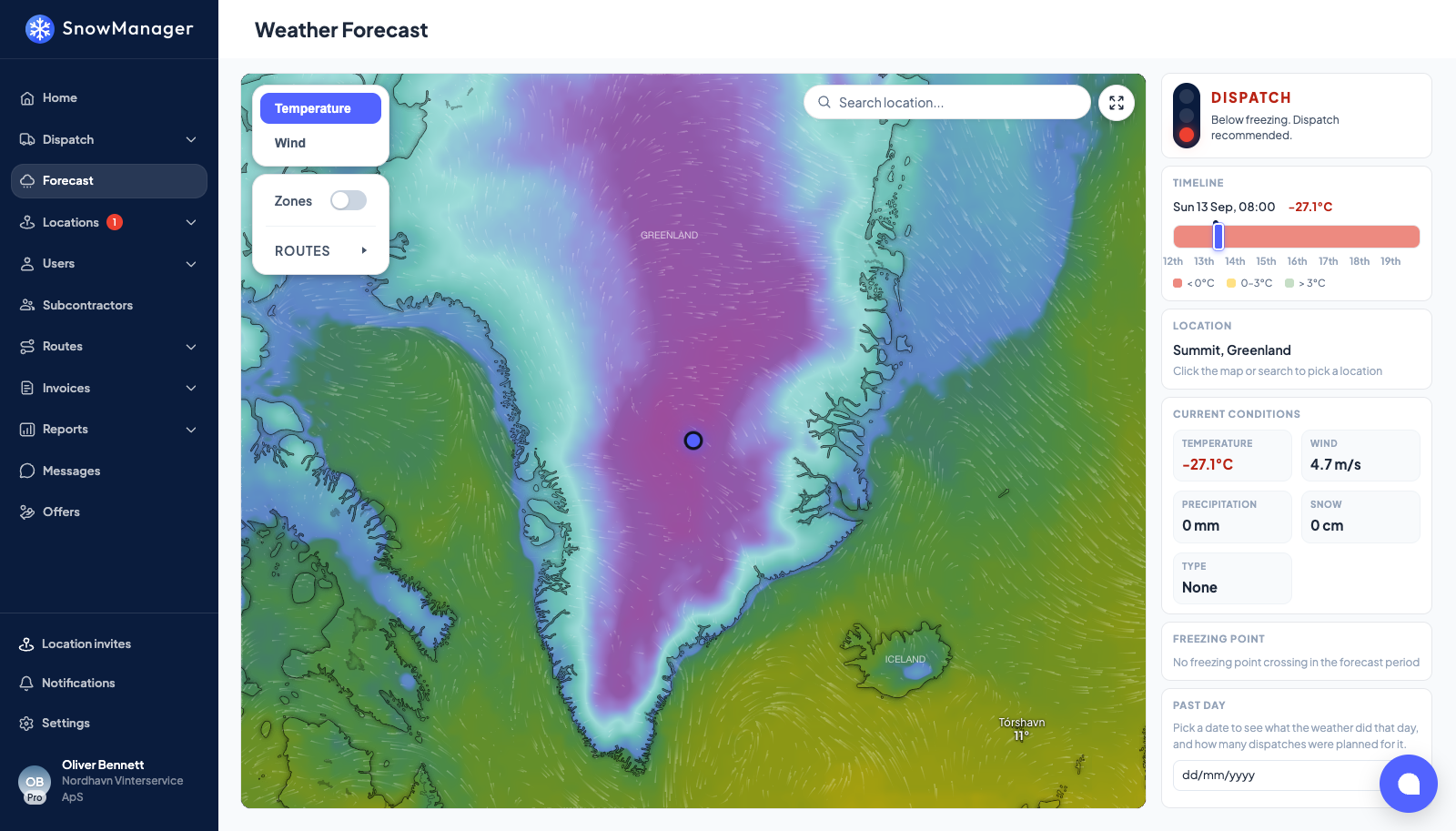
Forecast in the sidebar opens Weather Forecast: a weather map on the left and the numbers for one point on the right. It opens on your business's own address (Copenhagen if the business has no coordinates), so a Swedish business starts over its own routes.
Pick a point
- Click anywhere on the map, or type an address in the search box above it. The panel says so itself: Click the map or search to pick a location. The Location card shows what you picked.
- Switch the map layer between Temperature and Wind. Rain and Snow are offered as well once the map subscription allows them. Your Zones and Routes can be drawn on top, All of them or Yours only, so you read the weather against where you actually work.
- Press the fullscreen button in the corner of the map for a bigger view.
The status light
The card at the top is a traffic light for the hour you are looking at:
- SAFE, above 3 °C. Temperatures well above freezing. No action needed.
- WARNING, between 0 and 3 °C. Near freezing. Monitor conditions closely.
- DISPATCH, below 0 °C. Below freezing. Dispatch recommended.
UNKNOWN means the weather has not loaded yet. The light is a hint, not a rule: it looks at temperature only, not at precipitation.
The timeline
Timeline covers one day back and seven days ahead, hour by hour. The bar is coloured by temperature (below 0 °C, 0 to 3 °C, above 3 °C), with a marker at the present hour and a label at each midnight. Drag the slider to any hour: the temperature shows beside the time, the map moves to the same hour, the status light follows, and the conditions card switches from Current conditions to Conditions at selected time with a Forecast badge. Press Now to come back to the present.
Conditions
Temperature in °C (red at or below zero), Wind in m/s, Precipitation in mm and its Type: Snow, Rain, Sleet or None.
Freezing point
Freezing point names the first coming hour at which the temperature falls through zero, as Drops below {0} at {1} with the day under it. The time is interpolated between the two hours around the crossing, so it can read 22:40 rather than 23:00. If the curve never crosses downwards in the period: No freezing point crossing in the forecast period.
Trackers
A tracker is a point you want watched without having to click it every morning. It is a named point with the thresholds that mean "we would send a crew to this address", and the page checks every tracker against the same forecast it draws for the point you picked.
The Trackers card sits under the conditions. Each tracker shows its name, its coordinates and a verdict for right now: Recommend dispatch with the reason (Temperature is -3 °C, Snowfall reaches 1.2 cm/h, Precipitation reaches 4 mm, Wind reaches 12 m/s, Freezing point crossed at 22:40) or No dispatch needed with No threshold reached. While the weather is being fetched it reads Checking the weather…; if a point cannot be read, Weather could not be read for this point. Tracker pins are drawn on the map as well. With none yet, the card says No trackers yet. Pick a point on the map and add one.
Add a tracker
- Pick the point on the map or through the search box. The card tells you which point a new tracker will take: The new tracker will use the point you picked.
- Press + New tracker. The popup opens with Name, the Latitude and Longitude you picked (editable), and an optional Work type.
- Under Thresholds, fill in only what matters at this point. Any one of them is enough to
recommend a dispatch:
- Temperature at or below (°C), read at the current hour.
- Snowfall at or above (cm/h), Precipitation at or above (mm) and Wind at or above (m/s), read over the coming Look ahead hours (12 by default).
- Freezing point crossed within N hours, using the same crossing time as the Freezing point card. Saving with no threshold at all is refused: Set at least one threshold. Without one the tracker can never recommend anything.
- Leave Active on. An inactive tracker stays in the list, marked Inactive, and never recommends anything, which is how you park a point for the summer without deleting it.
- Notifications: you can tick Notify me and choose In app, Push or Email, but as the popup says, Your choice is saved with the tracker, but nothing is sent yet. The verdict only shows on this page for now.
The checks run in a fixed order: temperature now, then snowfall, precipitation and wind within the look-ahead window, then the freezing crossing. The first threshold reached is the reason you see. Times are local to the tracker's own point.
Edit a tracker with the pencil on its row. The bin removes it after This point will no longer be watched. The tracker and its thresholds are removed. Trackers belong to your business; a subcontractor does not see yours.
The footer shows when the numbers were fetched (Updated {0}). The data comes from Open-Meteo, and the times are local to the point you picked, not to your browser. To act on what you see, go to Create a dispatch.