Routes are for the plow; zones are for the dispatcher. A zone is a shape on the map (a district, a postcode, the north side of town), and dispatching it means everything in here, now, whoever services it. Large operations run the whole night from a handful of zones.
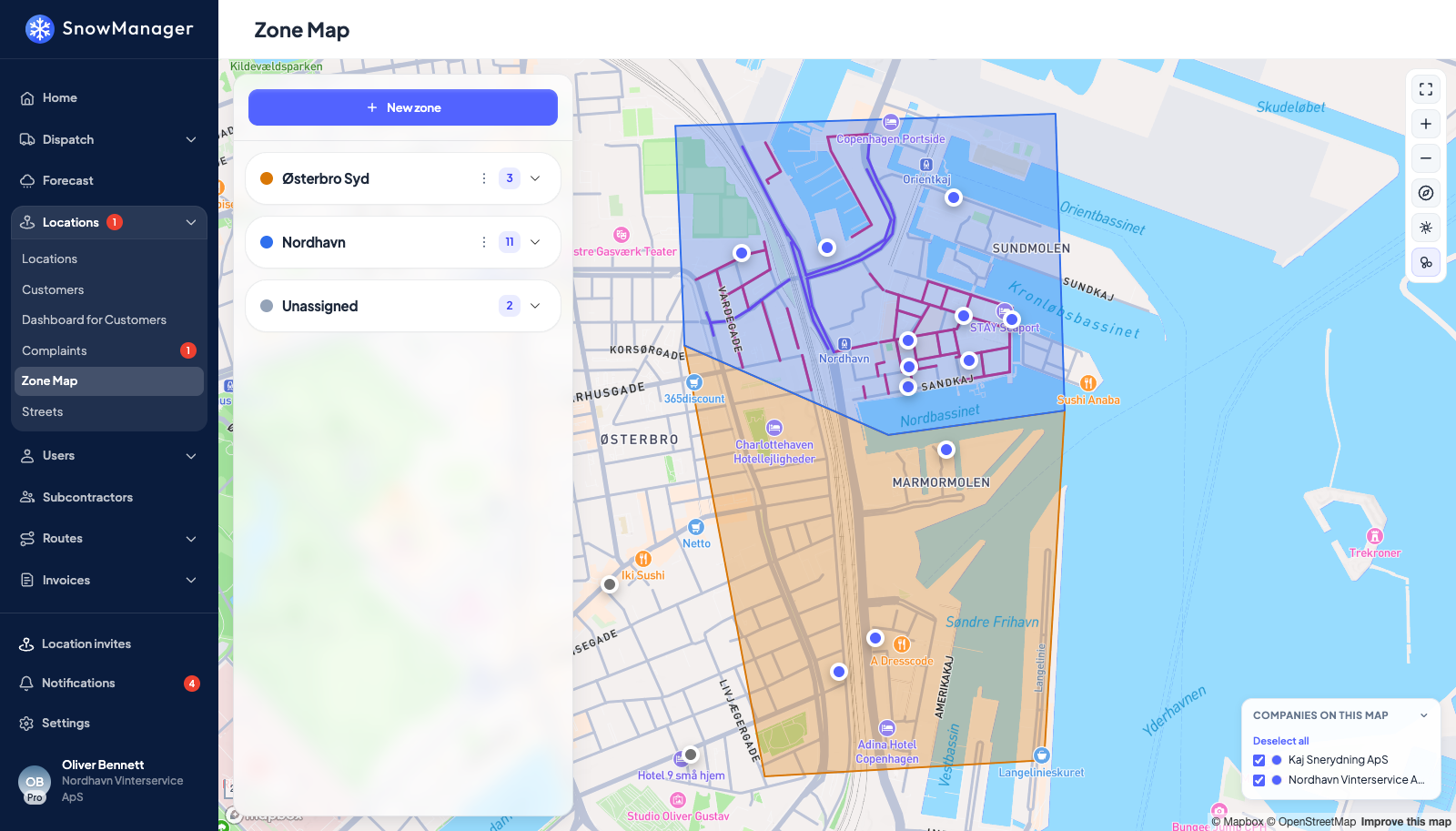
Draw one
- Open Locations → Zones in the left menu.
- Press New zone. The map says Draw a zone polygon, then press Enter to confirm: click corner by corner around the area and press Enter.
- Enter a Zone name and press Save. Reset Drawing starts the shape over; Discard abandons it.
The zone appears in the list on the left as a card. The number on the card counts what is inside it. Addresses that fall in no zone are counted under Unassigned, so you can see what a zone dispatch would miss.
Read a zone
Click a zone's card to pick it out on the map, and open it with the arrow on the right.
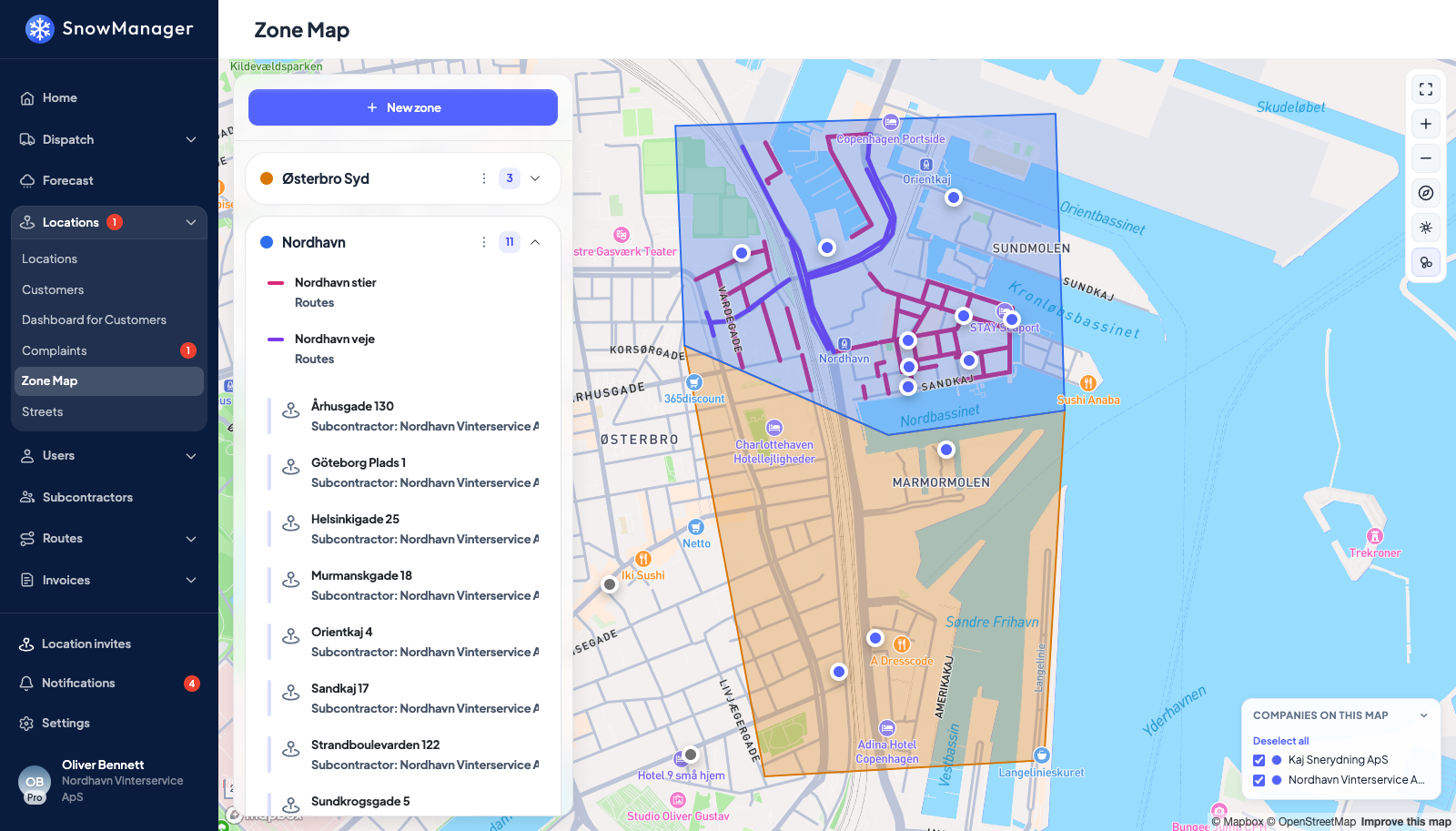
The open card is the zone's legend:
- Routes comes first: every painted road route that runs through the zone, each with a short line in the route's own colour, the same colour its roads are drawn in on the map. In the example, Nordhavn veje (purple) covers the main streets and Nordhavn stier (pink) the side streets and paths.
- Below them, the addresses inside the zone, each with the business that services it.
While a zone is picked, its road routes are drawn thicker on the map and the others fade, so you can see at a glance which roads belong to it. A route driven stop by stop has no line of its own on the zone map; its addresses show as pins and in the list instead.
Find an address
The search box under New zone, Search address or customer, finds one address on the map without scrolling through zone cards. From two characters it lists up to 50 addresses matching the name, the street, postcode or town, the customer's name or the customer number, best match first: exact, then starting with what you typed, then a word starting with it, then anything containing it, shorter names ahead of longer ones. Each hit shows the address and its customer (with the customer number on your own addresses; an address a business handed to you shows no number). Use the arrow keys and Enter, or click.
Picking a hit does what clicking the address in its zone card does: the zone card opens, the map flies to the pin, the pin's popup opens and the address's drawing is painted. If the company holding it was switched off under Companies on this map, it is switched back on. An active address that has no position is listed greyed with No position and cannot be picked; give it a position on the address first. Inactive addresses are not on the zone map, so they are not found here either.
Edit or delete
Click the card and press Edit to reshape or rename; Delete removes it for good: This zone will be permanently deleted. Dispatches already made from it keep their history.
Whose address is whose
Every pin on the zone map is drawn in the colour of the company responsible for that address: the subcontractor it was handed to, or your own company where nobody else holds it. A company picks its colour under Settings → Business, Company colour, see setting up your business; one that has never picked keeps the old blue and grey. The same dot appears on the rows of a zone card and on the pin's popup.
Companies on this map in the bottom right corner names every company with work on the map, in its colour, and it is also the filter:
- The box beside a company takes its addresses off the map and puts them back.
- Clicking the company's name leaves only that one on the map; clicking the name again brings the rest back.
- Deselect all clears the map in one press and turns into Select all, and Show all appears whenever anything is hidden.
- The title row folds the key away when you already know the colours, and then carries how many companies are still showing, so a filter cannot hide behind a folded panel. How you left it folded is remembered on that browser; which companies were hidden is not, so a reload shows everybody again.
Zones and route lines are never filtered away, because they are the map rather than the work on it, and the zone list on the left keeps every address: clicking one there brings its company back rather than flying to a pin that is not on the map.
While the map is zoomed out, addresses close together are gathered into one bubble with the number of them on it, in the colour most of them carry, so one subcontractor's corner of town still reads as that company. Click a bubble to zoom to what is inside; past a certain zoom every address is a pin of its own again.
What is "inside"
An address is in a zone when its pin falls inside the polygon. That is decided when the zone is saved and when addresses are created or moved, not at dispatch time, so a zone drawn today covers an address added tomorrow inside it. An address can be in several zones; dispatching two overlapping zones does not dispatch the shared addresses twice; they are collected into one dispatch.
An inactive address is not on the zone map at all: no pin, not counted on the zone's card, not in its list. It keeps its place in the polygon, so the day its active period opens again it is back on the map without anything to redo. Zone dispatches look at the planned date rather than today, so an address whose season starts next month is already offered when you plan next month's dispatch.
Zones are private to the business that drew them. A subcontractor does not see your zones; it sees the dispatch that comes out of them.
Good to know before the first zone dispatch
- A route with Excluded from zone dispatch switched on is never picked up by a zone, however much of it lies inside. Use it for routes you always dispatch by hand.
- A route with Automatic driver invitation on has its drivers accepted and invited the moment the zone goes out; without it the subcontractor invites drivers itself after accepting.
- Under Settings → Business, Call on zone dispatch phones the users you choose every time a zone is dispatched, useful for the duty manager.
What actually happens when you press Dispatch now on a zone is its own article: What happens when you dispatch a zone.