A new customer with forty addresses, or a season's price list changed in Excel: the import takes one file and turns every row into an address, after showing you what it is about to do.
Import
-
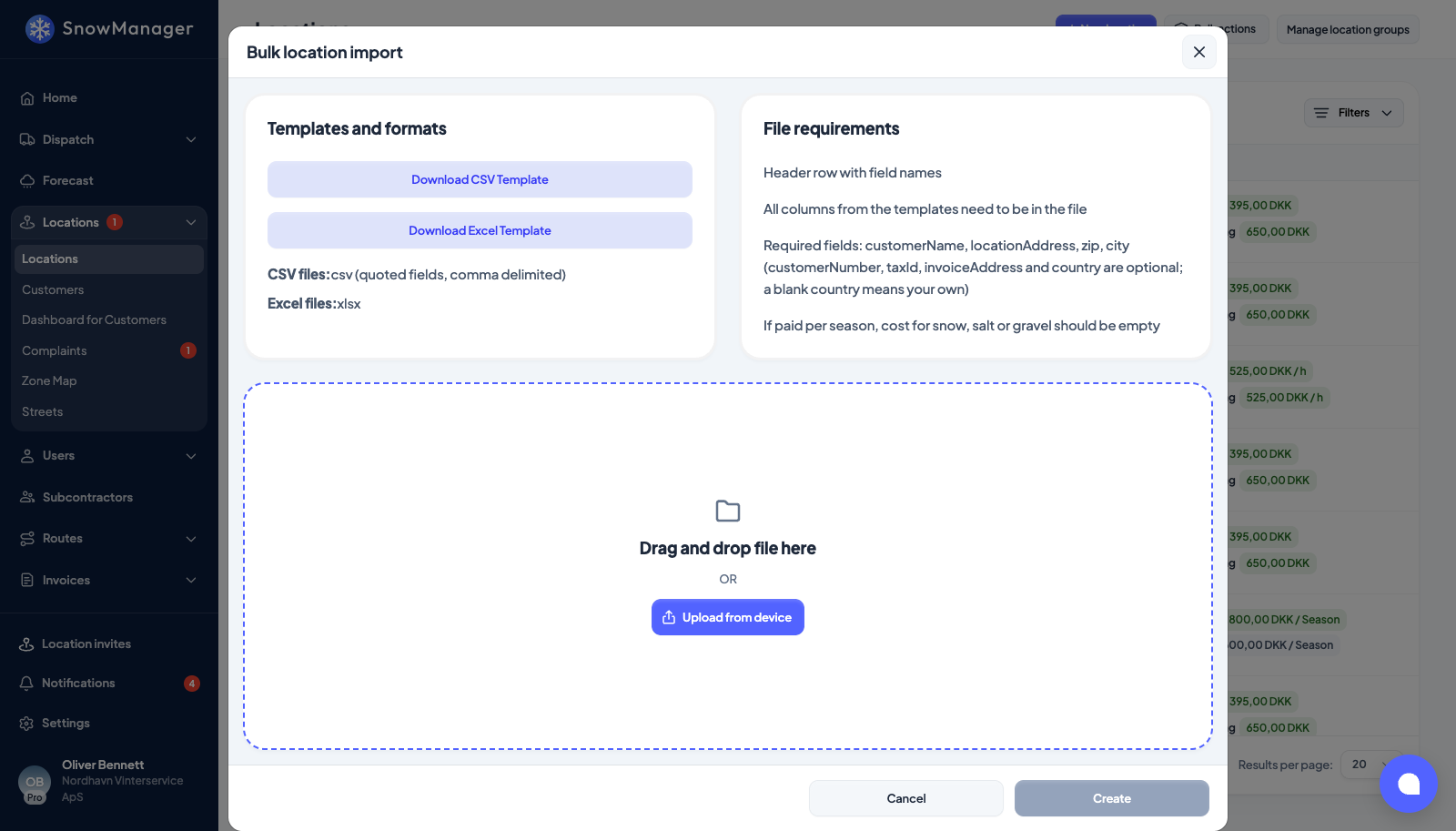
Open Locations, press Bulk actions, then Import. Bulk location import opens.
-
Download the template (Download Excel Template or Download CSV Template) unless you are re-uploading an export. One row per address. Required fields: customerName, locationAddress, zip, city (customerNumber, taxId, invoiceAddress and country are optional; a blank country means your own, otherwise write the country name or its two-letter code). Optional columns: one contact, notification e-mails (separated by semicolons), the Group by name, and prices per work type in the export's columns.
-
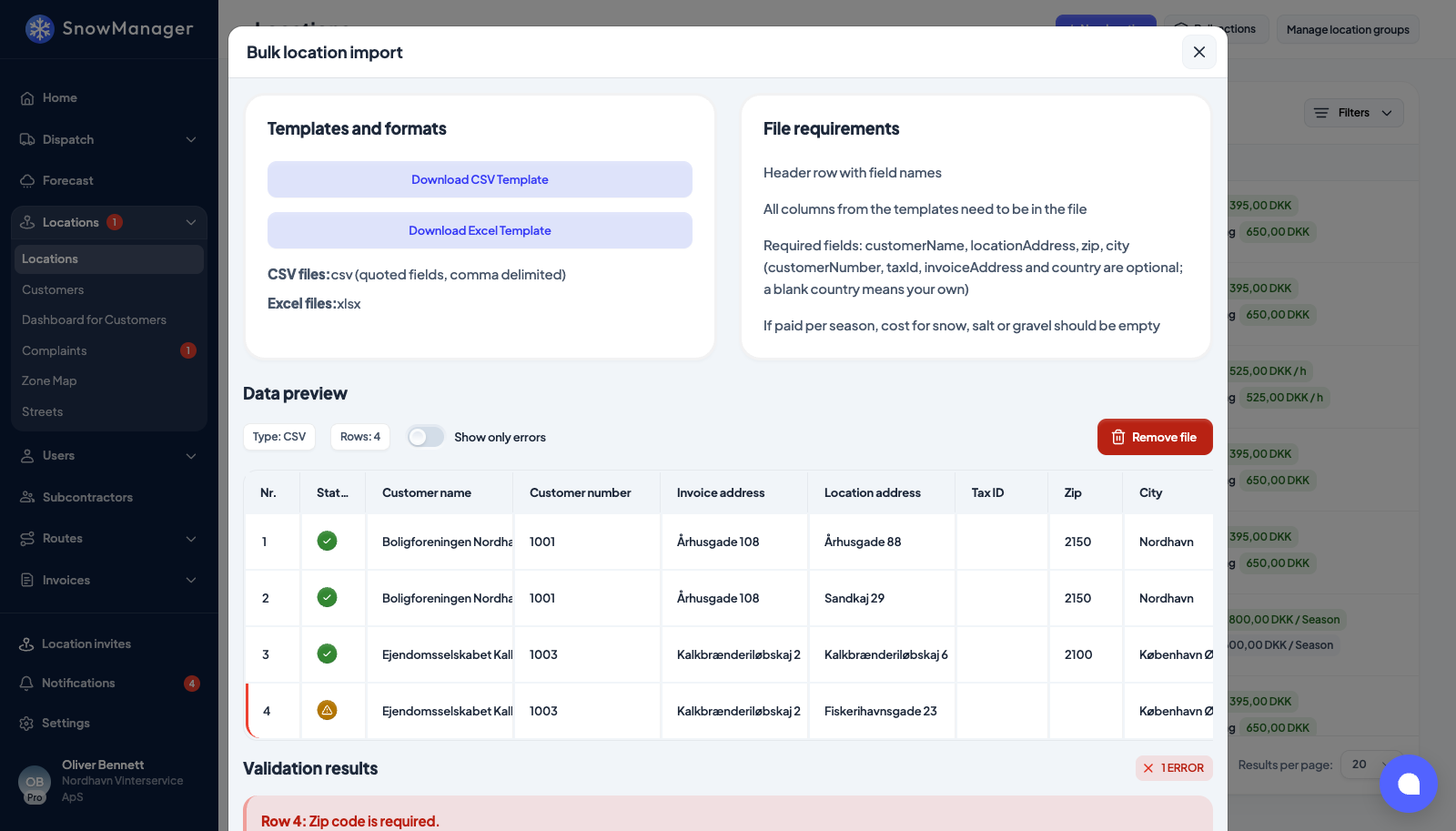
Drop the file on the popup or press Upload from device. Nothing is written yet: the file is checked and shown in Data preview. Each row says whether it will create a New address or Update one, and whether its customer is New or Existing. Errors are listed under Validation results with a Suggestion; you can fix the seven core fields in the grid and the check runs again. Show only errors hides the clean rows.
-
Press Create. It is disabled while any error remains. The import is all or nothing: if one row fails, nothing is created.
Re-importing an export
The first column of an export, location_id, links a row
to an existing address. Keep it and the row updates that address in place: blank fields keep
their value, prices merge per work type, notification e-mails are replaced when the column has a
value. Remove it and the row creates a new address. A property number another address already
uses is accepted: it is a reference, not a key.
A sheet with a location_id column does not need the required fields: you can cut it down to
location_id and the columns you are changing, for example only the extra fee columns. A row in
it without a location_id still creates an address and needs its address, zip and city.
Every row lands in the address's Changelog: a created address gets an import entry naming the file it came from, and an updated one gets the same entry beside the fields that changed, so an imported change can be told from a hand-made one.
Extra fees in the sheet
Every extra fee you have under Prices gets two columns, extra_<fee>_quantity and
extra_<fee>_price (for example extra_salt_quantity and extra_salt_price). An on/off fee
only has the price column, because its quantity is always 1. An address without the fee has
both cells blank.
- Change a fee: write the new quantity or price. A blank cell keeps the address's current value, so you can change only the prices and leave the quantities alone.
- Add a fee to an address: fill in its blank cells. A cell you leave blank takes the fee's standard quantity or price.
- Remove a fee from an address: write
0as the quantity, or0as the price of an on/off fee.
A column that names a fee you do not have stops the import: create the fee first, then upload again. The preview lists the fee changes of each row next to its prices.
Subcontractors
A subcontractor column names one of your connected subcontractors, by business name or by
your nickname for them. The address is assigned to them, or only invited if
subcontractor_status says Invited. An unknown name fails the import. The import does not
send the invitation notification; if the subcontractor must answer, send the invite from the
address (see Hand an address to a subcontractor).
Drawings that arrive as PDF or image files have their own import: see Import drawings from a customer's file.