The export gives you every address on Locations as one Excel sheet: for a price review, a handover to a customer, or a bulk correction you upload again afterwards.
Export
-
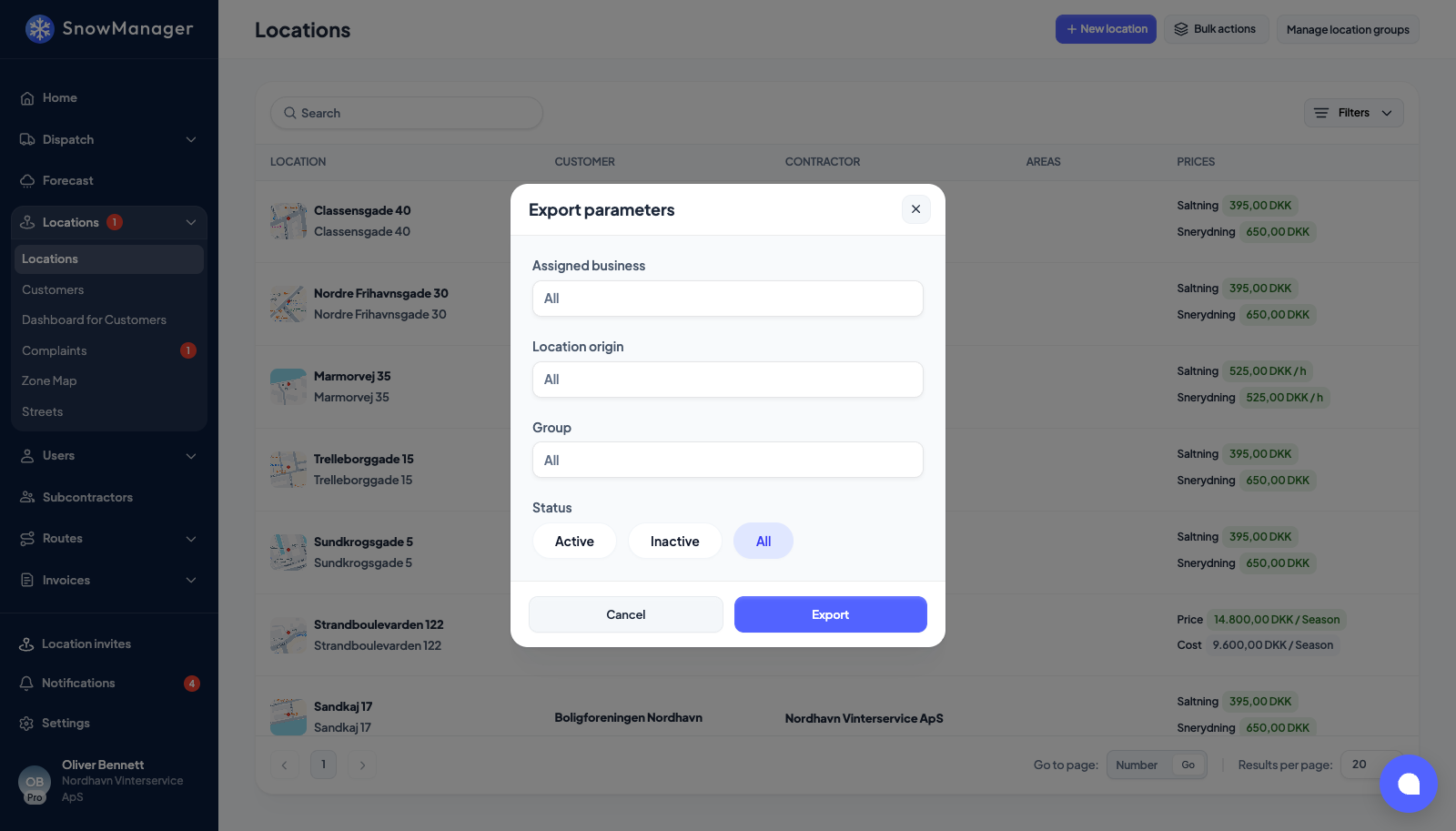
Open Locations, press Bulk actions, then Export. Export parameters opens.
-
Narrow the file if you want: Assigned business, Location origin, Group, and Status (Active, Inactive or All). Leave them empty for everything.
-
Press Export. The Excel file downloads straight away.
What is in the file
One row per address with every field: name, property number, address, customer and invoice
details, group, description, key code, the first contact, all notification e-mails, area,
minutes, pricing type, status with its dates, subcontractor, one block of columns per work type
(price, cost, payment rates or pricing type, plus the snow depth bands of a depth-priced work
type, written as from-to:price pairs: 0-2.9:100; 3+:150, the same bands on every work type of
the address, see Pricing by snow depth) and a quantity
and a price column for each of your extra fees.
Coordinates, routes and zones are not in it. On addresses you do not own, the invoicing fields are blank.
Change many addresses at once
The first column, location_id, ties each row to its address. Edit the prices or fields you
need in Excel, keep that column, and upload the file again: the addresses are updated in place
rather than created twice. How that works, and what an upload checks before it writes anything,
is in Import addresses.
For invoice and work reports rather than the address list, see Export invoices and reports.