Offers in the left menu is where a prospect lives before it becomes a customer: an address measured and priced but not yet won. Customers with offers are listed under Active and Archived with their Pending offers; one created through an offer carries a New badge. An address on an offer exists only here until the offer is approved: it is in no list, count or map anywhere else in SnowManager, so it stays out of Locations and its totals, out of the "addresses with no route" count, routes, zones, address groups, subcontractor lists and invites, dispatch, exports, invoicing and the front page's figures. The page is hidden in municipality mode.
Create the offer
-
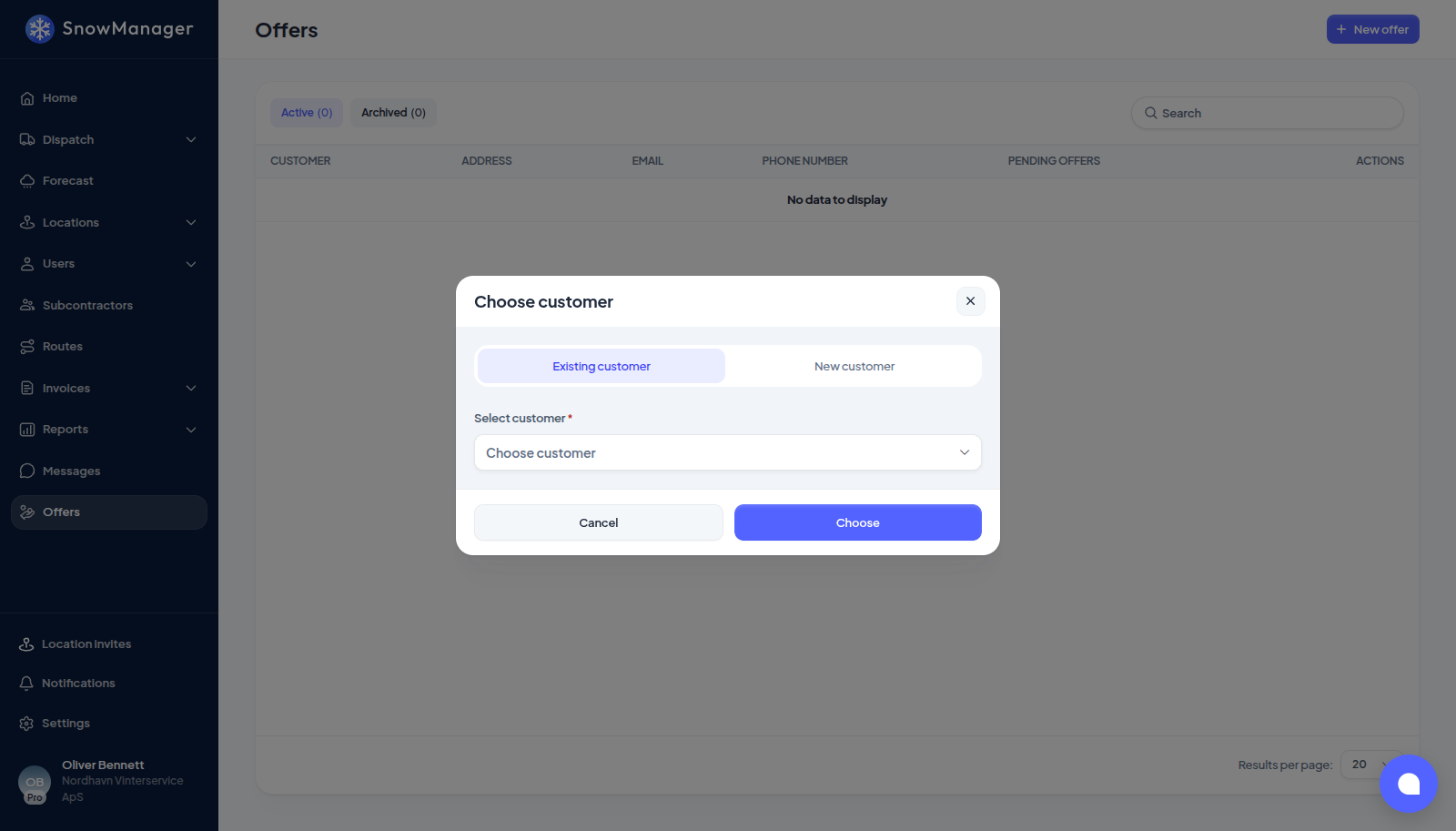
Press New offer. Under Choose customer pick Existing customer and Select customer, then Choose; or New customer. For a new one, type the Tax ID / CVR and press Find to fill Company name, Address, ZIP code, City and Country from the register (where lookup exists for your country), add Customer number, Email and Phone number, and press Create.
-
The address form opens: Search for address or enter it by hand, with Nickname, Completion time (minutes), Area (m2) and Keycode. Press Create.
-
The drawing tool opens at once so you can draw the areas to clear; with no drawing tool yet, you are asked to make one first. The minutes are what you typed; the square metres come from the drawings.
Open the customer row to see its addresses with Areas, Price and Status. Each address is one of No drawing, Draft, Sent, Approved or Declined. Without a drawing an address shows Create a drawing instead of a price. Location on the customer row adds another address to the same offer.
How the price is estimated
The price is worked out from the drawings and your Default prices (the button at the top of the page, or Settings → Prices): one table, a row per work type, each with area tiers (From, To, Price per m²). Everything drawn as an area on the address is added up into one total; lines and markers describe the job but do not count. For each work type on the offer (the ones tagged on the drawings, or all your work types if none is tagged) the tier covering the total is picked and its price applies to the whole area. So 1,240 m² of plowing in a "500 to 2,000 m²" tier at 10.20 costs 1,240 × 10.20 per visit, and salting the same yard is its own line at its own tier.
If a work type has no tier covering the total, its line shows No matching price tier and a link to Set default prices in settings; the offer total leaves it out. Saving new prices re-estimates every open offer. Click the address to see the lines per work type.
Click the address to see the lines per work type, plus two cards: Nearby locations, the two closest addresses you already service with their distance, and Discount, a percentage you can step up or down with the + and − buttons. The discount comes off every line, the row shows a green badge with it, and the quote states it.
Every price is per service visit and excludes VAT. Each work type row in Default prices also takes Expected visits per season: say 30 for salting, and the offer shows a season estimate next to the per-visit price (30 × the salting line), both on the row and in the quote. Leave it empty and no season figure is shown.
Send
Nothing is emailed from SnowManager. Press Download quote (PDF) beside the address to get the Winter service quote: your business, the property with its drawing, one line per work type with the total area, price per m², per-visit amount, expected visits and season amount, the totals per visit and per season, and 30 days of validity. Send it to the customer however you like, then press Mark as sent (enabled once there is a drawing and a price). The estimate at that moment becomes the offer's price and the address reads Sent. If the drawing or the prices change afterwards, open the address and press Update quote, then download the PDF again.
Record the answer
The customer answers by phone or mail; you record it.
- Approve: the address becomes an ordinary address of that customer, ready for routes and dispatch, with each work type on the quote priced per visit at its quoted line. If the customer was created through the offer you are asked first: This action will create a new customer and assign the location to it. When the last of a customer's offers is approved, the customer leaves the Offers page and lives under Customers.
- Decline: the address is marked Declined and stays on the page as a record. Reopen puts it back in Draft so it can be changed and sent again.
- Archive in the customer row's menu moves the customer to the Archived tab without touching any offer; Restore brings it back. The same menu has Edit customer.
- Search finds customers by number, contact name, phone or email, and by any address's name, street, postcode or city. A customer found through an address opens on the addresses that matched; And X more below them shows the rest, and Show only matches folds them away again. A customer found through its own details opens on all its addresses.