Money lives on the address. Every completed stop looks up the address's price for the work type that was done, and that is the invoice line. An address with no price produces no line: the work is recorded and stays billable, but nothing is drafted until a price exists. A price of 0 is different: it is a price, deliberately set, and the stop is settled at nothing.
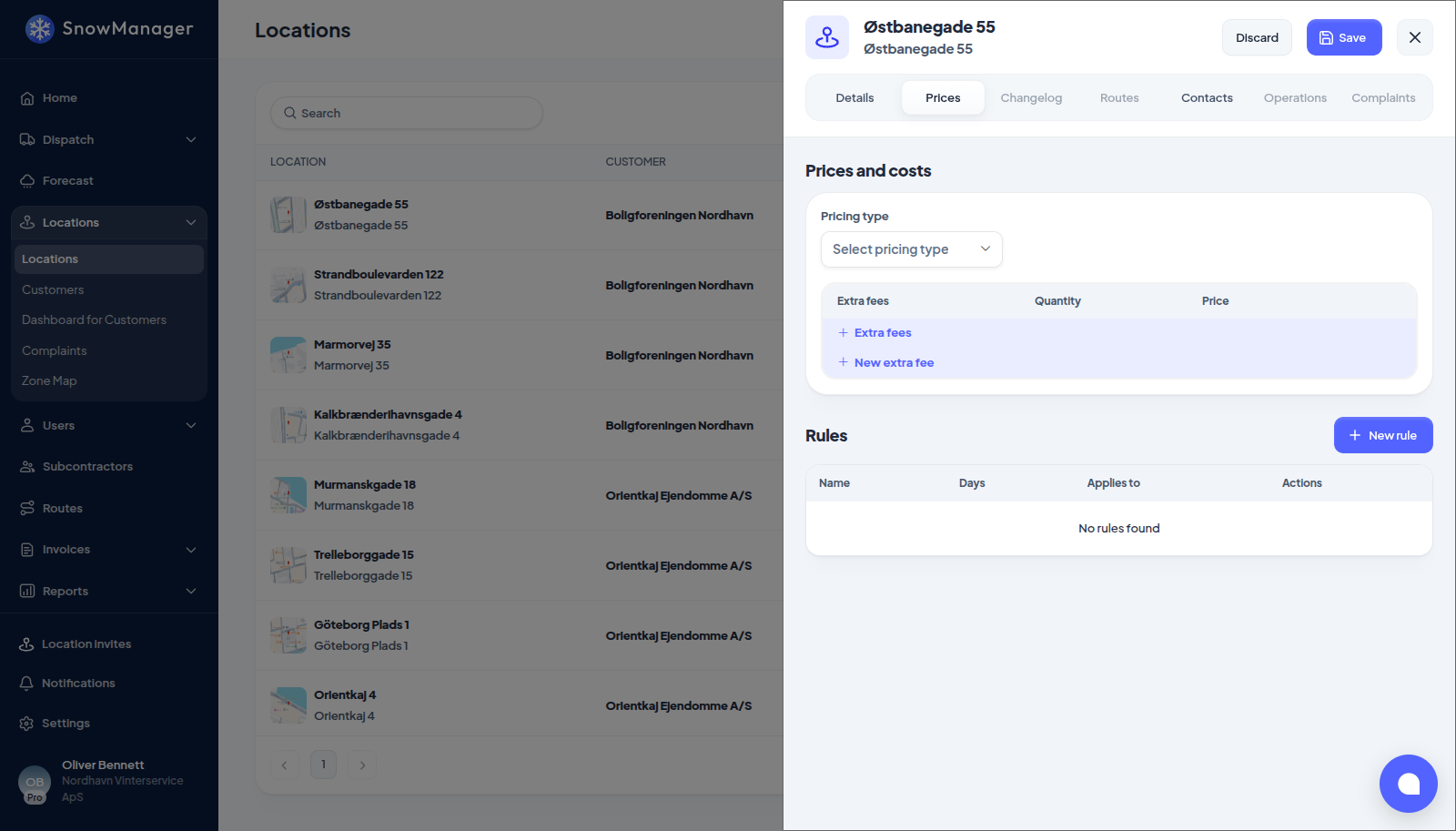
Choose the pricing type
- Open the address from Locations and go to Prices.
- Under Pricing type, pick how this address is paid:
- Per task: one line per completed stop.
- Per season: a fixed amount for the season, billed in instalments, never per stop.
- Hourly: check-out minus check-in, per stop.
- No price: nothing is billed.
- Turn on Set pricing type per work type if the work types differ: salting per task and snow removal per hour on the same address, say. Each work type then has its own type; leave it off and every work type follows the address. To price by how much snow fell instead, switch on Snow depth rules under the price grid: every work type is then priced per task by the same depth bands, one price per band, and the address can hold plowing back below a minimum depth. See Pricing by snow depth.
Enter prices and costs
Under Prices and costs there is a row per work type your business uses.
- Price is the billable price: what your customer pays for this work type here.
- Cost is the internal cost: what you pay the subcontractor for it, if the address is handed out. The cost you enter becomes the subcontractor's price for the address.
- Either may be 0. Enter 0 as a price when the work is free to this customer, or paid for under an agreement settled outside the system; enter 0 as a cost when the work carries no subcontractor payment. The two are independent, so an address can be free to the customer and still pay its subcontractor in full. A negative amount is refused.
- Hourly addresses take a price and cost / h. Seasonal addresses use the season card, below.
Press Save. A row left blank is Without price for that work type, and the list shows Missing prices for the address.
A work type priced at 0 draws no customer invoice line at all, the same as one with no price: a zero-amount line is never put on a customer's invoice. The difference is what happens next. Work done at no price is waiting for one, and is offered for billing the moment you set a real amount (below); work priced at 0 is settled, and is not offered. A season price of 0 likewise produces no instalments. The cost side is untouched by any of this: a subcontractor with a cost on the address is still paid for the same stop.
The season card
A Per season address shows its prices as one card: who pays and who is paid across the top (Customer pays, Subcontractor is paid), the season and each work type down the side, and per season or per visit under every amount.
- The season row is what the customer pays for the whole season, split into the installments you set, and reads Season in 4 installments. Each installment is created from the seasonal invoice screen.
- A work type row says what happens on each visit of that work type. Leave its customer price empty to keep it in the season. Fill it in only if the work type is billed on top of the season: press Price per visit, and the customer pays the season and that price per visit.
- The subcontractor's amount on a work type row is what they are paid for every visit, even on a season address. It is never a season total.
- Past a visit limit: if a rule limits the visits (Max 35 per season, say), what the customer and the subcontractor get per visit past the limit sits in the same card, with a shortcut to the rule. When the limit pays the subcontractor but nothing pays them before it, Pay from the first visit copies the limit's amounts onto the card as their pay per visit from the first visit, and leaves the customer's price alone.
Negative amounts and installments are refused, both in the form and when you save.
Visit by visit
Under the prices, Visit by visit works out what each party gets as the visits add up: what the customer pays, what the subcontractor is paid and what you keep, run by run of visits, with totals. It uses the same rules as invoicing and follows the boxes as you type, so you can try a price before saving it. Pick the work type and the number of Visits; Show every visit lists each visit with Total so far.
It warns you, naming the work type, when something needs a look:
- the address stops being profitable from a given visit, or never is;
- a work type has no price on the address, so its visits are not billed or paid one by one;
- the customer or the subcontractor gets nothing for the first visits (... is paid nothing until visit 36.), or nothing at all;
- past a limit the customer is billed but the subcontractor is paid nothing.
The warnings cover every work type on the address, and the calculator opens on the one with a problem. Show visit 36 on a warning jumps to that visit in the full table. It shows one work type at a time; a limit counts the visits of every work type it covers together, and night, weekend and holiday price rules are not included. To find the addresses that need a look, use the Nothing for the first visit and Not profitable filters on the list, see Filter the list.
Extra fees
Extra fees are amounts added on top of the work: a call-out fee, a material charge. They come in two kinds: Material and Fee. An extra fee may be priced at 0 as well, both here and on the catalog entry under Settings. Seasonal addresses may carry extra fees without a cost; they are billed through fee invoices, and the fee table shows how often each reached an invoice this period.
Under Settings → Work types, each extra fee is Recorded as either Quantity or On/off. A quantity fee is recorded on each stop as how many were used (salt × 10). An on/off fee is a switch on the stop: switched on it counts as one, so the same fee can never be added to a stop twice. With Add to invoice on task done on, it starts switched on on every stop and is billed once unless it was switched off; otherwise it starts off. Allow turning it on / off on mobile decides whether drivers can add or remove it on the stop. It has no quantity: the price is what one use costs. Switching an existing fee to on/off sets the quantity to 1 on every address that carries it.
The Quantity of a Material is also what the crew loads up for: a route adds up the quantities of its addresses under Materials, on the web and in the driver app, see what a route is worth.
Several customers paying for one address
When an address is owned jointly and each owner pays its own part, add the other customers at the bottom of this tab in edit mode. Every visit is then billed in equal shares, one line on each customer's invoice. See Split an address's invoice between several customers.
When you add a price to an address that already has work
Setting a real price (a positive amount) on an address with completed, unbilled stops this season opens Bill completed work?: The new price also applies to work completed earlier this season that was never invoiced. Create invoice drafts for these dispatches? Press View and invoice to see the dispatches, row by row, and draft them, or Not now to leave them. The offer comes back whenever you open the address until the work is billed or the season ends. Setting a price of 0 does not open it, because there is nothing to bill.
Where the price comes from on the invoice
A price set here beats the generic work-type price from Settings → Work types, and a rule price (from the address's Rules) beats both when its period matches. Owner and subcontractor each keep their own rows: what you see here is your side; the subcontractor sees theirs, with your cost as their price. Raising every price by a percentage at once is done from the list with Price regulation.