When the office dispatches a route you drive, or puts you on an address, you are invited. The invitation is yours to answer: nothing is expected of you until you accept it, and until then the stops are view-only.
You are told by a push notification, and a bell notification on the web, when the dispatch is created, and again if the office adds you to a dispatch that is already running. A subcontractor's drivers hear nothing until the subcontractor has accepted the work; see why a dispatch is, or is not, on your phone.
Read the invitation
- Open Home and tap the Invitations tab. The count on the tab is how many are waiting. Each card shows the route or address, when it is planned (Today or Tomorrow with the time, otherwise the date) and the work type.
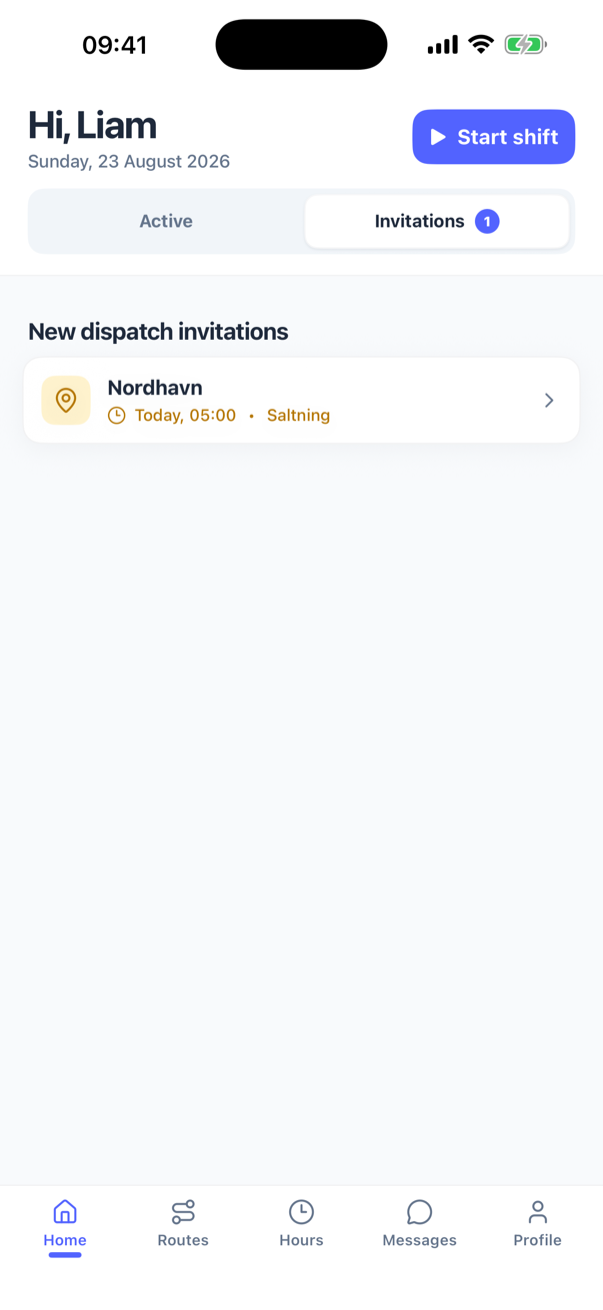
- Tap a card. The sheet opens with New dispatch invitation at the top and shows Planned for, Work type, Drivers assigned (the colleagues on it, with You on your own row), the list of Locations (or Roads on a painted road route) and the Note from dispatcher if the office wrote one.
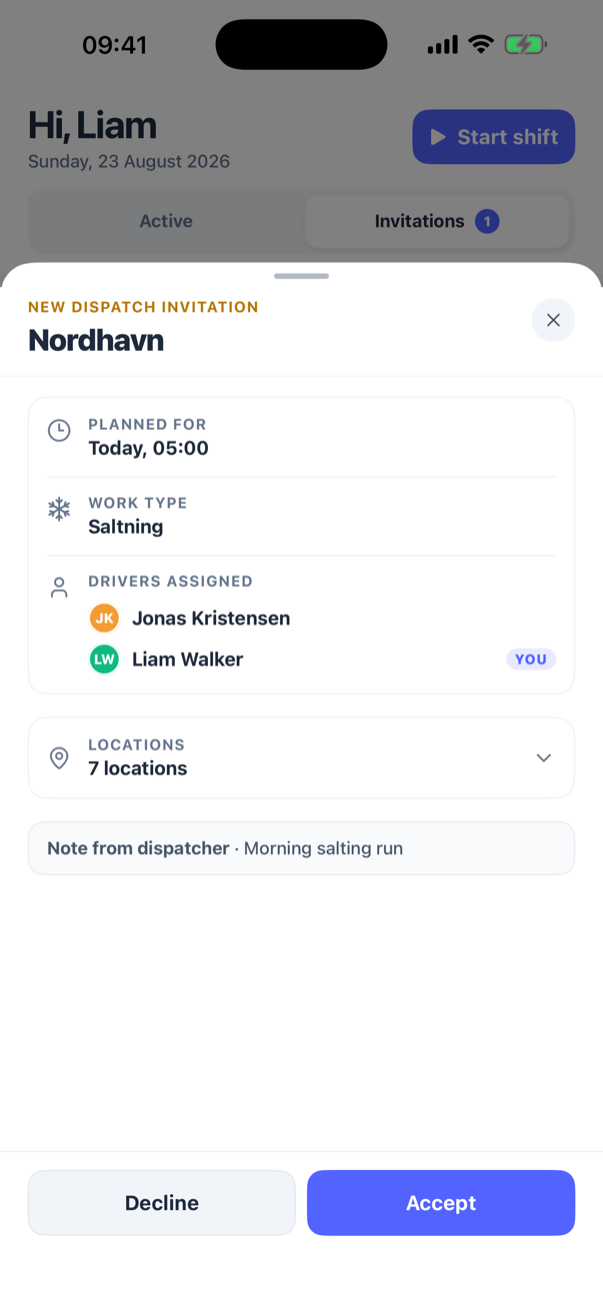
Accept
Press Accept. The dispatch moves to your Active list and the app opens it straight away, so you can start driving; see drive a dispatch. The office sees your answer on the dispatch at once.
Decline
Press Decline. The invitation leaves your phone and the office sees that you declined, next to your name on the dispatch. The dispatch itself carries on for the other drivers; if every driver on a route declines, the office gets a warning that the route has no driver and can add someone else. You are not asked for a reason.
If you change your mind, ask the office: a declined driver is added back from the web, after which the dispatch reappears under Invitations for a fresh answer. Declining is about you; your company's own acceptance of the work, when it was invited as a subcontractor, is a separate decision made on the web.
Changing the crew from the invitation
If the office has allowed it, the Drivers assigned section has an Edit button. Press it, tick or untick colleagues in the list (search with Search drivers) and press Done. The change is saved straight away and concerns this dispatch only; the route's usual drivers are untouched. Without that permission the list is read-only.
When it fails
If the answer cannot be sent (no signal, or the office has meanwhile cancelled the dispatch), the sheet stays open and says Couldn't send your response. Please try again. Pull the Invitations list down to refresh it; a cancelled dispatch disappears from the list.
What the office sees
Your answer shows on the dispatch on the web as a badge per driver: Pending, Accepted or Declined. The office can also accept or decline on your behalf from there, and remove you from a stop; see adding drivers to an existing dispatch. A driver who was removed sees the dispatch vanish from the phone.