Messages is the chat inside your business. It is the same chat the office uses on the web, so what you write on the phone is on their screen at once, and what they write reaches you as a banner on the phone.
The Messages tab
The tab is titled Messages with Stay in touch with dispatch under it. Your conversations are listed under All conversations, newest first; a chat with unread messages is shown in bold with a count. Conversations the office has pinned sit above, under Pinned; you cannot pin or unpin from the phone. Search conversations filters the list by name and by the last message, and the matches appear under Search results. If nothing matches you see No conversations found matching "...".
Before your first chat the tab reads No conversations yet and Start a new chat to get the conversation going.
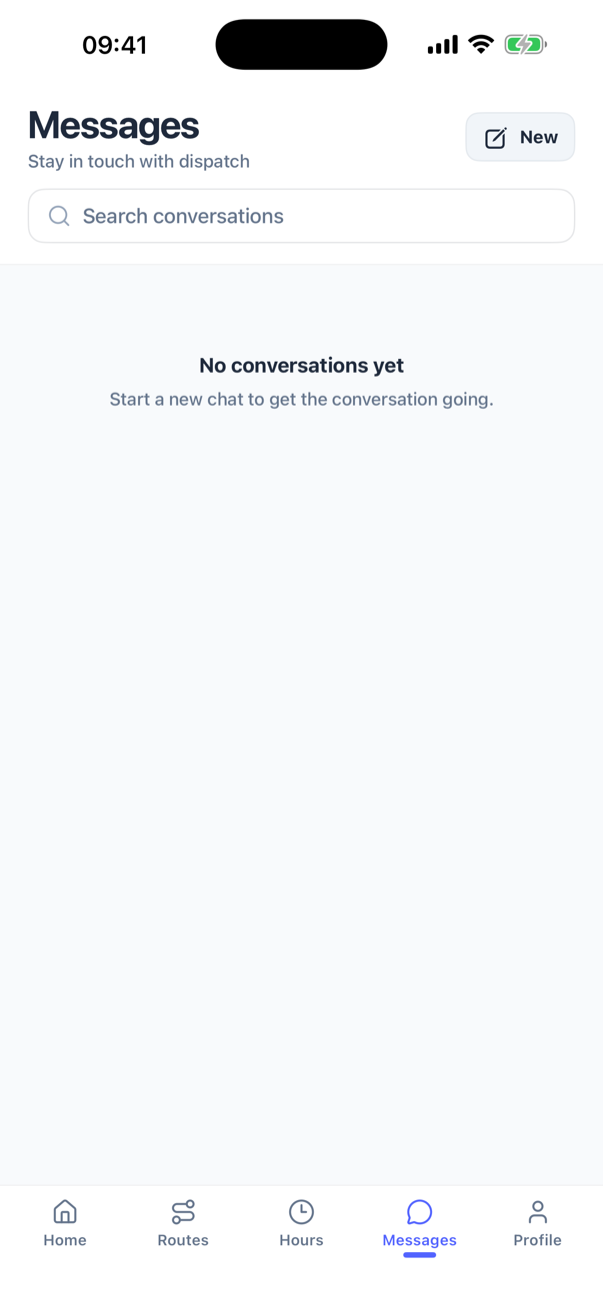
Start a chat or a group
- Press New at the top of the tab.
- The New message sheet lists the people in your company, each marked Driver. Type in Search people in your company... to narrow it; No drivers found means no name matches.
- Tap one person and press Start chat. Tap two or more and the sheet becomes New group with a Group name (optional) field (Name this group); press Create group (2), the number being how many you picked. A group you do not name is called Group chat.
- The thread opens straight away.
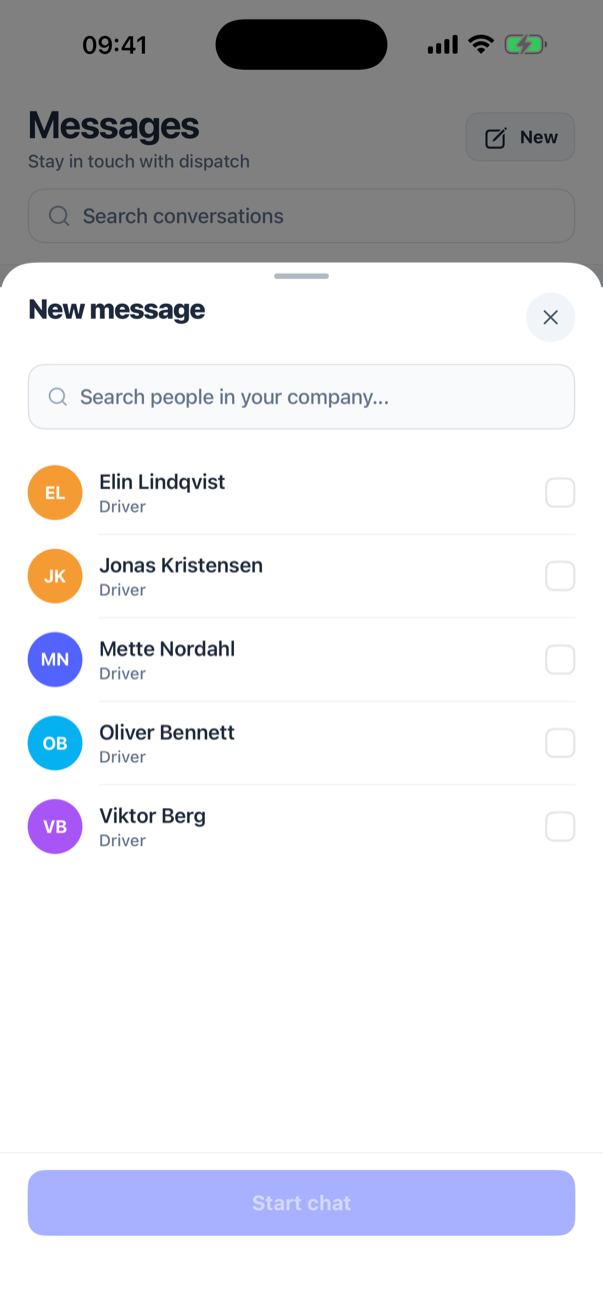
A one-to-one chat with someone you already chat with reopens the existing conversation rather than making a second one. A group is always new.
In a thread
The header shows Connecting… until the live connection is up; you cannot send before that. Write in Type a message… and press send; the button is disabled while the draft is empty. A new chat starts with Start of your conversation. Messages are grouped by day with Today and Yesterday dividers, and a message you have just sent shows now as its time. In a group the sender's name is shown above each message; in a one-to-one chat it is not.
If a message could not be sent you see Not delivered. Tap to retry under it. Tap it to send again.
Older messages load as you scroll up. When new messages arrive while you are scrolled up, a button with the number of new messages appears at the bottom; tap it to jump to the latest.
Groups have a pencil in the header. It opens Rename group, where you change Group name and press Save changes. If it fails you see Couldn't rename the group. Please try again. One-to-one chats cannot be renamed.
Announcements
An announcement is a chat the office sends to many people at once, see messages and announcements. It is pinned for you and you can read it, but only its creator can write in it: the composer does not send for anyone else.
Notifications
A new message shows a banner on the phone unless you are looking at that very chat. The banner carries the sender's name as its title (or New message when the name is missing) and the text of the message; tapping it opens the thread. Your own messages echoed from another device never raise a banner.
Chat banners arrive like the app's other notifications. The Notifications switch on the Profile tab turns them all on or off together, see your profile; there is no separate setting for chat.