After you sign in, the app opens on Home. A bar along the bottom switches between the five parts of the app:
- Home: today's work. Dispatch invitations waiting for your answer, the dispatches you are on, the button to start a shift, and the cards to create a dispatch yourself.
- Routes: the routes you are a driver on, with their addresses on a map, and the history of past runs. See your routes and past runs.
- Hours: your finished shifts and their length. See start and end a shift.
- Messages: chat with the office and your colleagues. See chat with the office.
- Profile: your name, e-mail, phone, language, notifications, two-factor and sign out. See your profile.
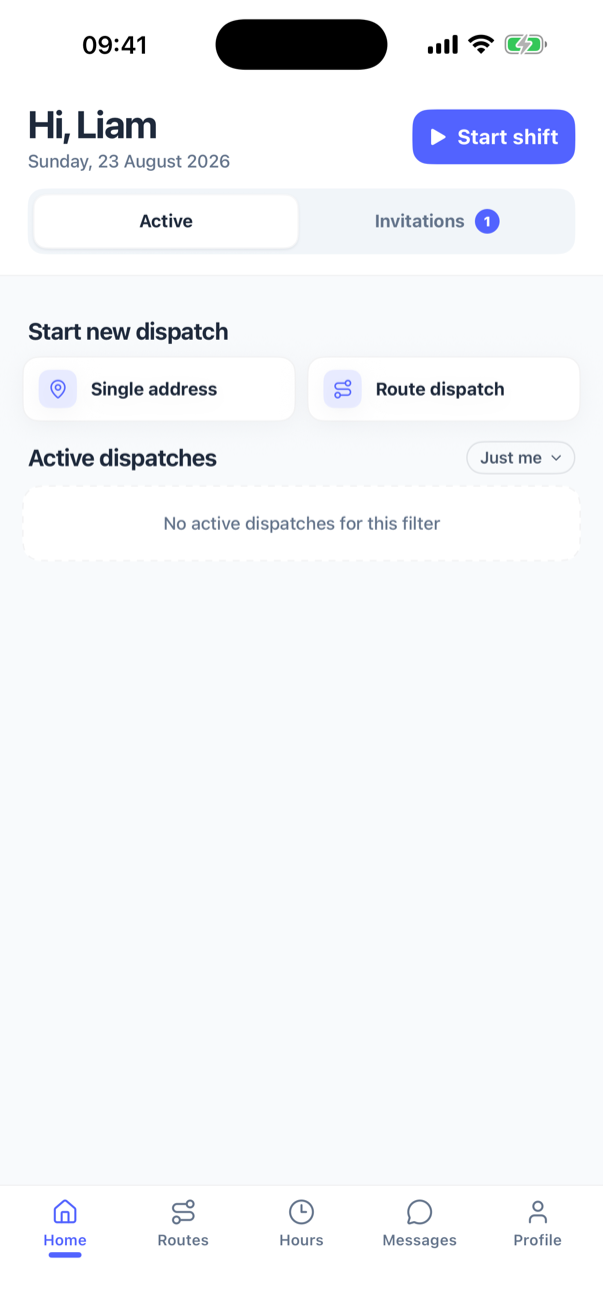
What is on Home
The top says Hi, and your first name. Under it is today's date, or Shift active with the running time once you have pressed Start shift. That button, and End shift while a shift runs, sit in the same corner; see start and end a shift.
Two tabs divide the page, each with a count:
- Active: the dispatches that are yours to drive. Each card shows the route or address, the planned date and time, the work type, how many stops are done out of how many, a status (Planned, Started or Completed), and who is driving. Cancelled work is not on this list: a dispatch or a route the office pulls leaves it at once and is read back under Routes, History. Tap a card to open the dispatch; see drive a dispatch. Above the list, Start new dispatch offers Single address and Route dispatch for work you create yourself; see start a dispatch from your phone.
- Invitations: dispatches you have been put on but have not answered yet. Tap one to read it and press Accept or Decline; see accept or decline a dispatch. When nothing is waiting the tab says You're all caught up.
A filter chip above the active list says which dispatches it is showing. For a driver it starts on Just me: the dispatches you are crew on. For an administrator it starts on All, the whole company's work, since that is what you are dispatching for. Either way the other views are one tap away: switch to All, back to Just me, or pick a colleague's name to see theirs. The list says No active dispatches for this filter when the chosen view is empty. Which dispatches can appear at all is explained in why a dispatch is, or is not, on your phone.
Pull the list down to refresh it. It loads twenty at a time and fetches more as you scroll.
Notifications and permissions
The first time Home opens, iOS asks whether SnowManager may send notifications. Say yes: this is how you hear about new work while the app is closed. You can change your mind later under Profile, Notifications, or in the iPhone's Settings.
Location access is asked for the first time you start driving a dispatch, not at sign-in. What the app does with it is in what the app does with your location.
Coming back to the app
The app keeps you signed in. When you open it again it refreshes Home, checks whether a shift is running on your account (also one you started on another phone), reconnects the chat, and picks up any dispatch you were in the middle of. If the phone has no signal, it shows No internet connection with Retry and waits; you are not signed out.