The Profile tab, Your profile, is where you keep your own details. Everything you change here is saved to your user account, so the web shows the same name, e-mail, phone and language the next time you sign in there.
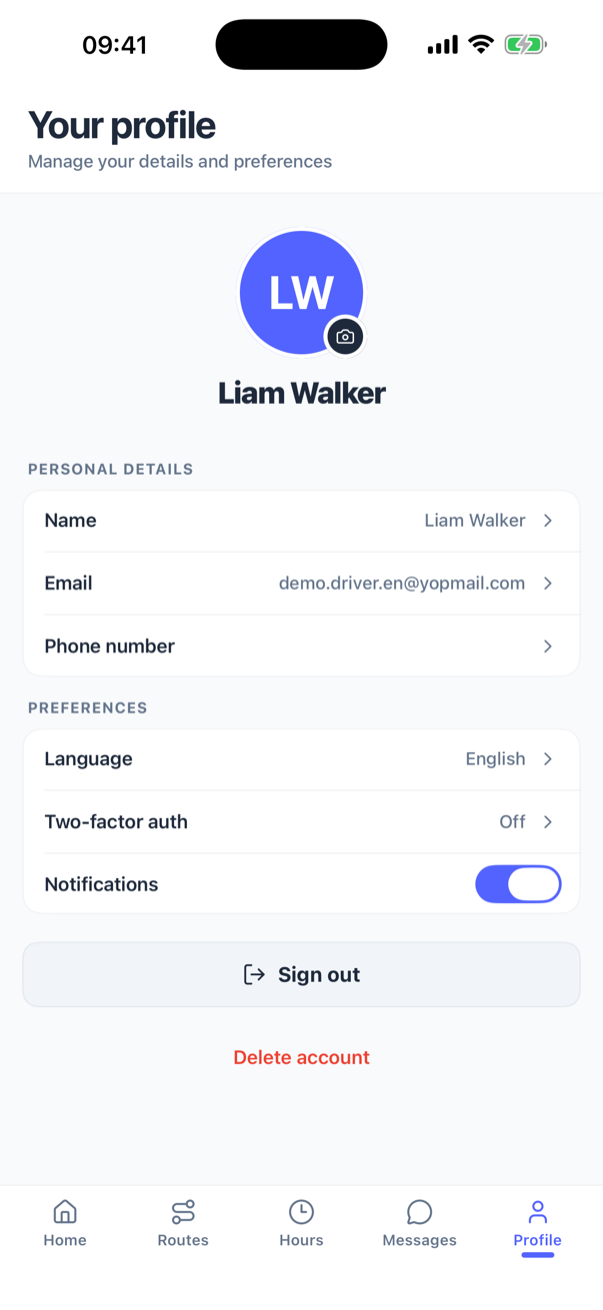
Photo and name
Tap the avatar for Profile picture: Take photo, Choose from gallery or Remove current photo, which asks Remove photo? before it deletes the picture for good.
Tap Name for Edit name. Save changes stays greyed until you have typed something different, and both First name and Last name are required (Enter your first and last name.).
E-mail and phone number
Both are changed with a code, so nobody can point your account at an address they do not own.
- Tap Email (or Phone number) and type the new one. For a phone, pick the country code first.
- Press Continue. The app says We've sent a 6-digit code to …. Please enter it below.
- Type the code under Verification code and press Verify. The button wakes up at exactly six digits.
Email updated or Phone number updated confirms it. A wrong code says Invalid code. Please try again. There is no resend button on these two sheets: a code is valid for ten minutes, and after that you close the sheet and start again. Colleagues may have the same number, for example a crew sharing one phone. The exception is users without an e-mail address: their number is their sign-in, so two of them cannot share one.
If you sign in with your phone number because your account has no e-mail address, the new number becomes your sign-in. It has to be from Denmark (+45), Sweden (+46), Norway (+47), the Netherlands (+31) or Belgium (+32), and from then on you sign in with the new one.
Language
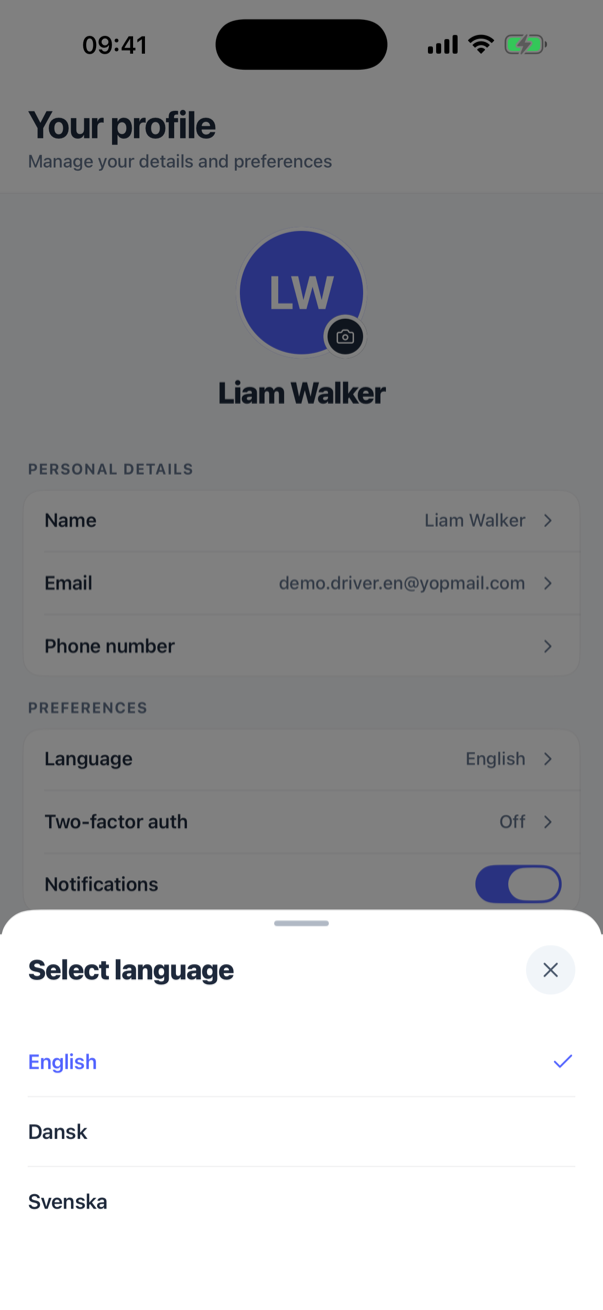
Tap Language and choose English, Dansk, Svenska, Nederlands or Norsk. The app switches at once and saves the choice to your profile in the background, so the web follows it too (see language).
Notifications
The Notifications switch turns every push from the app on or off together: new dispatches, invitations and chat messages alike. Off needs nothing. On asks iOS for permission the first time. If you refused that earlier, the app cannot ask again and shows Notifications are turned off: press Settings, allow notifications for SnowManager there, and come back.
Two-factor authentication
The Two-factor auth row reads Off, Authenticator, SMS or On. Tap it for Two-factor authentication, with a row for Authenticator app and one for Text message (SMS), each badged On or Off. The web offers the same two methods, see two-factor sign-in.
- Authenticator app: Copy the setup key, add an account in your authenticator app and paste it, then type the 6-digit code from the app and press Verify & enable.
- Text message (SMS): enter the Phone number, press Send code, type the Verification code and press Verify & enable. Resend code waits out a short cooldown between sends, shown as a countdown on the button.
You're all set shows your ten recovery codes. Copy codes and keep them somewhere safe: they are shown this once and the app cannot show them again. New codes are made on the web only. A wrong code says That code isn't right. Please try again.
To remove a method, tap its row (Tap to turn off) and confirm Turn off under Turn off two-factor.
Sign out
Sign out asks Sign out? and, once confirmed, ends the phone's session on the server: it disappears from your signed-in devices on the web (see signed-in devices). If a shift is running the app warns You have an active shift. It keeps running after you sign out; end it from Home first if you're done for the day. That is what happens: signing out drops the shift from this phone, but the shift itself keeps running on the server until you, or the office, end it. Done for the day? Press End shift on Home before you sign out (see shifts).
Delete account
Delete account removes your user at the company, not only the app: This action is permanent. All your data, history, and active routes will be deleted immediately. Type DELETE where it says To confirm, type "DELETE" below and press Permanently delete account. There is no undo; if you are to work there again, the office invites you afresh.