Drivers work in the SnowManager app on their phone. Your administrator invites you from the web and you set your password from the e-mail that arrives, or from the text message if you were added without an e-mail address; after that, the app is where everything happens. If you sign in on the web with a driver account, you are pointed straight back to the app.
The app is installed from the invitation your company sends you (during testing through TestFlight on iPhone and internal testing on Android). The first screen after installing is the sign-in form.
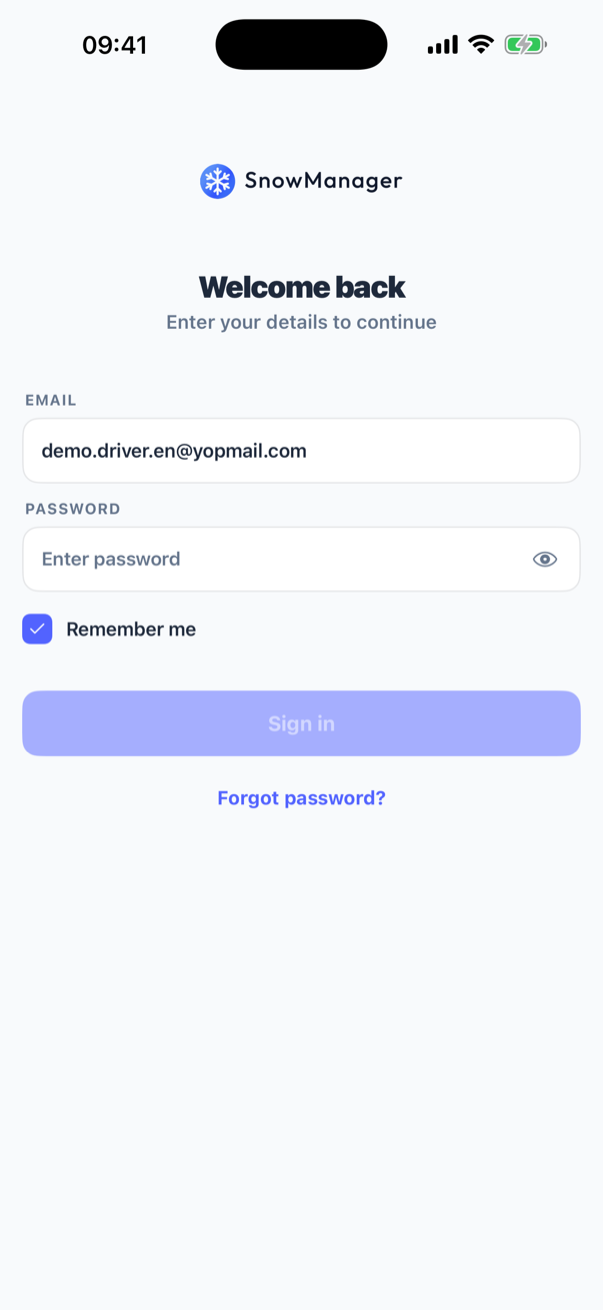
Sign in
- Type your e-mail address or phone number under Email or phone number and your password under Password. The eye icon beside the password shows what you typed.
- Tick Remember me if this is your own phone. The app keeps only your e-mail address or number, never the password, and fills it in next time.
- Press Sign in. The button is greyed out until both fields have something in them.
A wrong combination shows Invalid email or password. After five wrong attempts in a row the account is locked for 15 minutes, the same rule as on the web; wait, then try again rather than guessing on.
You stay signed in as long as you open the app at least every 30 days (and at most 90 days in all). Being signed in on your phone and on the web at the same time is fine, and neither signs the other out. What does end this one is signing in again on a different phone: an account runs one phone at a time, so the handset you left behind returns to this screen the next time somebody opens it. Your password being changed, or the office signing this phone out from Devices on the web, does the same.
Signing in with your phone number
In the latest version of the app you can sign in with your phone number instead of an e-mail
address, if your account was made without one (your invitation came as a text message). When you
type a number without + or 00 in front, a small country button with a flag and the code, such
as +45, appears in front of it. Tap it to choose Denmark (+45), Sweden (+46), Norway (+47), the
Netherlands (+31) or Belgium (+32). It starts on your phone's own country and remembers what you
picked last. You can also type the whole number with its country code, as +4512345678 or
004512345678. See Add a driver who has no email
for how these accounts work.
The second step
If your account has two-factor authentication turned on, the app asks Verify it's you after the password and offers the methods you set up: Authenticator app or Text message (SMS).
- Authenticator: open your authenticator app and type the 6-digit code it shows, then press Verify.
- SMS: the code is sent to the phone number on your account. Resend code appears once the waiting time the server sets has passed.
- Lost both? Press Use a recovery code instead and enter one of the ten recovery codes you saved when you set two-factor up. Each code works once.
The Verify button stays greyed out until the code is complete. Two-factor is set up, and turned off again, under Profile in the app; see your profile.
Forgot your password
Press Forgot password? under the sign-in button, type your e-mail address (or your phone number, if that is how you sign in) and press Send reset link.
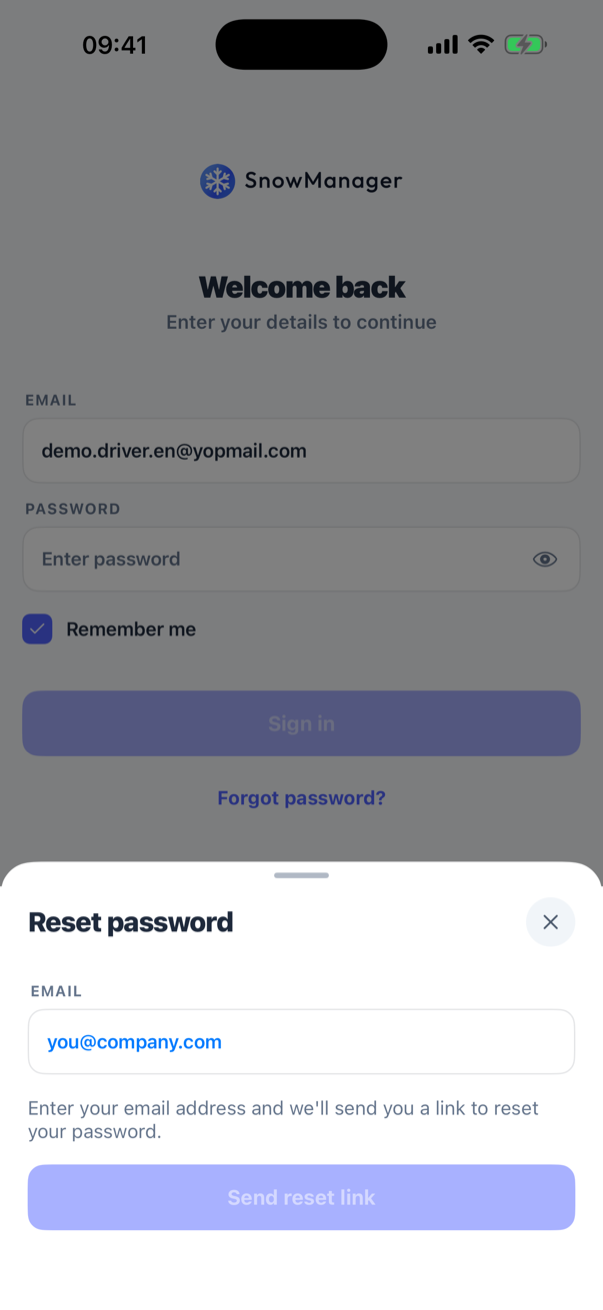
The app then says Check your email or messages. For safety it says the same whether or not an account exists, so if nothing arrives within a few minutes, check the address or number with your office. If you sign in with your phone number, the link comes by text message, at most once a minute and five times a day. The link opens the password page on the web and is good for 72 hours; the new password must be at least 12 characters, and choosing it signs you out of every other device.
Which language
A freshly installed app speaks Danish until you sign in the first time. From then on it follows the language on your user profile, which your administrator chose when inviting you; you can change it yourself under Profile, Language.
No connection
With no internet the app shows No internet connection with a Retry button and keeps you signed in; it does not ask for your password again. The same screen appears if the connection drops later while the app is open.