The Routes tab shows the routes the office has put you on, and under History, the dispatches you have driven. Both are read-only: a route is built and changed on the web (see build a route), and a stop is recorded on a dispatch, not here.
The route list
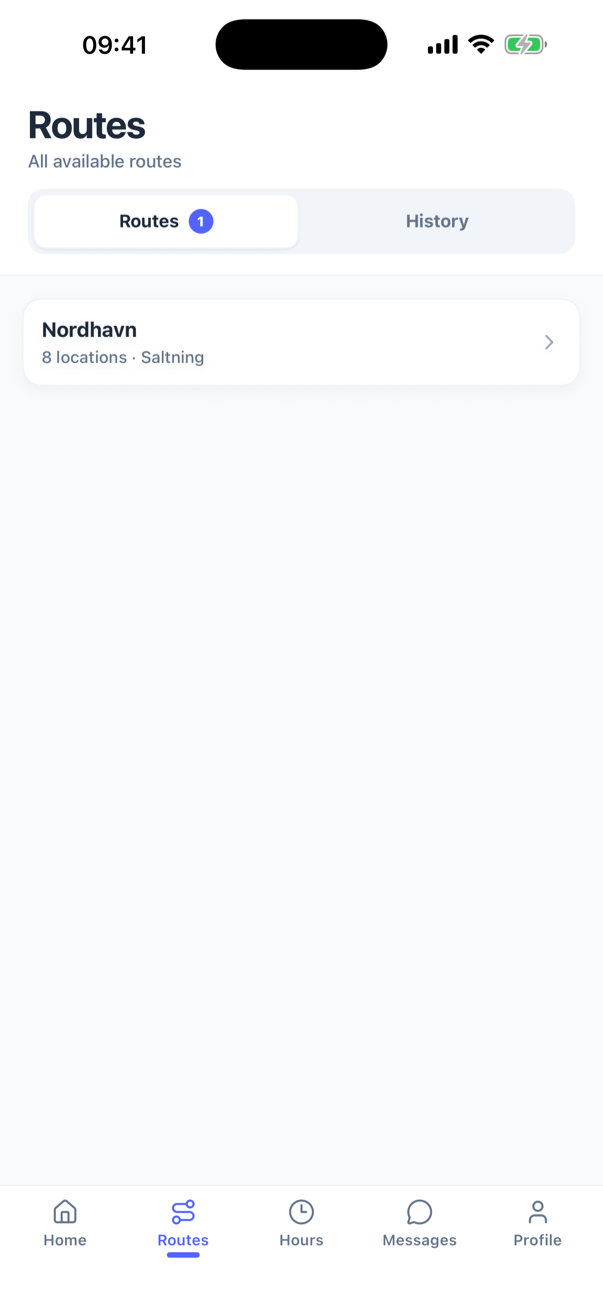
Under the title All available routes, two segments, Routes and History, each with a count. The list loads twenty rows at a time; scroll for more, pull down to refresh. A route you are not assigned to is not listed, so an empty tab says No routes yet.
Each row shows the route's name (or Untitled route) and what it holds. A route of addresses shows the number of locations and then its work types. A painted road route shows the roads and then the locations, as in 3 roads · 7 locations.
Open a route
- Tap a row. Route details opens.
- Read the info blocks: Work type, Planned time, Drivers assigned (or Unassigned), Dispatch note (or No note added). A road route also shows Roads and Length in km. In the latest version of the app, a Materials card under them adds up the materials of the route's stops, such as Salt 120, so you know what to bring; it is left out when no stop has one.
- Tap the map, or a stop in the list, for more.
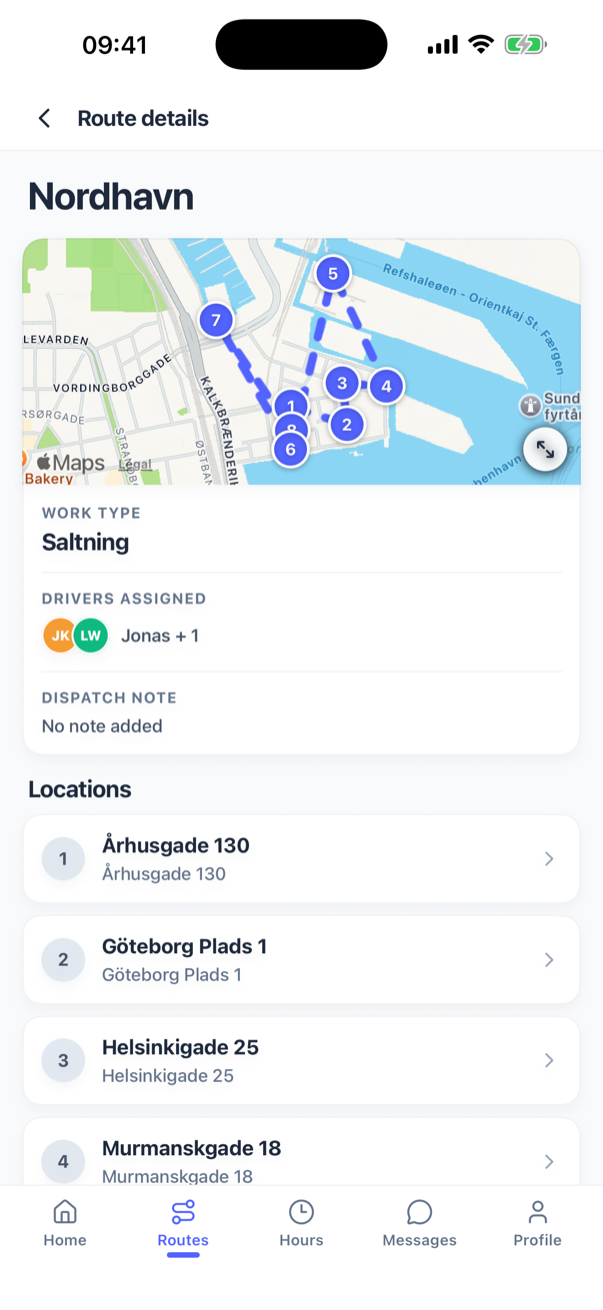
On a route of addresses the map carries one numbered pin per stop, in route order, joined by a dashed line, and the Locations list below repeats the order with the same numbers. On a painted road route the map shows the roads themselves and Locations is folded away (7 locations); there is no street list. Tap the map to open it full screen: pinch and pan, switch to satellite, and tap a pin for the name and address.
Tapping a stop opens Location info: the Work type (the route's own, not editable), a small map, Uploaded photos, the Location note, and the Site contact with Call, which dials the number. Nothing here can be changed. The order you drive in, the check-in, the note and the photos all belong to the dispatch: see drive a dispatch and record a stop. A painted road route is driven with its own map, see drive a painted road route.
History
History lists only closed dispatches. Chips at the top filter them: All, Completed, Canceled, Declined. Each row shows the time of day, the date, the work type and a status badge: Completed green, Canceled amber, Declined red (Planned grey and Started blue exist for the badge but a run still open is on Home, not here). Until you have finished a run, the list says No routes yet.; a chip with nothing behind it says No routes match this filter.
A run the office pulls arrives here the moment it is cancelled, whether they cancelled the whole dispatch or took just your route off one that is still running. It is no longer left on Home for the rest of the day: Active is the work still on you, and a cancelled run is history. What History covers is route runs, so a single address the office cancelled is not listed here, it simply leaves your phone; ask the office if you need to know why.
Tap a row for the same Route details view with a run summary (and the Materials card, counted over every stop of the run whatever its outcome):
- Status, and on a cancelled run the Cancellation reason in red.
- Start time and End time, as date and clock; a dash when the run never got that far.
- Distance driven, in km (metres under one km). It is the distance the coverage measured on a road route, otherwise the length of your GPS trail. A run with neither shows no distance.
The map above shows a road route's geometry with what you drove in green, or the numbered pins of an address route. Tap it to open full screen and replay the drive: when the trail has at least two points, a timeline appears with a slider to scrub, Replay drive and Pause replay, and a clock showing the real time of day at that point. A full replay takes thirty seconds however long the run was. The trail is yours unless your office has switched colleague routes on, in which case it is everybody's on the run; an administrator always sees everybody's. See what you can see.
A stop tapped in history opens Location info with a banner saying how it ended (This location has been marked as complete., This location was marked as unable to complete., This location has been cancelled.), the photos (or No photos uploaded), the Note from driver, the Location note and the Site contact. Nothing in history can be changed from the phone; the office can still edit an open dispatch on the web.